Dev Blog

UnityLearn – AI For Beginners – GOAP – Adding More Resources to the World

August 10, 2020

AI For Beginners

Goal Orientated Action Planning (GOAP)

Part 11


Beginner Programming: Unity Game Dev Courses

Unity Learn Course – AI For Beginners

Adding More Resources to the World

Adding More Resources to the World

The next step is setting up the use of the cubicles in the world. Similarly to patients, these cubicles act as a resource available to the agents. Therefore they must be monitored by the world state in some way to determine how many are available and which ones so they can be distributed properly when needed.

Setting this up was very similar to how the patient resources were. They added a queue of gameobjects to hold the cubicles in the GWorld class. This was a bit different as it also initialized full of resources, so the cubicles were immediately added to this queue (through FindGameObjectsWithTag) upon initialization. Then again similar to patients (except through the GWorld class itself instead of an action) a state was added to the WorldStates named “FreeCubicle” with a value equivalent to the number of cubicles.

Having these resources that are not other agents leads them to create a new class called GInventory to help organize and allocate these resources. The class created a list of gameobjects named items which effectively just stores whatever gameobjects may be needed as resources. The overarching GAgent class then had a GInventory added to it so all agents could access this pool or resources.

They then move on to the GetPatient GAction again to modify it to work with this new GInventory setup. They have added a gameobject named resource to hold a reference to a cubicle. The Preperform method of the GetPatient GAction now grabs a cubicle from the world state (if one is avaiable) and references it through this resource. If successful, it uses the WorldStates ModifyState method to reduce the “FreeCubicle” state by 1 through the following line:

GWorld.Instance.GetWorld().ModifyState(“FreeCubicle”, -1);

Similarly, the Postperform method of this GetPatient GAction now uses ModifyState to reduce the count of the “Waiting” state by 1 to account for the patient that is removed from the waiting status. Since every agent has a GInventory of their own now, this patient agent is given a reference to the same cubicle resource the nurse agent is using so that in the next steps they can travel to the same cubicle.

Summary

The addition of the GInventory adds another interesting avenue for organizing and allocating resources for the system to use. The following tutorials support the start of its utilization so I am interested to see how they further use this inventory system to properly maintain control of the resources of the world.

UnityLearn – AI For Beginners – GOAP – Creating a Multi-Step Plan & Plans That Require Multiple Agents

July 30, 2020

AI For Beginners

Goal Orientated Action Planning (GOAP)

Parts 9 and 10


Beginner Programming: Unity Game Dev Courses

Unity Learn Course – AI For Beginners

Creating a Multi-Step Plan

Creating a Multi-Step Plan

This tutorial begins linking multiple actions together to create more intricate action plans. To do so, they created a second GAction, GoToWaitingRoom. GoToHospital action was given an after effect of hasArrived and GoToWaitingRoom was given a precondition of hasArrived to give them a point to link together. GoToWaitingRoom was then given the after effect isWaiting, so that the goal given would match up with this second action’s outcome. This let’s the system take an input goal of isWaiting and deduce the plan of action to get there through these two actions.

Just to better visualize this demonstration, they created a basic spawner to consistently spawn in new patients to show that the newly created objects can follow the plans created properly as well.

Plans that Require Multiple Agents

Plans that Require Multiple Agents

I immediately had issues with this tutorial because they give a couple scripts directly to you for use in these next steps and they had compile errors in them that stopped me from progressing. These are the GAgentVisual and GAgentEditor classes. One of the first steps requires you to add the GAgentVisual component to the Patient game objects but I could not because of errors in the GAgentEditor class.

The issue was that it did not recognize the lists of preconditions and after effects within the GActions as KeyValuePairs. To resolve this, I modified them to go through the lists as WorldStates and just use those key values instead of the very direct Key values of a KeyValuePair. This at least removed the compile errors initially so I could progress.

This visualizer however is a nice addition. It lays out the individual agent’s plan as well as the preconditions and after effects throughout the process to help the designer keep track of what is going on behind the scenes. This is just generally helpful as well as a useful tool for debugging.

This tutorial begins to work with the nurse agents in the scene. Their first action is GetPatient, but it requires a precondition that is triggered by a change in the world state (beginning the idea of having plans involving multiple types of agents). This is done by adding the following line to the GoToWaitingRoom class:

GWorld.Instance.GetWorld().ModifyState(“Waiting”, 1);

To aid the nurses in keeping track of the patients, a queue of gameobjects holding the patient references was added to the overarching GWorld class. This gives a world state parameter to keep track of patients that the nurses can reference.

Getting the world states involved in the planning process has finally necessitated adding some logic to the Preperform and Postperform methods of the GActions. The patients GAction GoToWaitingRoom has a Postperform which informs the world state that more patients are waiting and adds them to the queue, while the nurses have a GAction GetPatient with a Preperform which checks if there are any patients in queue and sets their course for that target only if there is anyone waiting. This also begins the option of having plans “fail” because the goal cannot be met at this time.

Tutorial Progress Showing Patient and Nurse Agents in Action

Summary

These two tutorials have finally started showing the actual effects of this GOAP system. It shows how creating simple lists of actions can be done easily by the designer, as well as how much easier implementing world state AI is with this system. All of the data is nicely contained and distributed throughout the GActions, the GPlanner, GAgents, and the GWorld. I am excited to see how adding values to the different actions works out and how easily it is implemented on the design side.

UnityLearn – AI For Beginners – GOAP – Executing a Simple Plan

July 21, 2020

AI For Beginners

Goal Orientated Action Planning (GOAP)

Part 8


Beginner Programming: Unity Game Dev Courses

Unity Learn Course – AI For Beginners

Executing a Simple Plan

Executing a Simple Plan

This tutorial starts by actually implementing the newly created planner setup within the agents themselves. This involves creating a rather bulky LateUpdate method within the GAgents class which tries to handle all the possible cases of different states of having a planner and having actions to perform.

This LateUpdate can be broken down into four main sections:

  1. Continues running an action that is in progress
  2. Generates a plan and possibly an action queue if they are not already present in agent
  3. Removes goal and planner once entire action queue is used up
  4. Selects the next action in queue to start performing

They then created a new Patient class (which inherited from GAgent) to place on the patient agents and they created a new GoToHospital class (which inherited from GAction) to give this agent something to use with the planner. This was done to simply show the interaction of all these class types, the GAgent, GAction and GPlanner.

Summary

While brief, there is a lot going on in the GAgent class with this tutorial. I feel like having such a heavy Update type method (LateUpdate in this case) is not normally ideal, so there may be better ways to condense that section into separate methods or have other parts of the system help make some checks to support the GAgents class.

UnityLearn – AI For Beginners – GOAP – The GOAP Planner

July 21, 2020

AI For Beginners

Goal Orientated Action Planning (GOAP)

Part 7


Beginner Programming: Unity Game Dev Courses

Unity Learn Course – AI For Beginners

The GOAP Planner

GOAP Planner – Part 1

Planner starts by looking through all the achievable actions and finding which can be performed given the starting states from the first node. This can create the branches for the action network which will then continue to have actions connected to them (that satisfy the state conditions) until a chain is found that has a result which matches the initial goal.

GPlanner Class

The first major step of this class is creating the Plan method which returns a Queue of GActions (this will basically be the full list of actions that will be chosen to actual be acted out). This starts by making a List of usable GActions (those which satisfy the IsAhchieavable condition).

They then start a List of the newly create Node class objects, which acts as a more encompassing container for a GAction object. The most important data of which is the running cost of the entire branch of Node objects. This allows for the next step where they go through the list of Nodes (named leaves) to find the cheapest Node (which in turn is the cheapest path). The running cost is an assumption of the capabilities of the BuildGraph method they added in the middle of this process they have not yet defined.

Finally another List of GActions is created. This time the list is simply created by starting with the cheapest Node and following it back to the original Node through their parents contained within the Node class (this is basically a linked list, and also works similarly to the basic A* node/waypoint reading method I have worked with).

C# Note

When creating the Node helper class they made sure to create a new Dictionary and pass it the values from the other Dictionary since they wanted a new copy of that Dictionary. It is important to note that if you simply set the Dictionary equal to the other Dictionary that it becomes a pointer to that Dictionary as opposed to its own separate new Dictionary.

GOAP Planner – Part 2

This tutorial focuses on building the BuildGraph method for the GPlanner class. It is noted ahead of time that this method will strongly rely on recursion.

The BuildGraph method returns a bool value and has input parameters: Node parent, List leaves, List useableActions, and Dictionary goal. It begins by searching through the List of useableActions to determine which are achievable given the parent Node’s state.

For each achievable action, it creates a replica state of the parent Node’s state, searches through all the effects of that action (resulting states from performing the action), and adds any that are not already found in the current state to that replica state. This setup allows the method to predict what the chain of states would look like if it were to progress through these actions so it can determine a plausible entire chain of actions.

Using all of this information, a new Node object is created which receives the parent Node as its parent, the parent cost combined with the current action’s cost as its cost, the modified parent state as its currentState, and the action itself for its action.

Finally the recursion comes in to finish out the method. If the goal is achieved as indicated by the modified currentState outcome, the newly create Node is added to leaves, the true list of actions to perform. Otherwise, a new subset of actions is created from the full list of usableActions and passed into the BuildGraph method recursively (this subset simply removes the action it just tried since it was deemed ineffective). This continually shrinks down the list of actions to create the terminal condition for this recursive method. GoalAchieved and ActionSubset are two more methods used within this method to help with this final recursive step.

Summary

This section was very coding heavy and got deep into the core of creating the GOAP AI system. The GPlanner class is doing the heavy lifting of finding which actions are viable for an agent to perform and determining what chain of actions can get the agent from its initial world state to its final goal state it is aiming to achieve.

Indiecade Europe 2019 Talk – The Simple Yet Powerful Math We Don’t Talk About

July 7, 2020

Indiecade Europe 2019 Talk

Math in Game Dev

The Simple Yet Powerful Math We Don’t Talk About

Youtube – Link

By: Indiecade Europe


Presenter: Freya Holmér


Introduction

I am always interested to find new ways of using math within game development to produce fun and unique effects as well as for creating cool systems, so this talk sounded right up my alley. They focus on 3 major functions found in a lot of software as well as Unity: Lerp, InverseLerp, and Remap. While I have used Lerp pretty extensively already, I had never used the other two so covering all of them together was eye opening to see how many different ways they can be utilized for different systems.

Notes from Talk

Lerp

Lerp(a, b, t) = value

Lerp(a, b, t) where a is like the starting point, b is the end point, and t is a fraction, generally between 0 and 1. Lerp then outputs a blended value between a and b based on t. At t = 0, it outputs a, and at t = 1.0, it outputs b. t does not have to be a time value, it can be a value from anything. They show using values from positional data, so then your outputs are based on a location in space. Alpha blending literally just lerps pixels based on their alpha values to determine what to show when sprites are layered over each other.

Inverse Lerp

InverseLerp(a, b, value) = t

Just like how it sounds, this helps you find a t value based on some output Lerp value. They show an example of controlling audio volume based on distance using InverseLerp. Since it outputs values of t which are generally values between 0.0 and 1.0, you can use that t output as a multiplier for the volume. The a and b values placed in are the min and max distances (distances where sound stops getting louder even if you move closer, and distance where moving farther away can’t get quieter), and the distance is input as the “value”.

The InverseLerp example doesn’t particularly work well without clamping, so that’s the next feature that was covered. Some Lerp functions have clamping that can be applied, so keep this in mind when working with Lerps. InverseLerp can also be used to shrink a range down (again, with clamping in mind). So something like InverseLerp(0.3, 0.6, value) can compress a range so that everything that is 0.3 and lower becomes 0.0, everything at 0.6 and higher becomes 1.0, then the values in between become compressed between these new 0.0 and 1.0 values.

Color Elimination By Depth

InverseLerp can also be used separately on all three color channels (i.e. RGB) and this can be used to produce interesting color effects along with hue shifts that are difficult with normal gradients.

They cover how light color is affected by depth when traveling through water, showing a concise chart that shows how red light is lost quickly, green light is much slower, and then finally blue light lingers the longest, which gives the deep blue tones for the deepest water. Simply using this concept with Lerp and depth information, they created a pretty decent looking starting point for a water shader that was then prettied up with some extra effects (specular highlights, fog, and edge foam).

Remap

Remap(iMin, iMax, oMin, oMax, value) = ov

  • iMin and iMax are the input range
  • oMin and oMax are the output range
  • value is an input between iMin and iMax
  • ov is a value between oMin and oMax

Remap is like an all-in-one combination of Lerp and InverseLerp. To make that clear they showed the actual equivalent of Remap using these two.

t = InvLerp(iMin, iMax, value)
Lerp(oMin, oMax, t) = ov

Their examplpe for this was a health bar that changes color at certain value ranges (which is actually similar to something I had done in the past so Remap was a new way of approaching that I hadn’t seen before). The sample formula used for this was:

Remap(20, 50, Color.Red, Color.Green, health) = color

With inherent clamping, this makes the health bar pure red at 20 health and below, pure green at 50 health and above, then a blend of red and green at values between 20 and 50.

Other Examples

Some other examples they cover for Remap were:

  • Stats based on level (which can be useful unclamped so it will continue to grow)
  • Explosion damage based on distance (most likely want clamp since it could cause effects like healing very far away without it)
Simple Math Breakdown Behind the Functions

float Lerp(float a, float b, float t){
return (1.0f – t) * a + b * t;
}

float InvLerp(float a, float b, float v){
return (v – a) / (b – a);
}

float Remap(float iMin, float iMax, float oMin, float oMax, float v){
float t = InvLerp(iMin, iMax, v);
return Lerp(oMin, oMax, t);
}

They finally show a very complicated looking equation that is actually the equation behind Bezier Curves that are commonly found in any graphical software. They explain that a Bezier Curve is effectively just several Lerps of creating points and drawing lines between those points, between each point that is actually drawn by the user.

Summary

Covering Lerps is always interesting because there’s always a new way to learn how to utilize them. Learning about InverseLerp and Remap as well was very beneficial to me though, and they are covered in a very easy to understand way here that make it easy to look and implement them right away in my current or next projects. I actually have built systems already that I can think of using these tools (like the color range clamps for health bars) so I believe these will be very useful moving forward.

Overview of Hyperbolic and Spherical Space with Non-Euclidean Geometry

July 6, 2020

Non-Euclidean Geometry

Hyperbolic and Spherical Space

Non-Euclidean Geometry Explained – Hyperbolica Devlog #1

Youtube – Link

By: CodeParade


Introduction

I just find weird and interesting ways to apply math concepts interesting so I wanted to note this video I came across here. It covers the most basic principles of some non-Euclidean geometries and tries to explain them as simply as possible (which will still take several watches for me to truly grasp). The extra mathematical concepts they cover such as how these geometries change the formulas for circumference and area of a circle or the area of a triangle are really cool and it would be a fun challenge to explore how to use these effectively in a game space.

Speaking of, they actually mention a roguelike game that tries to use hyperbolic space as the environment for the player which can be found here (it can be downloaded freely at this time as well):
Hyper Rogue Site

Unity Isometric Tilemap Basics

July 1, 2020

Unity 2019

Isometric Tilemap

MAKING ISOMETRIC TILEMAP in Unity 2019! (Tutorial)

Youtube – Link

By: Sykoo


Introduction

My friend was interested in isometric art pieces recently so I got looking into them and became curious myself as to how to work with them in Unity. I had seen it was a feature before, so I just wanted to find a decent source to look back on the topic when I got an opening. This video looks like it covers the full basics pretty well with setting all the proper settings as well as exploring some of the different options you have to place the tiles at the correct elevations with proper visual blocking.

Architecture AI Prototype Historical Path Visualization and UI Updates

July 1, 2020

Architecture AI Project

Added Path Visualization and UI Updates

Introduction

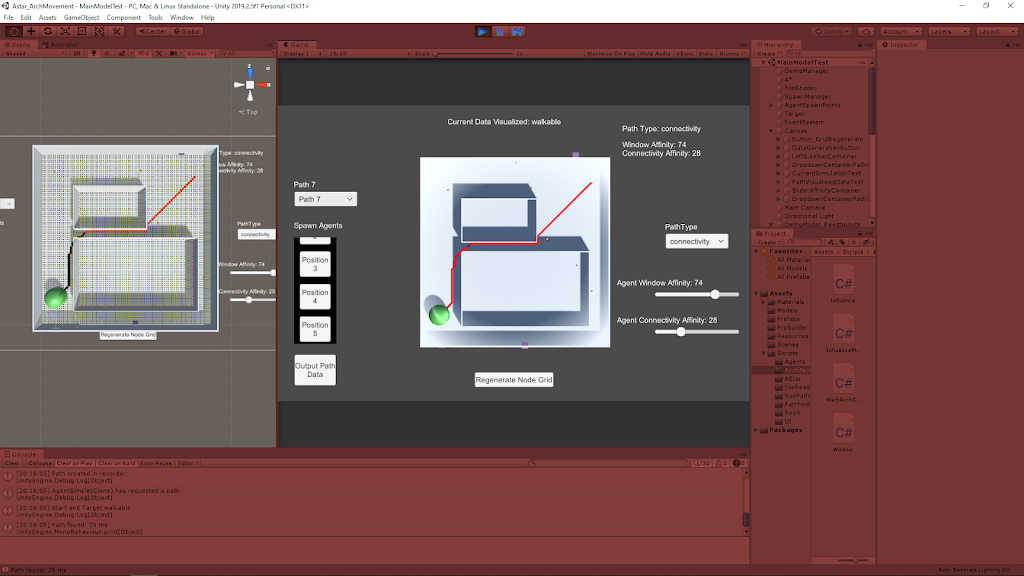
To top off the prototype, we added a quick visualization tool to show any paths that agents have taken within the current game session. This was necessary to make it easier to compare the paths of various combinations of agents and environments even. Along with this, some elements of modifying the system that were only accessible within the Unity Inspector have been moved to the in game UI. This makes it much more manageable to alter the agents and their pathing for Unity users and non-users alike.

The following quick reference image shows an example of this new path visualization tool (the red line going through the diagonal of the area).

Reference for New Path Visualization Tool (the Red Line is the Path)

Vimeo – My Demo of the Past Path Visualization Tool (with New UI Elements)

Past Path Visualization Feature

Visualization

The path data was already being recorded in an in-depth manner for storing the data in a text format for export, so here we just focused on using that data during the game session to provide another useful data visualization tool. This data is kept as an array of Node objects, which in turn individually hold information on their world position. This provided a solid foundation to visualize the information again.

The array of Nodes could then provide me with an array of world positions which I could use with Unity’s line renderer to create a basic line connecting all of these points. Using the line renderer component also leaves the tool flexible through the Inspector to modify how the line is drawn to fit different needs or environments.

Dropdown UI

To make this easy to access for the user, I added a Unity dropdown UI element to the scene to hold information about all the past paths. It initializes by creating a newly cleared dropdown and adding a simple “None” option which helps keep everything in line, as well as providing the user an obvious spot to go back to when they don’t want to show any previous paths. Then as paths are generated, more options are added to this dropdown to keep it in line with all the paths created (this also keeps their indices in sync for easy reference between the dropdown and the recorded paths).

Added UI Elements for Operating System

As a prototype tool, a quick way to allow for tweaking values and controlling assets is to just use public variables or Unity tool assets (like Unity Ranges and enums within the scripts). This became even cumbersome for myself, so it could be a large issue and slow down for less savvy Unity users. This made me want to explore moving some of these parameters into the game UI for easier use.

Agent Affinity Sliders

I looked into creating Unity UI sliders and since there were pretty easy to implement I moved the range sliders from the Unity Inspector for setting the different agent affinities for the next spawned agent to the game UI. This was straightforward in that the slider values could almost directly be transferred to the spawnmanager (The slider actually goes between values of 0.0 – 1.0 and is multiplied by the max affinity value of the system to properly stay constrained within that range).

Agent Pathing Type Dropdown

After exploring the dropdowns for the path history visualization tool, I also decided to use them for determining the path type of the next spawned agent. This allows the user to quickly choose between different architectural types to use to calculate the agent’s pathing.

Since the architectural types are within a public enum, the dropdown could be populated by the ToString() versions of this entire enum (which can be cycled through in C#). Since they are populated this way in order based on the enum itself, the dropdown can inform the PathFindingHeapSimple (the class that needs to know the type in order to determine which pathing calculations to use) based on the enum index number. They should be kept in sync based on the way the dropdown is created.

Summary

The past path visualization tool is very useful for comparing paths a bit more quickly (since changing values for individual paths can take a small bit of time). It may help in the future of the project to visualize multiple paths at once to directly compare paths very easily. The system also displays information about the path it is showing so the user knows better why the path is the way it is.

Unity’s UI elements are pretty easy to work with, and adding methods to their OnValueChanged delegate is a very nice and consistent way of only calling changes/methods specifically when a UI element is modified. This was perfect for both the dropdowns and the sliders since they only need to invoke change within the system when their values are changed. This keeps them a bit cleaner and more efficient.

The UI elements are strongly tied to the borders of the screen using the standard Unity positioning constraint system, so it can look really messy at smaller resolutions. It operates well enough since there’s not too much going on, so just allocating a decent resolution to the window when using it at least shows everything which is the most important aspect for a prototype.

Move in Unity3D by Jason Weimann – Covering All the Basics

June 30, 2020

Fundamentals of Movement in Unity

All Basic Options

Move in Unity3D – Ultimate Unity Tutorial

Youtube – Link

By: Jason Weimann


Introduction

This video stuck out to me because it always takes me a bit of time to setup even basic movement at the beginning of a small Unity project because there are just so many different approaches that will result in movement, but I always want to try and figure out the optimal solution. Jason Weimann is a great source for covering Unity basics, so this new tutorial looked like a good way to really nail down all the different basic movement options in Unity and really get a strong understanding of when to use different types of movement for different projects and why.

Architecture AI Completed Prototype with Data Visualization and Pathing Options

June 24, 2020

Architecture AI Project

Completed Project Prototype

Introduction

We were exploring different methods for importing architectural models into Unity and decided to try Revit to see what it had to offer. The models are easy to move between softwares, and it also creates .cs scripts that Unity can use to provide some interactive data visualization when using the Revit models.

Data Visualization Options

I moved everything dealing with the major logic of the A* grid node visualization into its own class named AStarGridVisualization. This allowed me to continue to hold on to all the different debug visualization methods I created over the course of the project and convert them into a list of options for the designer to use for visualization purposes.

As can be seen in the demo, there is a list of options in the drop down list in the Unity Inspector so the designer can tell the system which data to visualize from the nodes. The options currently available are: Walkable, Window, and Connectivity. Walkable shows which nodes are considered walkable or not. Window and Connectivity show a colored heat map to show those respective values within the nodes themselves.

Changing Values Used for Pathing

The project wanted to be able to use different types of values to see their effects on the agents’ pathing, so every node has several different types of architectural values (i.e. Window and Connectivity). Using the window information for pathing will give different agent paths than when using the connectivity values, because the agents have different affinities towards these types of values and the nodes have different values for these different types contained within the same node.

The PathFindingHeapSimple class handles the calculations for the costs of the paths for the agents, so I have also located the options to switch between pathing value checks here. This class is responsible for checking nodes and their values to see which lead to the lowest cost paths, so there is another drop down list available to the designer here that determines which architectural value type these checks look at when looking at the nodes. This allows the designer to choose which architectural value actually influences the agents’ paths.

A* Node Grid Construction Options

This point of the project was still working with various types of model imports from various softwares to find which worked the best and most consistent, so I added some extra options for generating the node grid in the first place to give some quick options that may better help line up the node coverage area with the model at hand. These major options located in the AGrid class itself are: GridOriginAtBottomLeft and UseHalfNodeOffset (the third is determining whether the system reads data from a file or not to add values to the node grid, but that’s a more file oriented option).

GridOriginAtBottomLeft

GridOriginAtBottomLeft determines where Unity’s origin is located relative to the node grid. When true, Unity’s origin is used as the bottom left most point of the entire node grid. When false, Unity’s origin is used as the central point of the generated node grid.

UseHalfNodeOffset

UseHalfNodeOffset is responsible for shifting the nodes ever so slightly to give a different centering option for the nodes. When true, half of the dimension of an individual node is added to the positioning vector of the node (in x and z) so that the node is centered within the coordinates made by the system. When false, the offset is not added, so the nodes are directly located exactly at the determined coordinates.

File Reading to Set Values Within Nodes

There are two major ways to apply architectural values to the nodes: using architectural objects (within Unity itself) or reading data from a file. The data files contain x and y coordinate information along with a value for a specific architectural value for many data points throughout a space. These files can be placed Unity’s Assets/Resources folder to be read into the system. The option referenced above in the AGrid to read data from a file or not is the IsReadingDataFromFile bool, and it just tells the system whether or not to check the file told to the system to assign values to the grid.

The FileReader object holds the CSVReader class which deals with the logic of actually reading this file information. The name of the file to be read needs to be inserted here (by copy/paste generally to make sure it is exact), and the dimensions of the data should be manually assigned at this time to make sure the system gets all of the data points and assigns them to the grid appropriately (these data dimensions are the “x dimensions” and “y/z dimensions” ranges of the coordinates within the data).

Demonstration of Prototype

This demonstration helps show the different data visualization options of the grid, the agent spawning system, how changing the architectural value path type changes the agents’ paths, and how a lot of these systems look in the Unity Inspector.

Vimeo – Architecture AI Project Prototype Demonstration

Summary

I really liked a lot of the options I was able to add to help increase the project’s overall usability and make it much easier to switch between various options at run time to test different setups. The end product is meant to help users that may not have a lot of Unity experience, so I tried to reduce the learning curve by making a lot of options easily accessible with visible bools and drop down lists, while also providing some simple buttons in the game space to help with some other basic actions (such as spawning new agents).

Many of the classes were constructed with scalability and efficiency in mind, so expanding the system should be very doable. However much of this scalability is still contained within the programming itself and the classes themselves would need to be modified to add more options to the system at this point (such as new architectural types). This is something I would like to make more accessible to the designer so that it’s intuitive and possible to modify without programming knowledge.

The file reading system works well enough for these basic cases, but it could definitely use some work to be more flexible and work with various node grid options. This is something I could use more work on in general, and having systems to read in files and output files to record data would be useful to understand better in general.