GDC Talks – GDC 2023 – Designing Marvel Snap

General

Designing ‘MARVEL SNAP’
by: Ben Brode
https://youtu.be/HjhsY2Zuo-c?list=PLJOqkQc0u8tyt9J6tHrmeg7sp8IJlS54L

Other Videos Referenced:
Hearthstone: 10 Bits Of Design Wisdom
by: Eric Dodds
https://youtu.be/pyjDMPTgxxk

How I Got My Mom to Play Through Plants vs. Zombies
by: George Fan
https://youtu.be/fbzhHSexzpY?list=PLJOqkQc0u8tyt9J6tHrmeg7sp8IJlS54L

Richard Garfield – “Luck in Games” talk at ITU Copenhagen
by: Richard Garfield
https://youtu.be/av5Hf7uOu-o?list=PLJOqkQc0u8tyt9J6tHrmeg7sp8IJlS54L

================================

Notes

They described game designers as chefs that collect ideas as ingredients and mix them together to create games. They reference how someone says they get a lot of ideas by going to game conventions.

Once they determined they were making a collectible card game, they just go out and play as many different versions of that type of game they can find to get inspiration and ideas as these ingredients. They also mention how this can help validate some of your design aspirations because when you see something working it can help confirm this is a decent idea to pursue. This can even help mitigate how much and how fast you need to make prototypes since you can see proof of and test certain mechanics in existing games.

They have this idea of “zero sum games = zero fun”, which I find very intriguing as someone that also looks at games like this at times. As in, what is the net entertainment you are bringing to society from creating a game. This leads them to focusing on enhancing “little victories” as a way to generate more consistent joy, particularly on the losing side, so there is more net joy created. They also just emphasize how single player sided games (it could even be a team of human players, like a PvE game) can more easily generate net joy.

  • They mention there’s a 2014 GDC talk on these Little Victories.
    • Link: https://youtu.be/pyjDMPTgxxk

Depth vs. Complexity

They explained these two terms simply as:
Complexity – cost you pay to play (learning needed to be done)
Depth – the fun part of the game (intereseting decisions you make)

They plot these two concepts on a chart, Complexity vs. Depth, and show that a game can be anywhere on here. They describe games that have significant depth with relatively low complexity “elegant designs”.


Doubling Cube Mechanic

They go into a lot of detail how much this doubling cube mechanic brings to a game. This mechanic is the idea of being able to influence the resulting winnings of a game directly and have the other player determine if they should concede or not based on these changes.

They witnessed that this cube mechanic could help generate significant little victories for the losing players. This was because the losing player could retreat early as the bet was increased, making them feel smart for leaving early before losing more resources.

They believe this also added a lot of depth to the game, similar to how betting and bluffing in poker adds a lot of depth to a rather simple game.


Text Complexity

Text in games, especially when it comes to instructions, is something I explore and encounter a lot and their findings gave a nice hard numerical line for this that I have been floating around for a while. They reference the 2012 GDC talk by George Fan on Plants vs. Zombies for their text rule, which is “Eight words on the screen at any given time”.

I would jokingly just say that players never read any text on the screen, so find a way to help them figure out what to do without any words if possible, so this was good to find that you can at least deliver a few words of instruction to the player that could be used as guidance.

They talk about how they used this principle to keep their individual card text as simple as possible as well. While not always able to fit the 8 word cutoff, they did use this as a starting point for when text was getting large. For actual text understandability they did playtesting where they had anyone raise their hand if they had to read a card more than once to see if they could trim.


Game Story

I love their story tier list for games because I feel that it’s an effective visual representation of how I feel about story in games that is hard to describe to people. They emphasize that an incredible story is still the best type of story to have for a game, but having no story at all is not too far behind, and having a bad story can actually be more detrimental than no story at all.

I would personally lump very minimalistic boring story in with “no story at all” because it does effectively become ignored. That will cost dev time and resources though, so from an actual game development perspective I think that ends up making it significantly worse since you’re getting a similar return to just doing nothing.


Mechanics from Other Games

I mostly wanted to have this section to show how you can just find interesting mechanics individually in games you play and that can be enough to go off of as your ingredient for working on designing a game that has that as a more core element or explores it in a different fashion.

Simultaneous Reveal:
They just found this mechanic very interesting and open, so they wanted to include it. They referenced a Lord of the Rings game like Stratego, and a Game of Thrones: The Board Game. They found just having this mechanic doesn’t work in a vacuum because it’s effectively random without context. Context is a critical secondary element needed to make this mechanic work.

Playing Cards to Locations:
They found this in Smash Up. They liked that this provided an easy point of variability and a point of context for the simultaneous reveal.


Luck vs. Skill

They open this section with their favorite talk of all time by Richard Garfield. They explain how most people see luck and skill as mutually exclusive factors, but they’re actually also plottable on the same graph and games can have any mixture of both.
i.e.
Chess = low luck; high skill
Chutes and Ladders = high luck; low skill
Poker = high luck; high skill

They cover input and output randomness concepts here.
Input randomness: the given inputs are random which give time to adjust (decide after random event).
Output randomness: randomness happens after input (decision) is already given.

As someone that grew up as one of the better local players for all types of games, I initially hated randomness as it provided the main point for me to lose games against people, and I wanted to win all the time. As I got older though, I learned to enjoy and embrace randomness in games, as it could simply provide a way for others to win even when I felt like I played better, which could actually leave us both feeling better about the games. Randomness also gives you a factor to play around as a more skilled player others may not even be aware of that helps you consistently win more, even if it doesn’t mean winning every game, which again can give you those feelings of “feeling smart” on your own, even if other players aren’t even aware.


Final Details on Core Game Loop

They wrap the talk up with some points on how they brought all their design ingredients together. They found the locations could help influence metas and provide a strong point of variance over game life, so they prepped a lot of locations to slowly add to the game after launch, had different rates for locations to change meta, and would swap out locations to also impact metas.

They talked about how changing the game siginficantly is just easier with smaller teams than larger teams. They mentioned how some UI decisions actually impacted game mechanics, like targeting being confusing on a mobile game so they just removed a layer of targeting from their game mechanics entirely to fit their targeted game platform and feel.

Unreal Ultimate 2D Topdown Udemy Course – Section 4 – Monster World Project

March 13, 2026

The Ultimate 2D Top Down Unreal Engine Course

Title:
The Ultimate 2D Top Down Unreal Engine Course
By:
Cobra Code

https://www.udemy.com/course/unreal-2d-top-down/
Udemy Course Link

Description:
Section 4 focuses on creating a small project similar to an old school Pokemon game using Paper 2D.

Overview:
This section really gets you started on using Paper2D within Unreal. Everything from handling Sprite assets to tile maps to basic animations and layer sorting are covered.

My Notes Breakdown by Sub-Sections:

16. Monster World Overview

Overview of what is covered in this section.
Shows it’s similar to an older Pokemon style game.
Sprite importing and asset management, tiles, layering.
Text box setup.

================================

17. Setting Up the Project and Importing Assets

Starting with Blank project:

  • Blueprint
  • Target Platform: Desktop

Created “New Level”

  • Empty level option

Saved this new level as its own Level asset in a folder named “Maps”

  • like Unity’s Scene assets somewhat

Project assets’ license is: CC0

  • free to use in your own games

Asset Type Conversion Rundown

  1. Characters > Flipbook
  2. Environment Tiles > Tilemap
  3. Environment Flowers > Flipbook
  4. Environment Other > Static Sprites

Creating Static Sprites

Example:
On Chest sprite:
– RMB
– Sprite Actions > Create Sprite

  • this creates a Sprite asset from the Texture asset

Importing Sprite Assets

By default, sprite assets usually look off on initial import.
After importing:

  1. Right click and select: Sprite Action > Apply Paper2D Texture Settings

This changes some of the direct art asset settings:

  1. Mip Gen Setting: NoMipmaps
  2. Texture Group: 2D Pixels (unfiltered)
  3. Editor Show Final Encode: TRUE
  4. Compression Settings: UserInterface2D (RGBA)
  5. Filter: Default (from Texture Group)
    • NOT Bilinear or Trilinear

UI:

  • also applied the Paper2D Texture Settings since it is pixel art.

================================

18. Making a Tile Set and Tile Map

Tile Set is like a palette of brushes you can use to create a Tile Map.

After placing the Tile Map into the Viewport, they rotated it 270 along the x-axis to lay it “flat” in the world.

  • They mentioned this is helpful with having the NavMesh setup work properly.

To prevent tearing between tiles, they generated a padded version of the Tile Set asset.

  • this creates another Texture asset with some padding effect to prevent them from bleeding into each other.
  • it looks like this just very literally duplicates the edge pixel all around the border of each tile a couple times and expands the tiles outward to fit them.
    • so assume this is to prevent those weird super tiny “gaps” you can get between exact sized tiles sometimes?

Creating Tile Set

Select Texture Asset
RMB
Sprite Actions > Create Tile Set


Tile Set Settings

Modify Tile Size to fit your individual tile sprite dimensions:
i.e. 16 px x 16 px

Setting Collision

  • Select Tile
  • Click “Add Box”

Removing Collider:

  • Under Single Tile Editor, click Reset next to Index [0] – 2 members.
    • * This is not very intuitive, seems very complex for section handling collider.

Tile Map

Create Tile Map:

  1. Select Tile Set asset
  2. RMB
  3. Create Tile Map

Active Tile Set:

  • Tile Set assets to select tiles from.
  • Can add multiple Tile Set assets at once.

Can “stamp” an area of selected tiles by holding Shift to create a selection for the stamp.

Tile Layer List:

  • allows for layering of tile layers

Setup:

  • where you set the full width and height of the map (in tiles)

================================

19. Preparing the Character Sprites


General

Modifying parameters of several assets at once.

  1. Shift select all the assets.
  2. RMB
  3. Asset Actions > Edit Selection in Property Matrix

Converting a Sprite Sheet to Flipbook

Select sprite Texture Asset and:

  • Sprite Actions > Extract Sprites

Extract Sprites generally defaults to Sprite Extract Mode : Auto.

  • but you generally change it to Sprite Extract Mode : Grid.
    • because you want the sprites to fit a general grid size, and not the smallest space possible.

Creating Flipbook Asset:

  1. Select multiple Sprite Asset
  2. RMB
  3. Create Flipbook

Working with Flipbook

Flipbook asset has a Frames Per Second parameter that can be modified to change the speed the Flipbook is played.

  • controls the general speed the animation is played

Making Character Flipbooks

They made separate Flipbook assets for each direction of the walking animation.
They also made separate Flipbook assets for the Idle of each direction.

  • each of these was just a single Spirte asset converted into a Flipbook

Folder Organization

Example for Character sprite assets:
PaperAssets > Characters > Red

  • this is the parent path to all sprite assets for this single character, Red.
  • this is also used to contain assets used directly by the game as they described.
    • so it contains all the Paper Flipbook assets (the animation assets)

PaperAssets > Characters > Red > Frames

  • placed all the individual extracted Sprite assets here.
  • (after extracting them from the Sprite sheet)

PaperAssets > Characters > Red > Textures

  • Sprite sheet placed in here (Since it is a Texture asset)

Naming Conventions

Flipbook Assets examples:
FB_Red_Walk_D

  • FB for Flipbook
  • Red is the character
  • Walk describes the animation
  • D is for down, which is the specific walking animation of that Flipbook.

FB_Red_Idle_R

  • FB for Flipbook
  • Red is the character.
  • Idle describes the animation.
  • R is for right.

================================

20. Best Project Settings for 2D Games

Common Problems:

  • motion blur and anti-aliasing can cause visual problems.

Link for “Best 2D Settings for Unreal Engine 5”:
https://cobracode.notion.site/Best-2D-Settings-for-Unreal-Engine-5-0895133a56924f1ca7f2149cf111983b

  • They just go through this list and set these settings any time they do a new 2D project.

Selecting All Assets in Project of a certain Type:

  • can use the Filter in the Content Drawer.
  • After selecting the Filter, can just enter the asset type you are interested in, and it’ll display all assets of that type in the project.

** They created Project Templates that just have all these settings set for 2D games immediately.


Project Settings

Turn OFF Auto Exposure.

  • having this can cause dark scenes to get brighter over time.
    • I saw this happening when I was tinkering with settings before and thought something was broken!

Motion Blur = OFF


Post Processing Settings

Access through Quick Add Menu.

PostProcessVolume default only applies if camera is within the volume.
Can make the PostProcessVolume affect everything by setting Infinite Extent (Unbound) to TRUE.


Texture Settings

  • For some reason for 2D Sprite Texture assets, if you set the Filter to Default (from Texture Group), it can look correct in editor but reverts to an option like Bilinear in builds which makes them blurry again.
  • to solve this, they select the Filter: Nearest.

================================

21. Character Blueprint and Pixels Per Unit

Blueprint for character:

  • created as Paper Character Blueprint

With a discrepancy between the Sprite asset and the Paper Character Blueprint size, they recommend making the Sprite larger.

  • the Paper Character makes assumptions about the general size of the character, which is what it is approximately sized at by default, so better to get closer to that instead of the other way around.

*** 1 Unreal Engine Unit = 1 cm
– this is DIFFERENT from Unity, which generally considers 1 unit as 1 m.
– this technically isn’t “real” but is a universally accepted approximation.

** There is a project wide setting to have a default Pixels per Unit set for all imported assets.


Pixels Per Unit

Sets scaling of pixels to 1 Unreal Engine Unit.

  • This is their recommended way of scaling pixel art assets.
    • this is similar to Unity.
    • this is done on the Sprite assets

They changed all their Sprite assets across the board to the same Pixels per Unit value.

  • I think this might be the ideal practice, but not positive.

Also need to change Tile Map assets Pixels per Unit values.

================================

22. Setting up the Camera and Possessing the Character

Added Player Start actor to Viewport.

  • appears to be a sort of spawn point that connects to a Game Mode (like a Game Manager)

Created new Game Mode Blueprint

  • think this is like a manager class in Unity?

*** FIXED EDITOR CAMERA ROTATION PROBLEM:
– Somehow my camera in Editor started rotating abnormally (directions were very backwards).
– You can fully reset the Editor camera by entering this command in the Console Commands:
BUGITGO 0 0 0 0 0 0

Settings Cameras to Orthographic helps ignore “height” differences along the z-axis.

  • including preventing character from “falling” into place at game start if it spawns above the ground.
  • They disabled Do Collision Test on SpringArm.
    • not needed for 2D games.

Character Blueprint

Added a Spring Arm.

  • with a Camera.

Setting the Default Game Mode

Go to:

  • Edit > Project Settings… > Project > Maps & Modes
    • set Default GameMode to the newly created one: GM_TopDown
  • Here you can also set the Map that opens on Editor Startup and the Game Default.
    • This feels like setting Scenes in the Build Settings for Unity.

================================

23. Enhanced Input and Character Movement

Uses new Enhanced Input Actions setup from Unreal Engine 5.1 on.

Input Actions setup requires two main parts:

  1. Input Actions
    • seems to be individual inputs.
  2. Input Mapping Context
    • the full mapping of all the inputs to their output game behaviors.
  • They noted in the character controller Blueprint Event Graph setup that using Get Controller and casting to Player Controller is nicer for multiplayer setup.
  • Directly getting the Player Controller requires setting a player index for multiplayer.

Input Actions

Created a single Input Action, Move.
Set its Value Type to: Axis2D (Vector 2D)


Input Mapping Context

This is where you associate an input (i.e. a keyboard key press of “A”) with a specific Input Action.
Can also apply Modifiers to these values based on different inputs.

  • i.e. Lets you use a single Input Action but different inputs (i.e. W and S) to go different directions based on the Modifiers.

For the IMC_TopDown (primary player controller for this project):

  • set W, A, S, and D as 4 separate input mappings all under the single IA_Move Input Action.
  • used modifiers to apply this in the different directions
    • combinations of Negate and Swizzle
    • Negate reverses direction.
    • Swizzle changes axis.

Folder Organization

Content > Input

  • main folder for all input assets
  • Input Mapping Context assets at this level

Content > Input > Actions

  • put Input Action assets here.

Player Blueprint Event Graph Setup

Need to initialize Input Mapping Context.

  • Get Controller > Cast to PlayerController > Enhanced Input Local Player Subsystem > Add Mapping Context

Created an Enhanced Action Event from our Input Action asset, IA_Move.

  • Triggered: occurs constantly multiple times as this input as held down.
    • like Unity Input.GetKey
  • Started: occurs once right when input is entered.
    • like Unity Input.GetKeyDown
  • Action Value: the return value of this input.

In this case, the Action Value would return a Vector2D based on our Input Mapping Context, including the Negates and Swizzles.

  • used this with a Break Vector2D node to separate out the X and Y values.

Add Movement Input node:

  • inherited from Pawn class
  • could take broken down x and y values as input in Scale Value along with appropriate directional World Direction values to move player in correct directions based on input.

================================

24. Directional Character Animations from Scratch

Promoted Action Value of Enhanced Action Event to Variable.

  • makes it a variable in the Blueprint you have access to.

Renamed the Action Value variable to Directionality.

  • used the values of this Vector2D to determine the direction of the player to update the sprite accordingly (with many bool checks).
  • changed Sprite by using Set Flipbook node, with the Blueprint Sprite dragged in as reference.
    • Set Flipbook seems to work somewhat like Unity when playing an animation, if using sprite assets.

Creating a Function:

  • collapsed a bunch of added nodes into a single function.
    1. Select all nodes.
    2. RMB
    3. Collapse to Function
  • then just renamed the Function to UpdateAnimation.

Enhanced Input Event > Completed

  • happens a single time when input is released.
  • like Unity Input.GetKeyUp

Branch node:

  • if else statement node

================================

25. Adjusting the map and collisions

Removed all the individual tile colliders from our Tile Set asset.
Replaced those with a single Plane in our Map with a single collider.

  • still using a collider to keep player from falling through floor.

Game is still using 3D collision for collision detection.
Changed CharacterMovement component’s Max Step Height from 45 to 10.

  • ** They recommend not using 0 because even as a 2D game where that could make sense, it can cause weird issues even walking over flat terrain and doesn’t even work for collision well anyway.

Modified the Sprite assets to make their colliders thicker.

  • thickened from 10 to 100 on the sign and tree Sprites.

================================

26. Foreground and Background sorting

  • They don’t include the individual Sprite assets in the environment Tile Map because it restricts your options for layer sorting this way with Unreal Paper.

Keys:

  1. Made all Sprites use Material: TranslucentUnlitSpriteMaterial
  2. Edited colliders of all Sprite assets we wanted to be able to walk behind to about 1/3 their full height.
  3. Moved Sprite privots to Bottom Center.
  4. In Unreal Project Settings > Engine – Rendering
    • set Translucent Sort Policy to: Sort Along Axis
    • the default axis to sort along was correct (0, -1, 0)

Shrunk player collider radius so top doesn’t have as much collision area.
Make sure Material changes apply to Sprites in Blueprints.

  • Blueprint Material settings will override base Sprite settings, so have to go into them individually to check and update if needed.

================================

27. Project files with layer sorting

  • Just a checkpoint to download a new project file if you messed up earlier steps.

================================

28. Creating a simple message UI with custom fonts

2 main parts:

  1. Widget for entire screen
  2. Modular part for message box

Widgets = UI elements in Unreal Engine

** Want to minimize use of Canvases in Unreal for optimization purposes.

Created two new Widget Blueprints:

  1. WBP_MessageBox
    • simple text containing message box.
    • Modified: padding, Screen Size – Desired, font, Auto Wrap Text to TRUE.
  2. WBP_MainHUD
    • has our singular Canvas.
    • contains the Message Box.
      • anchored and positioned to bottom center of screen

In BP_Red (Player Blueprint) we generate the WBP_MainHUD on start, and set it as a variable reference useable later.

================================

29. Making a pickup

  • They recommend creating a separate collider for interactions.
    • like separating the trigger / interactive collider from the physicsl obstacle layer collider.

Created a Blueprint for the item itself, BP_Pickup.

  • in this Blueprint, created a GetPicked function.

In the player Blueprint (BP_Red):

  • added new Input Action event for Interact
  • on Started of this action, do check
    • so it only happens a single time on input
  • when interacting, do a Overlapping Actors collision check to find in range colliders.
  • check by cast if any are BP_Pickup
  • if so, invoke GetPicked function

Blueprints

Events cannot have a return type.

================================

30. Showing the item message

Shortcuts:
Ctrl + P = brings up search window for assets

Created function within the WBP_MainHUD to change visibility.
BP_Red (player controller) invokes control of message display using collision detection with interact Input Action.
Setup simple Retriggerable Delay to have message go away after some time.
Made BP_Pickup ItemName string and ItemID int Instance Editable so we could have different BP_Pickup actors in Viewport with different ItemName and ItemID.

================================

31. NPC Dialogue and Interfaces


Technical

Casts are a hard reference.

  • So if you load a Blueprint with a cast, it must also load any casted Blueprint types.
  • increases load times.

** Can use Reference Viewer to see dependency chains.

They setup a Blueprint Interface.

  • reduces hard references.
  • more scalable Blueprint setup in BP_Red (player controller).

Unreal Ultimate 2D Topdown Udemy Course – Section 2 – Unreal Engine 5 Crash Course

March 6, 2026

The Ultimate 2D Top Down Unreal Engine Course

Title:
The Ultimate 2D Top Down Unreal Engine Course
By:
Cobra Code

https://www.udemy.com/course/unreal-2d-top-down/
Udemy Course Link

Description:
Section 2 is focused on covering the basic fundamentals of using the Unreal Engine (specifically Unreal Engine 5).

Overview:
I make a lot of personal comparisons to Unity since I’m much more familiar with it. That helps me envision how the different parts of the project connect since I already have a mental image of how it flows in Unity.

My Notes Breakdown by Sub-Sections:

7. How to Install Unreal Engine 5

Download Epic Games Launcher.
Get Unreal Engine 5.4

================================

8. How to create a new Project

Created a new Third Person Template project named “CrashCourse”

================================

9. How to navigate the Editor

Main Window = Viewport
Has similar translate, rotate, and scale gizmos to Unity when selecting(left-click) objects.

Undo:
Ctrl + Z

Redo:
Ctrl + Y

Selection Shortcuts:
W = translate
E = rotate
R = scale

Can change translate, rotate, and scale snap increments in top right of Viewport.


Camera Movements

Hold Right-Click and drag = rotate view
Hold Middle MB = pan view
Hold Right-Click + WASD = translate camera like 3rd person floating camera
Hold Right-Click + scroll scroll wheel = increase/decrease movement sensitivity (move camera faster or slower)
Scroll scroll wheel = zoom in/out


View Modes

Basic is Lit.
Has options like: Unlit, Wireframe.

Show button:

  1. Navigation used sometimes to check Unreal NavMesh.
  2. Collision used to check actual collision of meshes in testing/debugging.

World Outliner

  • Unreal equivalent of Unity’s Inspector.

Can press “F” with something highlighted in the Outliner to focus on it.

  • * Also like Unity

Play Mode

Start by:

  1. Pressing Play button at top of Viewport.
  2. Alt + P

ESC = exit play mode
Shift + F1 = get mouse controls back to interact with editor
Shift + F1 + click Eject = get mouse controls back, and be able to click in Viewport to edit

Can make changes during play mode, but they will not be saved upon leaving play mode.

  • * Also like Unity

Viewport seems to act as both the Scene and Game view from Unity.

================================

10. Content Drawer and Blueprints

Content Drawer appears to be like the Assets section from Unity.


Content Drawer

Ctrl + Space = shortcut to pop open this drawer


Blueprints

Common naming convention:
prefix with “BP_”

Event Graph
The Event Graph portion of a Blueprint is the visual scripting aspect that houses a lot of the logic building.

Viewport
Shows the full structure of the Blueprint in more of a game space view.

They are much more than just the “code” or logic of something.
They are the full makeup of an entire object.

  • * Closer to a fully built out Unity prefab.

================================

11. How to make a simple Blueprint

When creating a new Blueprint, there are many options to base them off of.

  1. There are a few main options, with Actor being the simplest.
    • Actor seems comparable to GameObject from Unity.
  2. Then there are hundreds of other more specific case options.

Naming Conventions for Unreal Assets

Recommended Unreal Asset Naming Convention Link:
https://dev.epicgames.com/documentation/en-us/unreal-engine/recommended-asset-naming-conventions-in-unreal-engine-projects

[AssetTypePrefix][AssetName][Descriptor]_[OptionalVariantLetterOrNumber]

  • AssetTypePrefix identifies the type of Asset, refer to the table below for details.
  • AssetName is the Asset’s name.
  • Descriptor provides additional context for the Asset, to help identify how it is used. For example, whether a texture is a normal map or an opacity map.
  • OptionalVariantLetterOrNumber is optionally used to differentiate between multiple versions or variations of an asset.

================================

12. Adding functionality to our Blueprint

Event BeginPlay:

  • similar to Unity Start

Event Tick:

  • like Unity Update

Event ActionBeginOverlap:

  • they just don’t like it there at the highest level of the Blueprint because it’s ambiguous
  • they prefer adding it more directly on component it relates to

They basically setup a speed increasing pickup in this section.

  • very similar practices to Unity, just done with Blueprints and slightly different jargon.
  • Remember to connect Exec pins properly.
  • Ensures they even run.
  • Determines the logic order.
    • basically how lines of code would be structured

Events:

  • found when selecting a component in a Blueprint, shows up in the Details panel.
  • this example focused on OnComponentBeginOverlap
  • USE Print String like Debug.Log!

Pickup Edits

OnComponentBeginOverlap

  • like Unity OnColliderEnter

Destroy Actor

  • like Unity GameObject.Destroy

Used “Cast To BP_ThirdPersonCharacter” with OnComponentBeginOverlap to ensure collision logic only occurred when colliding with the player.

  • like checking GetComponent against something only player has to check what collided.

Collision Parameters

Changed Collision Presets of the pickup spheres from BlockAllDynamic to OverlapAllDynamic.

  • goes from being a solid obstacle to something that can just be passed through.
  • like Unity trigger vs. non-trigger colliders.

Event Graph

In My Blueprint panel, you can add variables.

  • these can then be drag ‘n dropped into Event Graph to utilize them.
  • first step to having a variable at higher level instead of coding it in line.

Can set variables to “Instance Editable” in Details panel.

  • makes them viewable and editable on an instance by instance basis.
  • viewable in Outliner
  • like Unity accessible variables in Inspector at this point.

In My Blueprint panel, you can add new Functions.

  • literally exactly like adding a method to a class.

Can add input parameters to the function.

  • Select the original function node.
  • In Details panel, add new Inputs.
  • adds a new corresponding output pin to the function node.
    • since that value will be coming IN to the function when it’s actually used.

Event Graph Shortcuts

Alt + LMB (on graph line) = deletes graph line
Double Click LMB (on graph line) = generates extra reroute node


Viewport Shortcuts

Alt + LMB Drag on gizmos = duplicates an object

================================

13. Useful Keyboard Shortcuts and Tips

Undo = Ctrl + Z
Redo = Ctrl + Y
Multi-select = Ctrl + LMB OR Shift + LMB
– works in both the Viewport and the Content Drawer
Save ALL = Ctrl + Shift + S
Alt + LMB drag gizmo = Duplicate object


Event Graph

Ctrl + LMB Drag Variable = Getter Node
Alt + LMB Drag Variable = Setter Node
LMB Drag Variable = displays option for Getter or Setter Node

================================

14. How to debug your Games

Print String

  • like Debug.Log in Unity

Valentines Game – First Prototype

March 3, 2026

Valentines Game

Description:
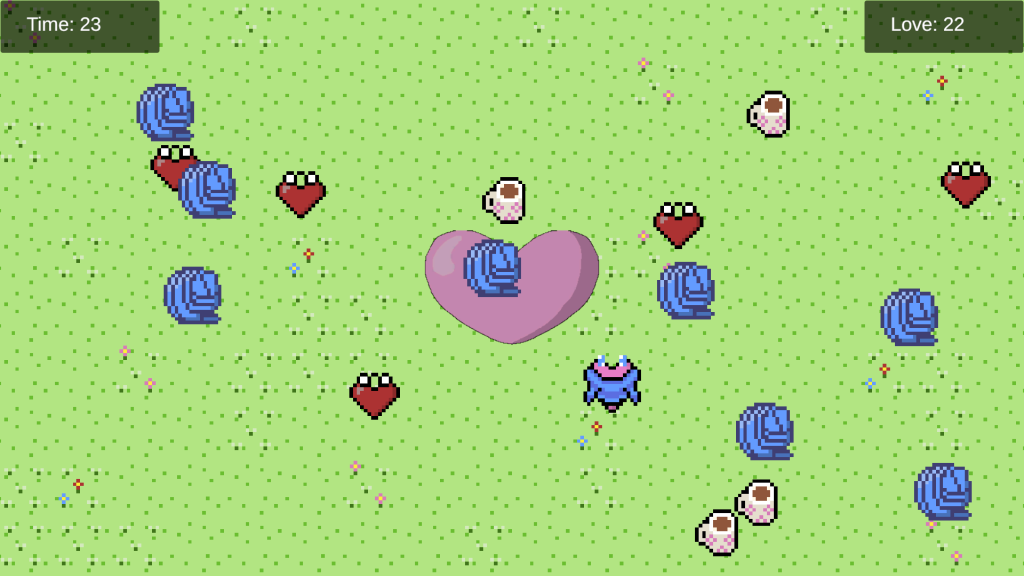
About a month ago for Valentine’s Day, I created a very quick rough game prototype for my wife as a gift.

Overview:
I wanted to create a very small, quick game as a gift for my wife for Valentine’s day. The main goals of this project were: make it nice and personalized, create something playable very quickly (since I had about 4 days to make it at the time), and learn to create digital art in some form.

The very small timeline was a good test to see how quickly I could put a playalbe demo of something together. Making it personalized and learning to create digital art went hand in hand, and I decided to get back into using Aseprite as a seemingly quick way to get into making digital art in some form since it is pretty basic and you can emulate existing sprite art relatively easily.

Aesprite:
As mentioned, my art software of choice for this project was Aesprite. It was actually very quick to pick this up if you do not need any fancy art tools besides “click to make pixels and sprites”. I could immediately generate single frame sprites and export those to easy to use 16 px x 16 px PNGs to use in the game. And I knew for the player I wanted the sprite to change as it constructed its own sweater, so that provided a quick pathway to starting to learn how to setup a basic sprite sheet in Aesprite by just adding a few frames to a given Aesprite file (which will be helpful for getting into animation later).

Screenshot of Current State of Game:

Screenshot of Valentine's Game Prototype

Unreal Ultimate 2D Topdown Udemy Course – Overview

March 3, 2026

The Ultimate 2D Top Down Unreal Engine Course

Title:

The Ultimate 2D Top Down Unreal Engine Course


By:
Cobra Code

Udemy Course Link

Description:
Comprehensive course of learning the basics of Unreal and creating 2D projects with it, with a focus on Paper2D.

Overview:
I wanted to get some general Unreal experience, and was recommended this interesting tutorial, so figured this would be a good place to start. While Unreal is primarily an engine for 3D projects, this course specifically targets how to create a 2D project using it. I thought this would actually be a good starting point because it still covers all the general Unreal basics, while exploring something a bit off the conventional path seemed like it’d also help teach me some of the more niche aspects of the engine thereby making it wider than a lot of other intro courses.

This course also has you create several entirely separate 2D projects, covering a lot of types of games I am interested in. The first is a fully topdown adventure demo in the lines of a Pokemon type game. The second is another fully topdown game that resembles older 2D Zelda titles, with combat. The third is what they call a 2D/3D hybrid, resembling an Octopath Traveler, which combines 2D and 3D assets, and is something I could see Unreal being particularly good to use to build.

Modding Monster Train – Editing Name of Champion Tutorial

June 22, 2021

Modding

Monster Train


Title:
Monster Train – Shiny Mark mades mods

By:
Good Shepherd Entertainment


Youtube – Tutorial #1

Description:
Extremely basic introduction to setting up a C# project for modding Monster Train (slightly outdated).


Overview

This was an introductory tutorial mostly meant to help you learn how to setup a C# project to mod Monster Train. It has however become slightly deprecated since the DLC was launched, however it did lead to me gaining a better grasp on the logging system for debugging.

Following Tutorial

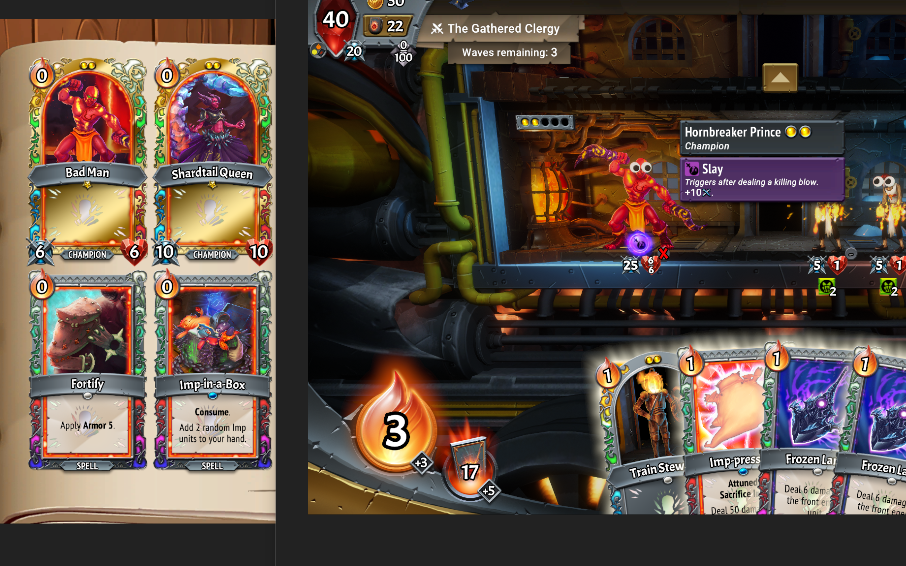
This tutorial is rather straight forward, but even this had its fair share of issues. One of the first major blocks I ran into and resolved was how strict Harmony is with some of the ways it interacts with the base game code. Specifically, the __result parameters used in the Postfix() methods specifically require EXACTLY 2 underscores before ‘result’. This is actually just part of their system of naming conventions, and is further explained in other Monster Train modding documentation.

The other issue I encountered is that one of the renaming conventions was not working. I was able to change the name on the card (the CardState change), however changing the name while the unit was in the train (the CharacterData change) was not performing as expected. I was able to find through logging that the method being called was indeed returning the string “Hornbreaker Prince” and my system was identifying that, but for whatever reason the result was not changing the ‘in train name’. My suspicion is that an updated underlying system is actually returning the name of the unit back to ‘Hornbreaker Prince’ and it also needs to be changed somewhere else, but I am unsure where that would be.

Either way, changing the name of a card can be done in better ways so this issue does not particularly need resolved. Some others mentioned going through Monster Train’s localization system to find a better place to change the name of a card.

Confirming Updated DLC as Error

To check that this was not just an error in my code or program, I downloaded the existing mod created in the above mentioned tutorial (as it is available in the Steam Workshop). Sure enough, even though it is seen working in the old video, the download of that mod had the same result as my mod. The name on the card was changed to ‘Frank’ but the name on the unit in the train was still ‘Hornbreaker Prince’.

Fig. 1: Showing Side by Side of Where the Name Change Worked and Did Not Work

via Blogger http://stevelilleyschool.blogspot.com/2021/06/modding-monster-train-editing-name-of.html

Unity Shader Graph – Grid Shader by UGuruz

June 16, 2021

Shader Graph

Unity


Title:
Grid Shader in Unity LWRP – Shader Graph Tutorial

By:
UGuruz


Youtube – Tutorial #3

Description:
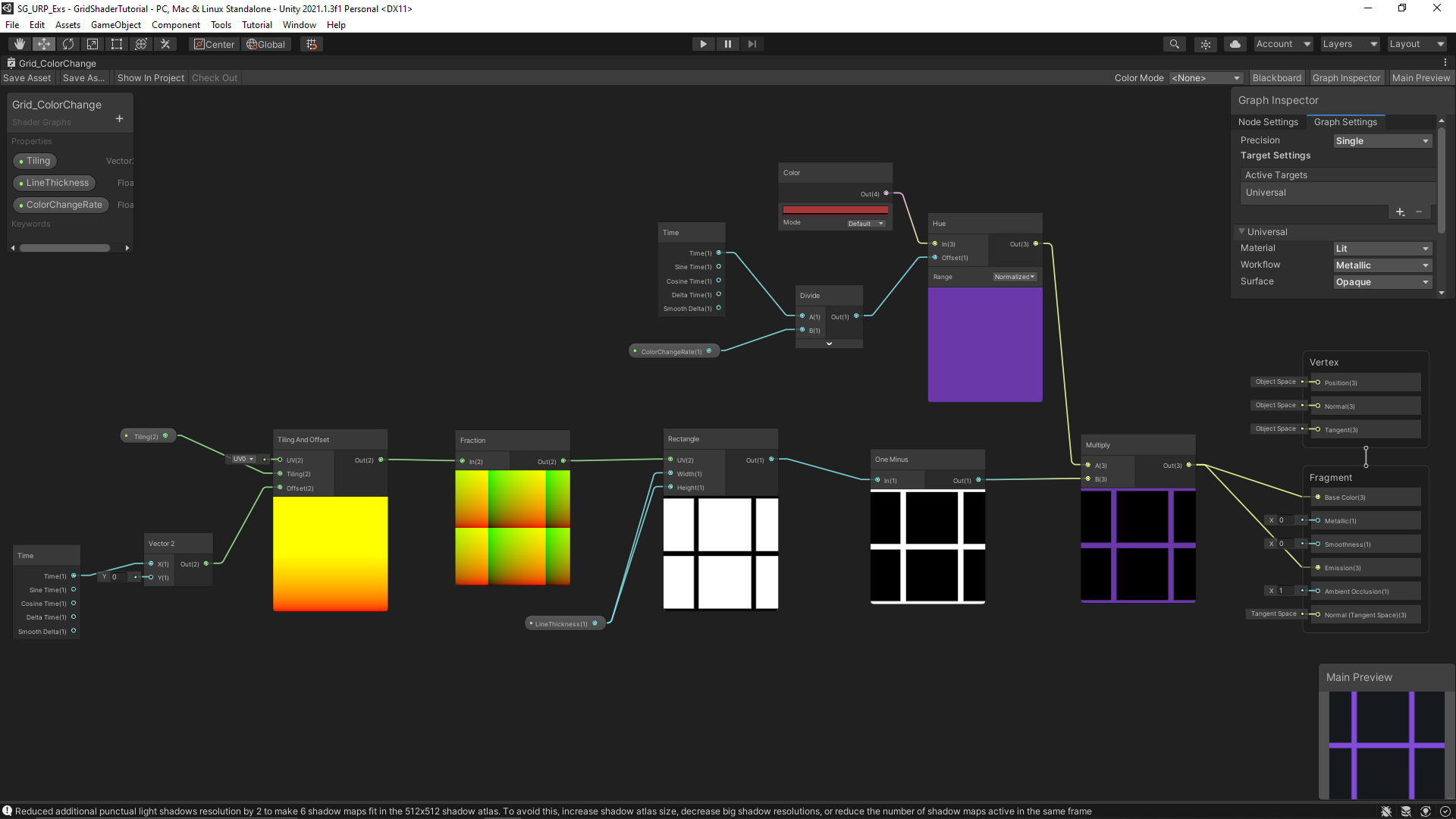
Experimenting with tiling and the rectangle node in Unity Shader Graph to create a Tron-like glowing grid pattern.


My Final Grid Shader Graph (w/ Color Change Addition)


Overview

Following my exploration of Unity’s shader graph, I did this tutorial by UGuruz on creating a grid shader similar to what you see in Tron. I really liked the effect so I continued it slightly further by adding a color changing effect over time, as can be seen in my examples provided.

Learnings from Tutorial

Using a Fraction node with a Tiling & Offset node is an effective way to give you standard expected tiling and offset results. I however had some strange effects because of interactions with the UVs of the models. The base UVs of just a standard Unity cube did not tile effectively for me, so I tried using Unity’s ProBuilder to make a basic cube since that also gave me easy access to modifying UVs if necessary. This gave me much more consistent results similar to those in the tutorial, since I wanted to avoid the step of modifying UVs in Blender.

They mentioned the shader would only work well on flat surfaces, but I at least wanted to test on another surface to see what the result would be and see if I could improve it. That’s why I included a sphere in the environment. It immediately gave very strange results as expected, but I found that grouping faces together through the ProBuilder tool helped give a better result, as this allows it to treat the many faces of a sphere similar to a single large face. This concept works well with a basic tiling pattern like I used here.

I did end up using World type UVs to get a decent visual result on everything, especially the sphere. While this gave something very close to what is desired, it is still a somewhat strange appearance when viewed from some angles as this inherently treats the positioning in world space as the coordinates for applying the shader. I still need to investigate the UV types and UVs in general though to get a better understanding of how to control them.


Unity Shader Graph: Tutorial by UGuruz with Color Change Addition from Steve Lilley on Vimeo.

Video Example of the Grid Shader Result with Color Change Addition

via Blogger http://stevelilleyschool.blogspot.com/2021/06/unity-shader-graph-grid-shader-by-uguruz.html

Unity Shader Graph Examples and Tutorials

June 10, 2021

Shader Graph

Unity


Title:
FORCE FIELD in Unity – SHADER GRAPH

By:
Brackeys


Youtube – Tutorial #1

Description:
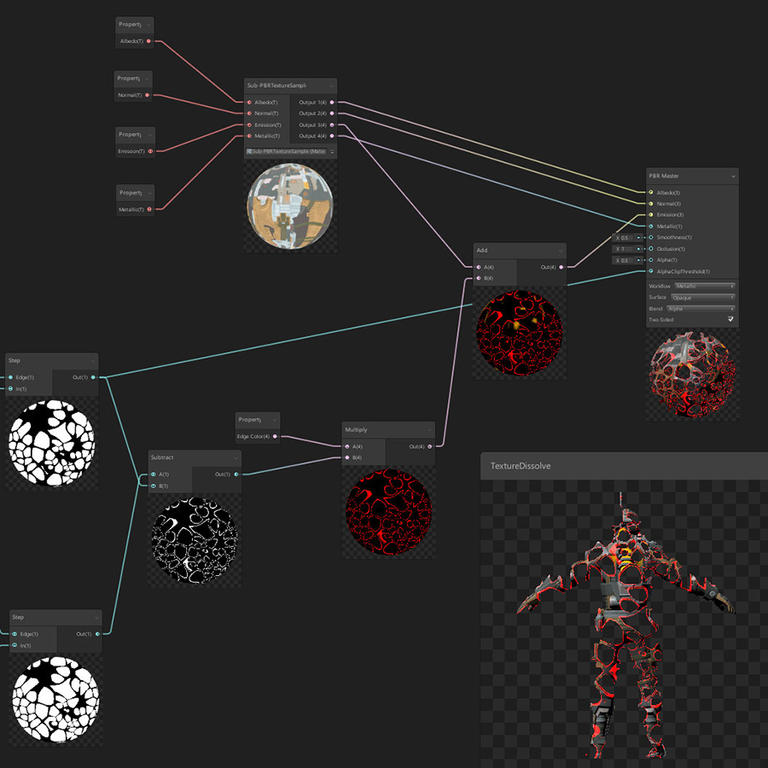
A quick introduction to shader graph in Unity making a transparent force field with glowing edges.


Title:
ART 200: Creating an energy Shader in Shader Graph in Unity

By:
Casey Farina


Youtube – Tutorial #2

Description:
An introduction to using noise effects in Unity Shader Graph to create a glowing generic energy effect.


Title:
Grid Shader in Unity LWRP – Shader Graph Tutorial

By:
UGuruz


Youtube – Tutorial #3

Description:
Experimenting with tiling and the rectangle node in Unity Shader Graph to create a Tron-like glowing grid pattern.


Title:
Unity Shader Graph Tutorials – Youtube Playlist

By:
Gabriel Aguiar Prod.


Youtube – Playlist #1

Description:
This user creates tons of VFX tutorials for games, and has delved into Unity’s Shader Graph, giving great examples of quick but well done effects.


Title:
Unity Shader Graph – Ice Tutorial

By:
Gabriel Aguiar Prod.


Youtube – Tutorial #4

Description:
Creates a stylized glowing, transparent ice shader to use for crystaline ice formations.


Title:
Unity Shader Graph – Shield Effect Tutorial

By:
Gabriel Aguiar Prod.


Youtube – Tutorial #5

Description:
Similar to Brackeys force field tutorial, but covers extra steps to push the effect over the edge.


Title:
Shader Graph fundamentals in Unity

By:
PabloMakes


Youtube – Tutorial #6

Description:
General coverage of a lot of commonly used nodes and tools within Unity’s Shader Graph.


Source: Unity.com

Overview

I wanted a quick way to apply some interesting effects and looks to different models I work with in my sample projects, and making cool materials and shaders seemed like a perfect tool for that. You can get some neat effects without too much effort, and as you make these tools they are easily applicable over multiple projects and give me a tool to use over and over again.

Coding shaders in HLSL for Unity can be a bit tricky, so meeting them in the middle and working with Unity’s Shader Graph was a good compromise for me. This could give me results even quicker without sacrificing too much for what I will be doing. As such, I gathered this large source of resources for learning and exploring Unity’s Shader Graph system.

Quick Notes

URP vs HDRP

HDRP is for more high end games and devices (PC, XBOX, PS) but is more demanding. URP is better for 2D projects in general, and is made to be more accessible and less demanding.

URP vs Deprecated LWRP

Many resources, including some of these tutorials, used Unity’s Light Weight Render Pipeline (LWRP). This has already been phased out and replaced by the Universal Render Pipeline (URP). So it is generally safe to use the URP system if a tutorial or example uses the LWRP.

PBR Graphs Replaced with Lit Shader Graphs

Some of these old tutorials also use PBR graphs, which have also been phased out already. They can be replaced with Lit Shader Graphs. The PBR master node within the graph has also been broken up and replaced in newer Unity projects by two nodes, a Fragment node and a Vertex node (makes it more similar to shader coding).

via Blogger http://stevelilleyschool.blogspot.com/2021/06/unity-shader-graph-examples-and.html

Game Project: Flying Game – Part 5 – Projectile and Environment Interaction (Part 2)

June 8, 2021

Flying Game

Projectile


Overview

I wanted to have the player projectile add force to objects that it came in contact with. This originally was just to prevent strange occurrences where originally if the player hit obstacles sitting on top of others, nothing would happen since the only force moving them at all was gravity. This additional force adds some extra displacement to make sure that whenever any objects are hit, there is some dramatic impact.

Voxelized Environment Obstacles Update

IDestructible Interface Update for Voxel Obstacle Element Class

This interface is implemented by the individual voxel obstacles. It originally just had a Destroyed() method, but with this update I wanted to add a secondary method to deal with simply being hit at all, so I added a Damaged() method. I then also renamed the Destroyed() method to EndLife() since it may not necessarily be destroyed when its job is done.

Internal Hit Cooldown Timer

Because the objects were receiving forces from various angles and running into other elements, sometimes objects could quickly be pushed slightly out of the projectile and then be hit again by the same projectile and receive another boost in force applied. To prevent this, I added an internal hit cooldown timer to the individual elements so that they would not react again until a certain time had passed. This will most likely be set to a relatively low time (i.e. <1s), but as can be seen in the test video a timer of about 10s is used just to check its validity.


Video: Sonic Boom Projectile and Obstacle Internal Timer

via Blogger http://stevelilleyschool.blogspot.com/2021/06/game-project-flying-game-part-5.html

Exploring Vector Math with Unity – Dot Product

April 23, 2021

Dot Product Unity Project

Vector Math


References

Dot Product Wiki


Wikipedia – Link


Falstad Dotproduct Online Visualizer


Falstad Visualizer – Link


Fig. 1: My Updated Visualizer at Work

Overview

I wanted to explore vector math as a refresher for myself while also creating ways to visualize it through Unity. The dot product seemed like a good focal point to start with since it is such a useful tool in game development but can be a bit strange to fully understand the full reach it has. I took a lot of inspiration from the Falstad visualizer on how to visually represent this.

While similar to the Falstad visualizer, I wanted to create a 3D representation instead of a 2D one. I wanted to have a tool that creates two manueverable vectors that would show all the values of those vectors, as well as their dot product and the projected vector from one onto the other. While most of the math and systems behind this are practically identical in the 3D case, interacting with the vectors becomes a much trickier problem.

Dragging Objects Around 3D Space

I ended up following a tutorial on a really simple 3D dragging setup found here:

Unity Object Dragging || Tutorial: by Kjip

Youtube – Link

This provides a very quick and simple setup that at least allows the user to move objects around in 3D space using the screen to world point methods of Unity. Their exact solution however did not work for me, as the object would always gravitate to the exact position of the camera, eventually leaving it too close to interact with.

The Vector3 they were feeding into the ScreenToWorldPoint method was determined as such:


Vector3 mousePosition = new Vector3(Input.mousePosition.x, Input.mousePosition.y, Camera.main.transform.position.z + transform.position.z);

I eventually just removed the additional transform.position.z of the object added into this vector, which provided a fixed distance from the camera plane to the object at all times. This at least constantly kept it in frame, and allowed decent manueverability. The range of motion is a little weird, but it works well enough for now. I eventually just changed the entirety of the z portion of the vector to a variable float controlled from the inpspector since tying it to the camera position didn’t make any sense at this point.

Visualizing the Vectors

Line Renderers

This is the most straight forward way since I can just put in the two end points of a vector as waypoints of the line renderer to directly render that vector in 3D space. However, overlapping line renderer visuals leads to poor rendering in many cases, which is not ideal for showing the overlap of the projected dot product vector with the vector being projected on to.

Rotating/Scaling a 3D Object (Cylinder)

After trying line renderers for a while, I swapped over to using primitive cylinders as a basis for the vectors. By setting the cylinders as children of an empty container gameobject, I was able to falsely move the anchor point of the cylinder for scaling to the base of the cylinders. This allowed me to scale this container to match the exact size of the vector, and this would exactly match up the size of the cylinder while also making sure it specifically scaled up/outward from the origin of the visualization.

As for rotating the cylinder to match the individual vectors, this could easily be done by setting the up vector of the cylinders. This looks like:


cylinderA.transform.up = vectorOfInterest;

Video Samples of My Project

The following links show my first prototype of this project with the line renderer visuals, and the first update using cylinders and some cleaner camera controls.

Vector Projection Simulation – Dot Product – Prototype from Steve Lilley on Vimeo.


Vector Projection Simulation – Dot Product – Update 1 from Steve Lilley on Vimeo.

via Blogger http://stevelilleyschool.blogspot.com/2021/04/exploring-vector-math-with-unity-dot.html