Dev Blog

2019 GDC Vault Opening

April 9, 2019

2019 GDC Vault

Talks

GDC 2019 – Into the Breach’ Design Postmortem

By: Matthew Davis
From: Subset Games

GDC 2019 – Cursed Problems in Game Design

By: Alex Jaffe
From: Riot Games

GDC 2019 – How to Teach 5 Semesters of Game Design in 1 Class

By: Jason Wiser
From: Yaya Play Games, Tufts and Harvard University

GDC 2019 – Creating Customized Game Events with Machine Learning (Presented by Amazon)

By: Africa Perianez
From: Yokozuna Data

The 2019 GDC vault has finally opened! I just wanted to take a quick peak and see if I could find any interesting talks to watch in the near future. I really loved playing Into the Breach, so I’m excited to check out their Postmortem. Riot Games always has interesting talks with League of Legends size and popularity. The other two just seemed like interesting sounding titles that I’d like to hear more about.

Houdini Assignment – Fuse and Group

April 8, 2019

Houdini Assignment

Fuse and Group

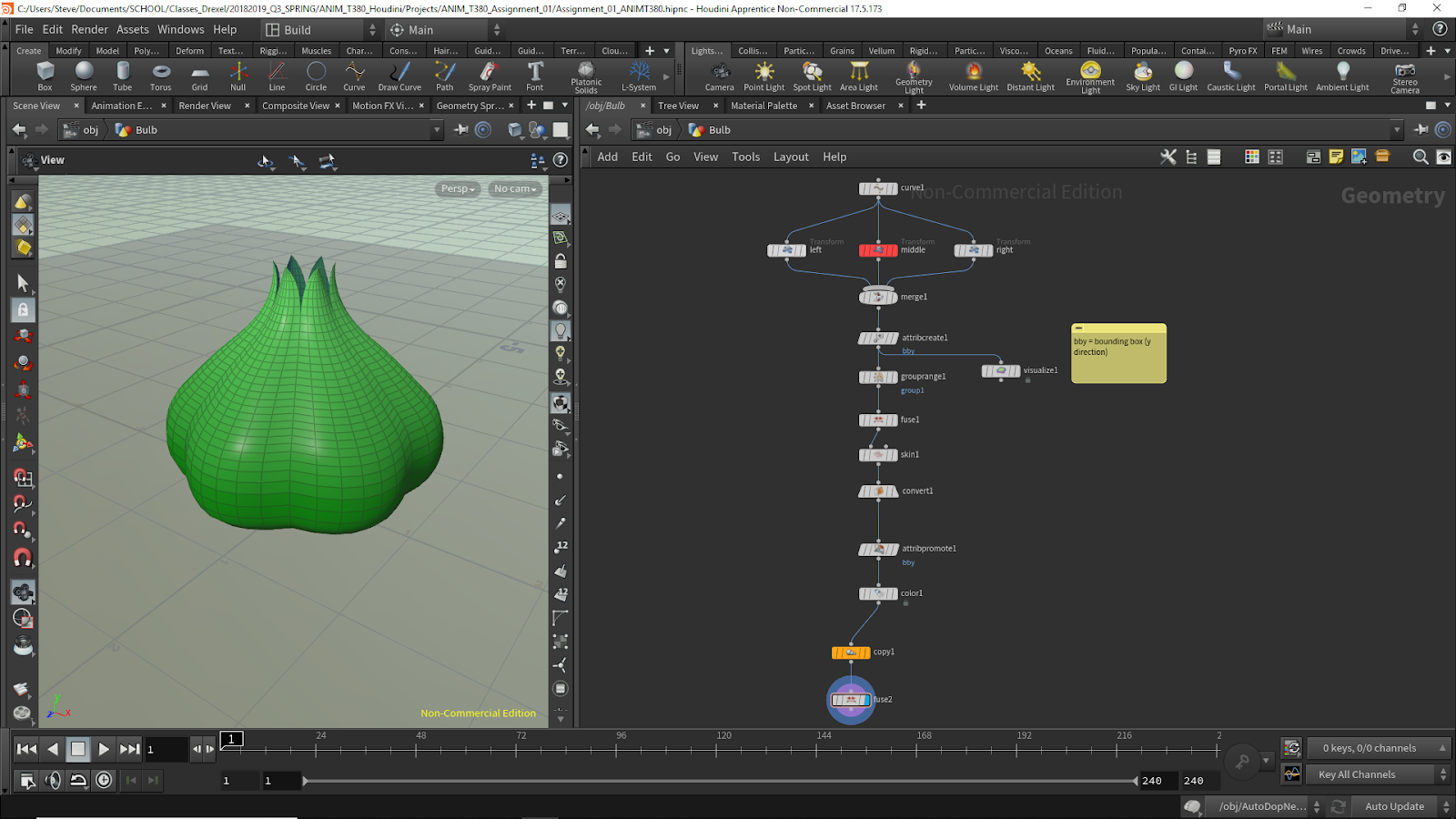
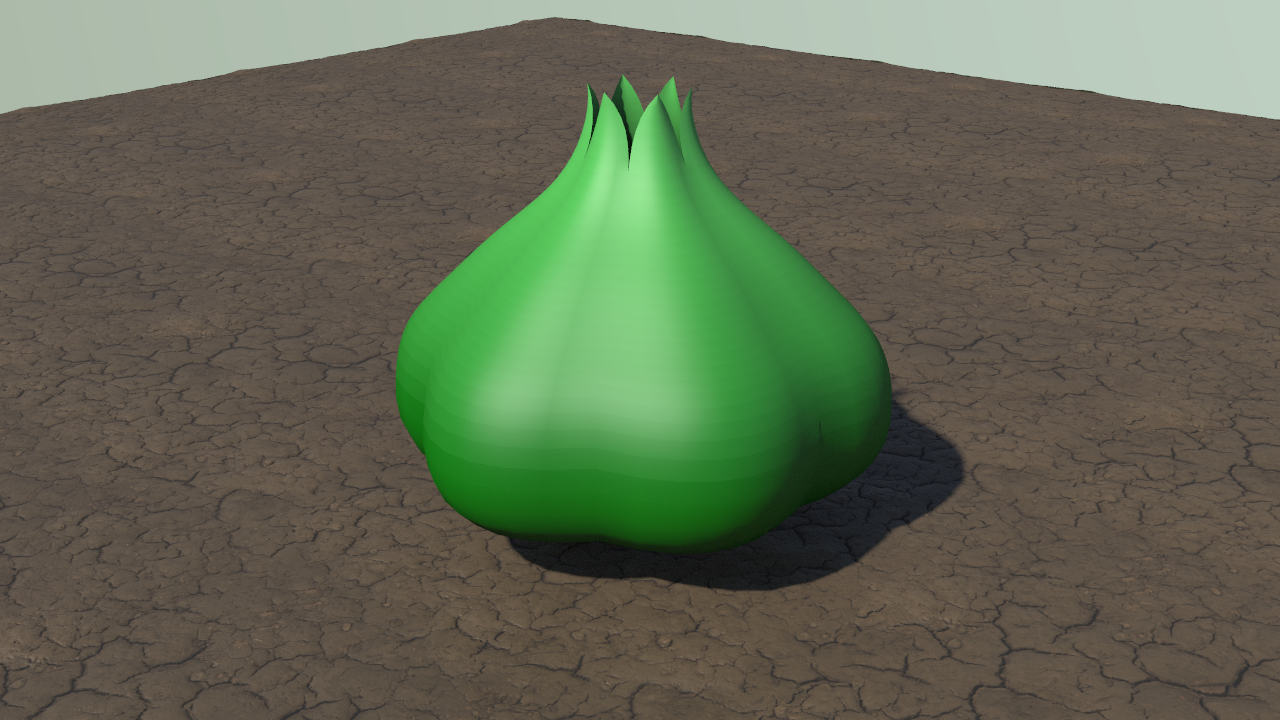
I worked on a Houdini class assignment to make a basic model and decided to try and create the bulb on the back of a Bulbasaur, a Pokemon that is half plant and half dinosaur. I figured I could use a lot of the basics we learned in class to get me pretty far, while also needing to cover a few new things to get it exactly how I wanted it.

In class, we created a basic hot air balloon. This consisted of tracing a curve over a background reference image of a hot air balloon, creating a section of the balloon from this original curve, then replicating that section as many times as needed to fully encompass the full balloon. These were a lot of principles I used for creating my bulb.

The biggest hurdle I needed to overcome was that that top of each of my sections would all need to connect at a single point, so I would need some additional nodes after simply creating a “left” and “right” variation of my additional curve making up a single segment. I decided to approach this by using a grouprange node and an additional fuse node.

The grouprange node allowed me to create a group consisting of the three points at the top of each curve. I changed the “Group Type” to points, since I was interested in point objects, and I adjusted the “Range Filter” according to how many points I had on my curve. By setting the “Range Filter” to “Select 1 of 8”, where 8 was the number of points in each curve (since they were all similar copies of each other), I could create a group that was all of the first points on the curve, which happen to be the top ones.

I then followed this with a fuse node to snap these three points together into one. The way I was able to get the best result was by setting the “Group” to the group I created in the previous node, and using the “Snap” version of the fuse node. When I increased the “Snap Distance” a significant amount, all the points combined into one to create the tip of the leaf-like structures of the bulb.

Intro to Python Programming with Mosh – Pt. 03

April 7, 2019

Intro to Python Programming

Tutorial – 03

Youtube – Learn Python 3 for Machine Learning & Web Development [2019]

By: Programming with Mosh
Progress

End Time: 1:16:25

Next Part of Tutorial: Project: Weight Converter

NOTES

Arithmetic Operations

In Python we have the same operations used in math, as well as a few extra ones. There is addition, subtraction, multiplication, and division.

Here are a few of the extra operators. By using //, it returns the integer of the division with no remainder. Using the modulus, %, it returns the remainder after performing the division. Finally, ** is exponent, so this will raise a number to the other values power.

Then there is the augmented assignment operator. This is done by placing the operator directly before the equal sign. For example:

x += 3
is the same as: x = x + 3

Operator Precedence

This is the math concept where certain operations are performed before other operations. Many of these in Python are the same as those in basic math.

Math Functions

This just covers so more basic math functions: round, abs

Round rounds your value to the nearest integer. Abs returns the absolute value of a number.

If you want to do very intense mathematical calculations, you will want to grab a math module to add to Python. This module would give you more built in functions to perform mathematical functions. This is done by typing:

import math

at the top of your Python code. You can then call functions from it in your code with math.FUNCTIONNAME.

if Statements

The syntax of if statements is a bit different from C#. The syntax is as follows:

if STATEMENT:
functionsToPerform()

A colon is used to end the if conditional, and the functions following it are determined just by the indentation. To end the statement, you just remove the indent.

To perform else if, you simply type elif in Python. Else remains the same as you type the full word.

Logical Operators

These are the AND, OR, and NOT operators. In Python, logical AND, OR, and NOT are done by simply typing the word “and”, “or”, or “not” in the place they are needed. They do not use symbols.

Comparison Operators

These are used to compare variables with values. These are operators such as greater than and less than. These are all the same as C#, including the equivalency operator that is ==. Not equal is also the same, which is !=.

Using Notion the Note Taking App

April 5, 2019

Notion

Note Taking App

Youtube – Your First Day with Notion | A Beginner’s Guide

By: Keep Productive

Notion was a note taking app recommended to me by a friend and I wanted to give it a try. I’ve just started getting into the basics of it but it gives you a lot of freedom and a lot of options so I wanted to look into a beginner user tutorial like this one to help get myself oriented. This seems like a really useful app that I believe will help me organize my activities in the future.

Using Lens Studio for Snapchat Filters

April 4, 2019

Lens Studio

Making Snapchat AR Filters

Lens Studio – Snapchat

This site allows a user to download the software necessary to create your own Snapchat filters. This was a thing introduced to me in a VR/AR class as another simple way to explore the uses of the technology and get a hand on working with it. I’ve already had experience working with VR and AR in Unity, so this will be another nice way to just discover some ways to work with that type of technology.

Using Houdini with Unity

April 3, 2019

Using Houdini with Unity

Houdini Unity Plug In

Youtube – Houdini Engine | Create an Asset for Unity
Youtube – Houdini Engine for Unity
Youtube – Procedural Workflows with Houdini and Unity 2018 for Game Artists | Kenny Lammers | SIGGRAPH 2018

By: Houdini

After starting a Houdini procedural modeling course today, I wanted to start looking into ways to easily implement the assets into Unity. These videos help with that basic process, as well as showed me that there are basic plugins to integrate Houdini assets into Unity with some of their procedural properties in tact still.

The last video is also a very technical implementation of using Houdini within Unity to help with track design for a driving-type game. It begins to really show the power of using Houdini to develop live game assets.

Houdini Basics

March 29, 2019

Houdini Basics

Interface and Physics

Youtube – SideFX Houdini For Absolute Beginners
Youtube – PHYSICS For Absolute Beginners – SideFX Houdini Tutorial

By: Surfaced Studio

As I am on vacation over break, I just wanted to quickly check out some basic Houdini tutorials to go over for my classes next quarter. These ones seemed to cover the absolutely basics as well as getting into some of the simulation aspects I want to check out specifically using Houdini.

Unity Multiple Scenes and Controlling Loading

March 25, 2019

Advancing Tower Defense Tutorial

Moving Objects and References to New Scenes

Catlike Coding – Multiple Scenes and Loading Levels
Catlike Coding – Object Management

The Catlike Coding information on Multiple Scenes and Loading levels has a lot on how scenes are loaded in Unity and how to control that process better. I also included the link to the overal Object Management tutorial that this Multiple Scene write up is a part of. That seems like another useful overall source, that could also enhance the application of this Multiple Scene tutorial.

They start by creating a new scene and moving certain objects into it. After setting this up, they correct an issue they had where recompilation messes up the pool scene. This happens because they are using a scriptable object instead of the default monobehaviour for their script. Unity serializes the private fields of Monobehaviours when compiling, but not for Scriptable Objects. This meant CreatePools would get invoked on every recompilation and you would get errors trying to create the same scene several times.

To protect against this issue, they check if the scene is loaded using the Scene Manager isLoaded method. If that is true, they just return on their created method. This requires getting the scene value first since recompilation resets the poolScene scene struct to its default values on recompilation.

Level 01 – Multi-Scene Editing

Main Scene will be their scene for containing everything to run the game, no matter what level they’re playing. It contains the Main Camera, the Event System, and some other parts. Their basic Level 1 scene just contains the Light for now.

They first explore using the Scene Manager LoadScene() method to load their additional scene. This does not work, as LoadScene first unloads all currently open scenes before loading the requested scene. To load the scene in addition to what is already there, they add the LoadSceneMode.Additive as an argument to LoadScene().

The lighting is still incorrect because they need the Level 01 scene to be the active scene. This can be done in script with the SetActiveScene() method. They try placing this in their method for loading the scene, but it does not work. SetActiveScene only works for loaded scenes, and the loaded scene isn’t technically loaded yet even though it was called previously. This is because loading a scene takes some time.

To get around this, you can wait a frame between loading the scene and setting the newly loaded scene to the active scene. This can be done by making LoadLevel into a coroutine and adding a yield return null command between loading the scene and setting it active. This will give the desired result.

If your game takes a while to load, this simple load command may cause undesired results. This is because the game would basically freeze until the loading is finished. To prevent this, scenes can be loaded asynchronously, using the SceneManager.LoadSceneAsync method. This begins the process of loading a scene and returns an AsyncOperation object reference. This can be used to check whether a scene has finished loading. This can also be used to yield in a coroutine. This is how their example looks:

IEnumerator LoadLevel () {
//SceneManager.LoadScene(“Level 1”, LoadSceneMode.Additive);
//yield return null;
yield return SceneManager.LoadSceneAsync(
“Level 1”, LoadSceneMode.Additive
);
SceneManager.SetActiveScene(SceneManager.GetSceneByName(“Level 1”));
}

This coroutine now waits until the scene is completely loaded to continue its processes, but also does not freeze the game while loading. This however creates another issue where Update be called during the loading of the level. This would be bad for most games as you don’t want the player issuing commands before the loading is finished or the level has appeared. This can be corrected by having the Game component disable itself before starting the load, then enabling itself after finishing loading. This time would also be where you would place a loading screen.

Awake gets invoked immediately when a scene is loaded, but the scene does not count as loaded yet. In Start and later Update calls, the scene is considered officially loaded.

They get into creating another level and go into unloading scenes to prevent their level scenes from piling up as the go back and forth loading new instances of them. They start by making sure to keep track of the current scene build index and updating that whenever they load a new scene (this is similar to the approach I took with my Tower Defense scene management).

They then use the SceneManager.UnloadSceneAsync method to unload the old level index, before loading the next scene. They make sure to yield on the unloading as well before loading the next scene. This is their example:

IEnumerator LoadLevel (int levelBuildIndex) {
enabled = false;
if (loadedLevelBuildIndex > 0) {
yield return SceneManager.UnloadSceneAsync(loadedLevelBuildIndex);
}
yield return SceneManager.LoadSceneAsync(
levelBuildIndex, LoadSceneMode.Additive
);
SceneManager.SetActiveScene(
SceneManager.GetSceneByBuildIndex(levelBuildIndex)
);
loadedLevelBuildIndex = levelBuildIndex;
enabled = true;
}

Applications

I could look into the disable/reenable method used in loading the level for my scene management issue. Since I have objects from different scenes that are both trying to reference something in the other at Start, maybe I could try to reenable the components that need to reference each other at the same time and have them create the references OnEnable.

Make sure Scene Management keeps track of the current build indices loaded and update this on scene loads. This can help when you finally need to unload the scenes before loading the next ones.

Unity Scene Management – Fixing New Scenes to Work

March 21, 2019

Advancing Tower Defense Tutorial

Moving Objects and References to New Scenes

Myriad Games Studio – HOW TO USE THE UNITY SCENEMANAGER

Now that I had the scenes loading properly enough, I actually needed to get all the references fixed finally. I had not altered the references since looking to implement the concept of having an all time Logic Scene, a Base Scene, and a Level Scene, so some of the references were broken when I split them up, especially between the Base Scene and Level Scene. This provided an interesting challenge since I did not want to make objects/scripts in the Base Scene public static, so I wanted to look to a way to have them communicate to each other through the Logic Scene.

Currently, I think all of my GameManager functionality does not work being in the Base Scene. I am looking to split some of its functionality so that I can move the GameManager to the Logic Scene, and keep the more level related info in a new LevelManager that would be in the base scene.

There are also some scripts on the GameManager object I want to move into the Level Scene. These would include: WaveSpawner (controls the information on enemies in the wave, how many waves, etc.), PlayerStats (controls values such as the player gold and lives).

Some general thoughts I had looking to advance all of these scripts to get them to work in the new scene setup:

  • Moved GameManager to Logic Scene with: WaveSpawner, PlayerStats, GameManager
  • Added Singleton pattern to GameManager
  • GameManager should start inactive [Same with WaveSpawner and PlayerStats, so entire GameManager object] (Only active during level)
  • While the WaveSpawner would be in the Logic Scene, I wanted to move the wave information to the individual Level Scenes
    • WaveSpawner should solely be responsible for taking in the information from the scene and then performing functions
    • The wave information, WaveInformation script, would be an object/script in the individual Level Scenes that could be modified to pass on varying information to the acutal WaveSpawner
    • This separates the WaveSpawner functionality from the various information a designer could mess with in individual scenes

From the tutorial I watched on persisting data between scenes, I learned more about static variables and how to control them a bit better. Following this I changed all my singleton pattern referenced manager objects from they themselves being public static, to just static. Then I created a method for each of them simply called GetInstance that is a public static method that simply returns the static instance variable I set for each of those classes. This may be cleaner with properties, but I don’t quite know how to use those well enough currently so I am using this safer method approach for now. The scripts affected were: SceneManagerLite, GameManager, PlayerStats, WaveSpawner.

I also decided to clean up my PlayerStats script a lot to make it much more secure using properties with public methods. I changed it to the following:

public class PlayerStats : MonoBehaviour
{
#region Variables
static PlayerStats playerStatsInstance;

private int _playerMoney;
public int playerMoney { get { return _playerMoney; } }

private int _playerLives;
public int playerLives { get { return _playerLives; } }

public int rounds = 0;

#endregion


#region Unity Methods

private void Start()
{
if (playerStatsInstance != null)
{
Debug.Log(“More than one Player Stats Instance in scene”);
return;
}
playerStatsInstance = this;

rounds = 0;
}

public static PlayerStats GetInstance()
{
return playerStatsInstance;
}

public void AddMoney(int moneyToAdd)
{
_playerMoney += moneyToAdd;
}

public void SetLives(int numberOfLives)
{
_playerLives = numberOfLives;
}

public void LoseLives(int numberOfLivesLost)
{
_playerLives -= numberOfLivesLost;
}


#endregion
}

I changed playerMoney and playerLives to properties that could only be altered through the public methods added below, to keep these from randomly being set to crazy values throughout editing. This was also done in hopes that it would make doing the cross scene references easier to manage.

Now that all the singleton pattern objects were cleaned up, as well as significantly restructuring PlayerStats, I moved on to the WaveSpawner. I found that it made more sense to move the UI Text reference in the WaveSpawner to the actual UI object itself in the BaseScene. I created a new TimerUI script that I placed directly on the UI Text object dealing with time and just moved the snippet of code dealing with that from WaveSpawner to here, and just had the TimerUI script reference the WaveSpawner to get the time value. This just cleaned up WaveSpawner a bit to focus solely on spawning waves. I also fixed the SpawnWave method to work with the new PlayerStats setup, as rounds are also found there. This just meant changing a direct variable alteration to an indirect method alteration (from rounds++ to AddRound()).

Next I really needed to clean up the GameManager and the LevelManager as their purposes were a bit unclear. I decided that for the most part, the GameManager should just deal with what levels the player has unlocked. This was the only big “player stat” that needed recorded over multiple plays and levels. The LevelManager would then deal with actually determining when the player won or lost a level, as well as controlling the UI elements. This did help clean both of these up a lot and make their purposes clearer. The LevelManager dealt with the UI elements, the GameIsOver bool, and actually determining if the player won or lost the level. The GameManager then just updated the levels unlocked when calling WinLevel() method in LevelManager.

After all of this updating, it was time for more testing. It got through the Logic Scene well, and started with the MainMenu. Clicking Play got into the LevelSelect scene fine. I went into level 1, and it looked like the timer and money text were working properly, but no enemies were spawning (I also still have my issue where the Nodes are in a scene separate from the BuildManager that I need to fix). It appeared the WaveSpawner was turning itself off before receiving the WaveInformation from the Level Scene. I checked with a Debug.Log and this did in fact seem to be the case. The WaveSpawner checks in its Update function if the waveIndex (wave number it is up to for spawning) is equal to the total number of elements in the wave array (total amount of waves that should be spawned this level), and if this is the case, it turns itself off (to avoid errors with going outside of the array range). This however is causing it to turn off immediately because waveIndex starts at 0 and goes up to reach waves.Length, but since it doesn’t have the waveInformation in time, it thinks waves.Length is also 0 so it turns off instantly.

I think my issue with the Nodes is similar to that of the WaveSpawner. They get a reference to the BuildManager at Start, but it isn’t happening in time with how the scenes load so they don’t have anything to reference, and therefore never get the reference. Then they just never have the reference they need the rest of the time. So I need a way to enforce the order things happen between loading and running the scripts. This could be something I could solve with more use of IEnumerators and coroutines possibly.

The node solution is more difficult because both objects/scripts dealing with nodes are loaded in separate scenes at the same time. The BuildManager is in the Base Scene, while the Nodes are all in the Level Scene. These both get loaded at the same time. It turns out that by modifying my scene build index array setup I can alter which scene is loaded first, and both orders give me varying issues. Swapping the Base Scene to load first fixed the Node issue, as now the BuildManager exists first so the Nodes can get their reference, but then the game was immediatel ending (both winning and losing) since the win and lose conditions were met immediately as they require the Level Scene to pass the life and wave information to the Logic Scene to properly determine the game state. I need something that makes sure everything is loaded at the same time before starting the Start functions.

SOLUTION

Wave Spawner Issue

I remembered that the WaveSpawner being in the Logic Scene means it actually exists all of the time (I didn’t get the only activate in levels working properly yet, for similar reasons). This meant that by the time the level started, it had already been way past its Start function and into its Update function. This meant it was turning itself off way before I even entered the level. I then checked to see if it was at least receiving the WaveInformation even though it was disabled and it was. Knowing this, I just needed to reenable the script after giving it the WaveInformation. So directly after WaveInformation method PassWaveInformation(), I just also enabled the WaveSpawner script and it worked perfectly!