March 10th, 2018

Working with Meshes Via Scripting in Unity

Creating a Game Object and Mesh at Runtime
Tutorial Series – Moving Mesh Vertices at Runtime

This short video shows a very basic way to manipulate existing vertices. It simply moves a few vertices along their normals in a sine wave type pattern.

Writing to .CSV Files with Unity Scripting

How to write data to CSV file in UNITY

Printing out arrays of data to .CSV files can be useful when creating large arrays of data for things such as vertices and tris as it can give you a better way to figure out where errors are occurring.

Using InputFields with C# Unity 5.4 (Basic Tutorial)

This video shows the most basic use of input fields in Unity. This may be a direction to take to connect the player to the variables in the gear mesh editor.

Basic UI Functionality – Interacting Directly with Game Objects Unity

Unity 5 UI Tutorial – Input field and event handlers

This video is in the middle of a series by this author on some basic UI functions within Unity. These UI elements focus on types which the player can interact with, and they will cause some change in the game (as opposed to more static UI elements that just show values for things such as score or lives). This can prove useful as a simple way to give users access to the parameters of the gear mesh objects.

March 10th, 2018

Adding Fog of War Effects – Unity

Some full asset tools created that can create fog of war effects

RPG Map Editor – Fog Of War – Youtube

This tool looks to setup a fog effect on a grid based tile system in a 2D game/environment.

Tutorial 3 : Fog of War – Fog of War 3D Effect – Youtube

This tool looks like it uses light to emphasize the fog of war effect, which it can do since it’s set in a 3D environment, which is more commonly associated with lighting in Unity.

March 9th, 2018

Creating Interesting Particle Effects in Unity

Ripple Effects | Unity Particle Effects | Visual FX Tutorial – Youtube

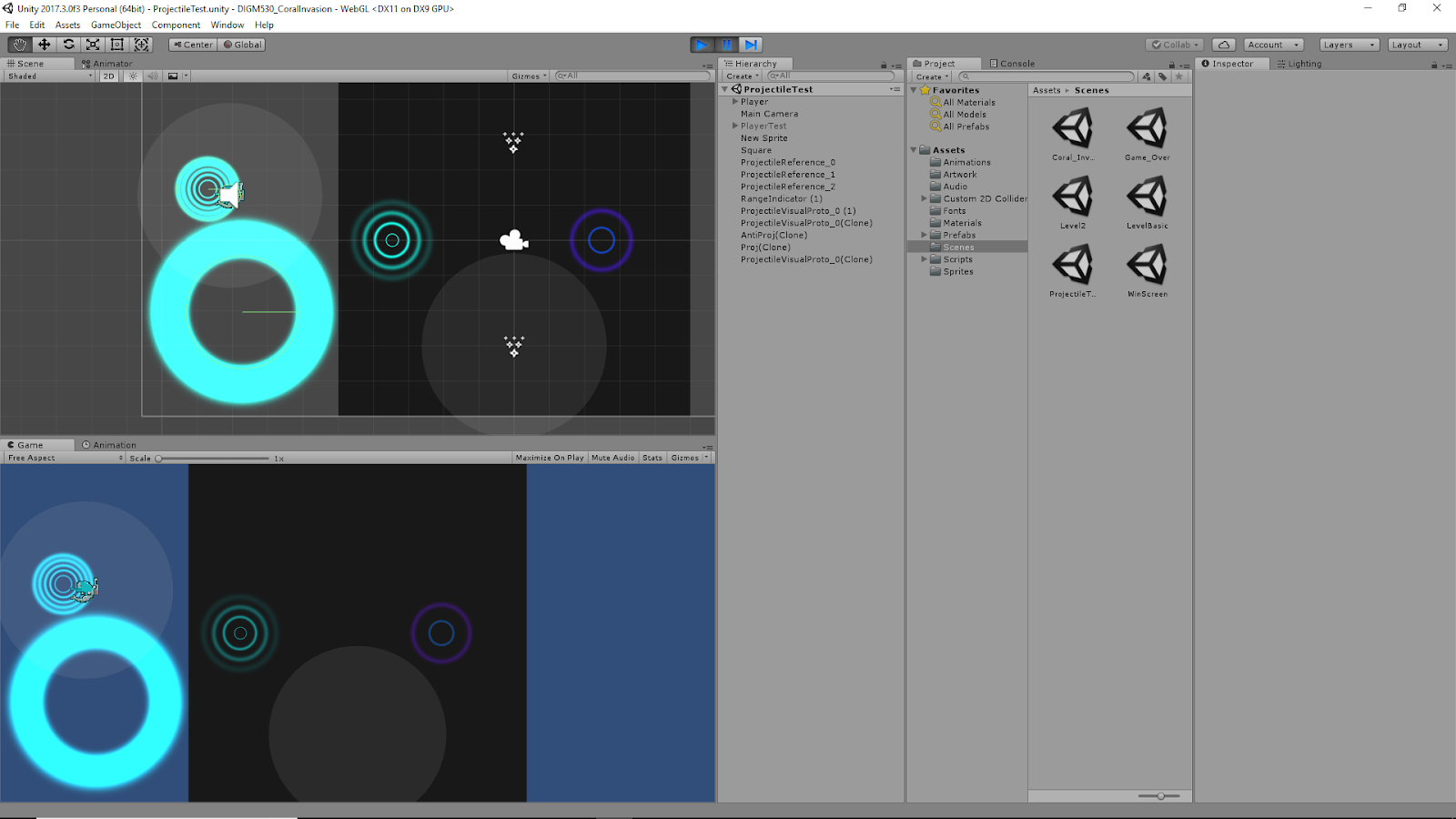
This video is a tutorial on setting up a basic ripple effect using the particle effects given in Unity. This serves as a basic introduction to some of the different parameters of particle systems. This was useful in setting up the visuals for the projectile in our DIGM 530 project Coral Invasion.

Images and Video of Use as Projectile for Project

Video of Projectile in Motion with Audio

Some Useful Notes:
  • As a projectile effect, it was important to make sure to edit the parameter to have the particle gameObject destroy itself once all the particles died.
  • Editing the parameters of lifetime, rate, scaling size/color all useful to fit the particle between two circle colliders.
  • Was able to attach the particle system prefab to the player script exactly like would normally be done for a generic gameObject used as a projectile. Can instantiate particle systems.
March 5th, 2018

Examples of Progress with Gear Mesh Generator in Unity

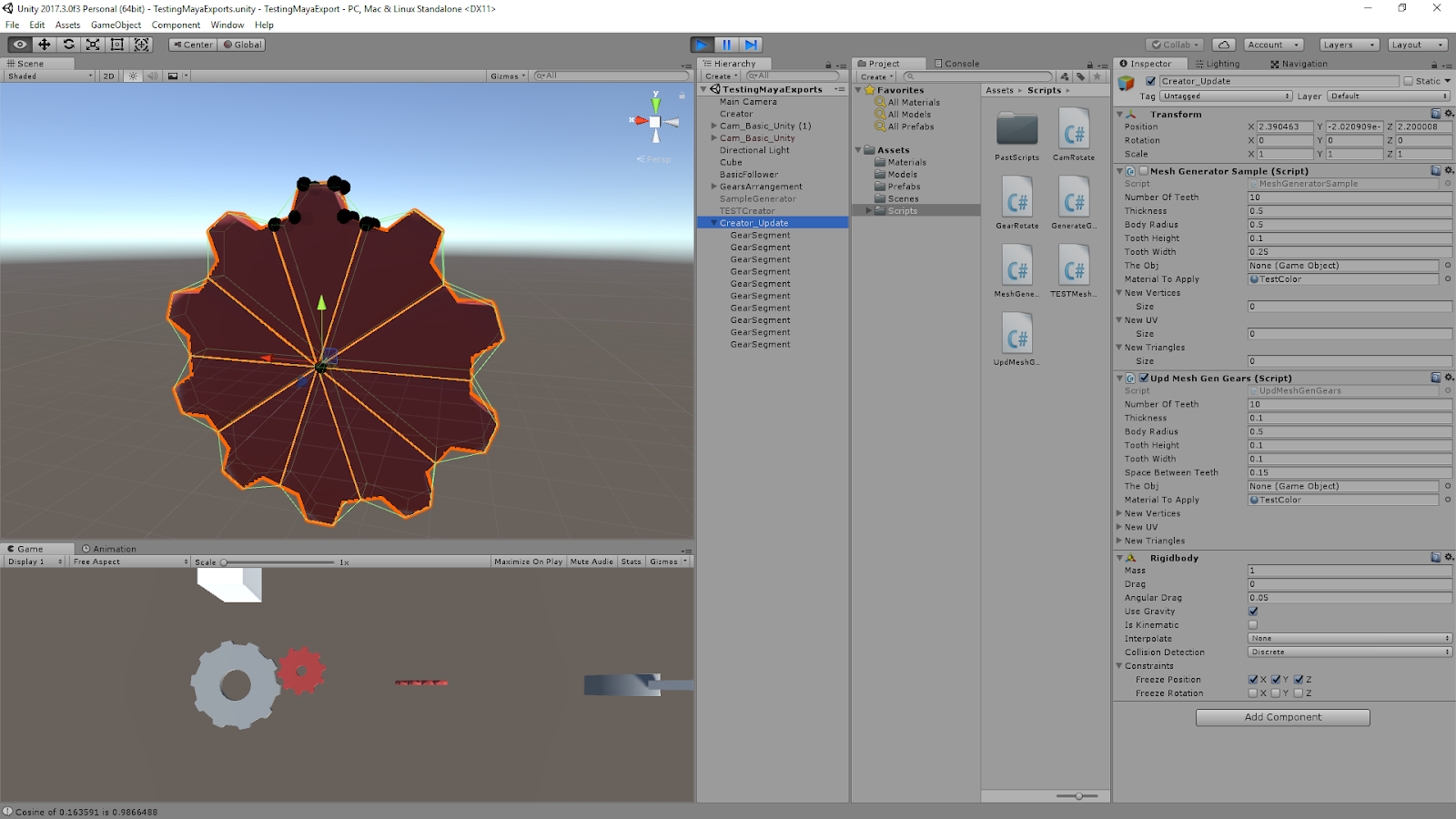
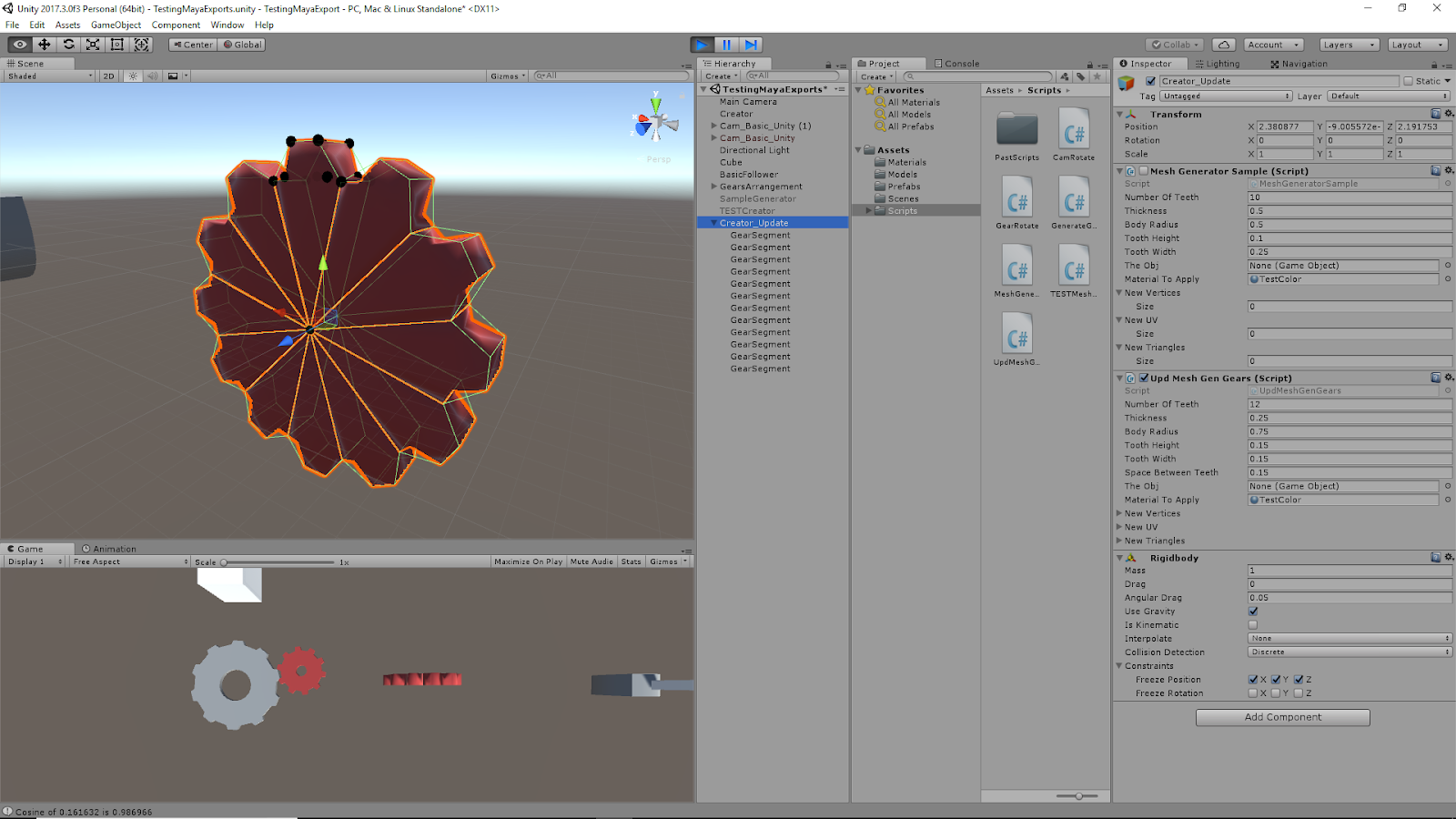
The approach for creating a full gear mesh in Unity was to create a single section of a gear with one tooth with the given parameters/dimensions, then replicate this a number of times equal to the total number of gear teeth and rotate each of these instances appropriately to create a single full gear. An extra bit of scripting was added to place small black spheres around the vertices of the first gear segment created, to highlight the locations of the created vertices.

The prior setup was tweaked to account for the control of spaces between the gear teeth. This appears to have made the instances of the meshes concave in some manner though, so the convex mesh colliders do not completely accurately follow the model around the teeth now. Another technique will be looked into to prevent this from happening.

Parameters:
  • Number of Teeth: 10
  • Thickness: 0.1
  • Body Radius: 0.5
  • Tooth Height: 0.1
  • Tooth Width: 0.1
  • Space Between Teeth: 0.15
Parameters:
  • Number of Teeth: 12
  • Thickness: 0.25
  • Body Radius: 0.75
  • Tooth Height: 0.15
  • Tooth Width: 0.15
  • Space Between Teeth: 0.15

Video Demonstrations of Gear Generation Script at Work

Shows Physics of Full Gear Mesh

As can be seen from this video, the full gear mesh acts as one object even though it is made of several individual objects each representing a gear segment. It also shows that it has basic physics function within Unity’s game space.

Shows Changing Parameters to Create Different Gear Shapes

This video shows directly how changing the parameters of the script relates to changes of the resulting gear mesh. Currently, all the work is loaded at the start of the scene. Further work will be done to translate this to something that can be edited real time.

Current Equations for Determining Geometry of the Gear Mesh – Shown for Creating Single Gear Section

Parameter Equations
  • angleForSpaceBetween = Mathf.Asin(spaceBetweenTeeth / (2 * bodyRadius));
  • angleForSpaceBetweenDeg = Mathf.Rad2Deg * angleForSpaceBetween;
  • distanceToCenterOfSpace = bodyRadius * Mathf.Cos(angleForSpaceBetween);
  • angleBetweenSections = 360 / numberOfTeeth;
  • halfAngleBetweenSections = angleBetweenSections * Mathf.PI / 360 – angleForSpaceBetween; // Cuts in half and converts to radians
  • cosineTheta = Mathf.Cos(halfAngleBetweenSections);
  • sineTheta = Mathf.Sin(halfAngleBetweenSections);
  • cosineThetaAlpha = Mathf.Cos(halfAngleBetweenSections + angleForSpaceBetween);
  • sineThetaAlpha = Mathf.Sin(halfAngleBetweenSections + angleForSpaceBetween);
Vertex Equations
  • newVertices[0] = new Vector3(0, 0, 0);
  • newVertices[1] = new Vector3(bodyRadius * sineTheta, bodyRadius * cosineTheta, 0);
  • newVertices[2] = new Vector3(-bodyRadius * sineTheta, bodyRadius * cosineTheta, 0);
  • newVertices[3] = new Vector3(-toothWidth / 2, bodyRadius * cosineTheta + toothHeight, 0);
  • newVertices[4] = new Vector3(toothWidth / 2, bodyRadius * cosineTheta + toothHeight, 0);
  • newVertices[5] = new Vector3(0, 0, thickness);
  • newVertices[6] = new Vector3(bodyRadius * sineTheta, bodyRadius * cosineTheta, thickness);
  • newVertices[7] = new Vector3(-bodyRadius * sineTheta, bodyRadius * cosineTheta, thickness);
  • newVertices[8] = new Vector3(-toothWidth / 2, bodyRadius * cosineTheta + toothHeight, thickness);
  • newVertices[9] = new Vector3(toothWidth / 2, bodyRadius * cosineTheta + toothHeight, thickness);
  • newVertices[10] = new Vector3(distanceToCenterOfSpace * sineThetaAlpha, distanceToCenterOfSpace * cosineThetaAlpha, 0);
  • newVertices[11] = new Vector3(-distanceToCenterOfSpace * sineThetaAlpha, distanceToCenterOfSpace * cosineThetaAlpha, 0);
  • newVertices[12] = new Vector3(distanceToCenterOfSpace * sineThetaAlpha, distanceToCenterOfSpace * cosineThetaAlpha, thickness);
  • newVertices[13] = new Vector3(-distanceToCenterOfSpace * sineThetaAlpha, distanceToCenterOfSpace * cosineThetaAlpha, thickness);
March, 4th 2018

Creating 2D Enemy Movement in Unity that is Able to Avoid Obstacles

How can I make an AI that avoids obstacles WITHOUT using NavMesh?

This link contains oStaiko’s answer to the above question, and describes two standard ways to deal with basic enemy AI movement, especially on a 2D plane. These two ways are: a waypoint setup and a more “vision” focused setup.

Waypoint Setup Pros/Cons
  • Good on static maps where enemy can “know” the entire map
  • Deciding fastest routes can be tricky
Vision Setup Pros/Cons
  • Works better for non-static maps/obstacles
  • More difficult to setup (scripting-wise)
  • Better for open maps, can work poorly in more constricted spaces

Example Script for Setting Up Raycast AI to Move Around Obstacles

Unity 3D – Enemy Obstacle Awareness – AI – Code Sample

This link leads to some sample C# code for setting up a script that gives an object raycast vision to avoid obstacles and refocus on a target.

Mar. 4th, 2018

Research for DIGM 540

Designing for Transformative Play by: Jon Back, Elena Marquez Segura, and Annika Waern

This paper could serve as a very useful base behind my current project for designing editable physical engineering mechanisms within the Unity game engine. I could use this idea along with my toy to look into creating a more open, user defined play area. This paper focuses on play designed in an open way.

Some Important Key Words:
  1. Human-Computer Interaction (HCI)
  2. Human-Centered Computing
  3. Interaction Design
  4. Interaction Design Theory
  5. Explorative Play
  6. Creative Play
  7. Transformative Play
Further Topics to Look Into:
  1. Ludic Design by Gaver et al.
  2. Stenros Thesis on foundational theory of play

Current Progress of Research Paper

Link to Google Doc of Paper Information

March 2nd. 2018

Talks on Game Design

SINFO, March 1st, 2018 – Greg “Ghostcrawler” Street from Riot Games – 20 Things I Learned in Twenty Years of Making Games

Talk on his career path as a game designer, and good ways to advance yourself as a game designer. Same key points are: Make things good enough, not perfect (consider diminishing returns); you will change jobs a lot; games ship when you run out of money; have goals and iterate; making a team is harder than making a game; as a game designer, not smarter than players (all people informed on game); empathy. Emphasize importance of varied types of people on teams producing elements of game (combine programmer, artist, designer, etc.)

Difference between Blizzard and Ensemble companies – Iteration. Ensemble: create something, put it in game, test. This worked but was a bit inefficient. Blizzard: Ideas must go through a lot of thought and people before even being created, which means most things created in game are going to be higher quality, which results in a more efficient process.

    How to get into game industry?

  • You have to stand out
  • You have to prove your passion
  • The best way is to make something

Compromise with feedback, take something from beginning to end, kill your babies, understand diminishing returns. Rather see someone finish things than start a bunch of things. See someone push through with changes and edits to finish something than just giving up (shows endurance, will to push through for end product).

Bennet Foddy – Bend Physics to your Will

Feb. 28th, 2018

Research for DIGM 540

  1. Predictive Physics Simulation in Game Mechanics by: Perttu Hämäläinen, Xiaoxiao Ma, Jari Takatalo, Julian Togelius
  2. Interactive Control For Physically-Based Animation by: Joseph Laszlo, Michiel van de Panne, and Eugene Fiume

Other Interesting Topics Encountered

  1. The lack of research in soft bodies (as opposed to rigid bodies) in the physics engines of games.

    Covered in: Unifying Rigid and Soft Bodies Representation: The Sulfur Physics Engine by DarioMaggiorini, Laura Anna Ripamonti, and Federico Sauro

Feb. 27th, 2018

Scripting Enemies to Check Distance for Ranged Attacks – Unity

Scripting is Fun – Unity 2D Game Basics – Enemy AI – Ranged Attack – Youtube Video

This video shows the basic setup for allowing an enemy in a 2D game to rotate, locate player with raycasting and distance tracking, and fire projectiles in the proper direction.

Unity Manuals – Layers

This is placed here for the use of layer masks to control raycasts. Layer masks allow the user to either ignore specific layers with their raycasts, or specifically target layers. This was searched because I had an issue where raycasts where colliding with the object itself and/or the parent object, both of which have colliders.