Accessing Variables in Other Scripts in Unity

May 26, 2021

Accessing Variables

Unity


Title:
How To Access Variables From Another Script In Unity

By:
Infallible Code


Youtube – Tutorial #1

Description:
Goes over many programming techniques within Unity to access variables in one script from another.


Key Concepts

Scripts

C# classes that inherit from MonoBehaviour.

Collaborators

Scripts that require a reference to at least one other script in order to function.

Dependencies

Objects that collaborators need in order to function.

Categories of Resolution

Where the burden of dependency resolution lies.

External Resolution

The responsibility of dependency resolution falls somewhere else.

Public Properties

Expose dependency of a public field or property


Simple and requires no overhead, but can easily make bugs that are also hard to debug. This is because it can be unclear where the dependencies lie.

Editor Properties

Expose serializable dependencies in the Unity editor.
Use SerializeField on attribute private properties.


Similar to public properties, but are much safer.

Unity Event Methods

Functions that are called when specific events occur at runtime.


This specific example covers methods like OnCollisionEnter(). These are functions that are called when specific events occur, and they help resolve dependencies when those events are triggered.

Internal Resolution

The script itself is responsible for resolving its own dependencies.

FindObjectByType() Method

Search for dependencies in the scene based on their type.
FindObjectsByType() returns a list of matching objects.

This can be tricky to use sometimes since you may not be sure of the state of your scene when this is called. It is also relatively expensive. Most consistent to use to find manager scripts, since they should confidently be active in the scene when called.

Static Instances

Expose dependency on a public static property.
Commonly used in the Singleton pattern.

Dependency Injections

A pattern for automating dependency resolution based on a configuration.

It allows you to configure all your dependencies in one place and have them resolve automatically based on that configuration.

Summary

I have used all these techniques before, but it is always good to find condensed lists of them all together to really help organize them. Determining the cleanest and safest way to pass around variables through scripts is something I work on a lot, so laying out these options to go through in an effort to determine the best approach is always helpful. This also led me to some other resources on the topic that I am looking forward to investigating.

via Blogger http://stevelilleyschool.blogspot.com/2021/05/accessing-variables-in-other-scripts-in.html

Singletons in Unity and Many of Their Downfalls by Infallible Code

May 26, 2021

Singletons

Unity


Title:
Everything You Need to Know About Singletons in Unity

By:
Infallible Code


Youtube – Tutorial #1

Description:
Goes over the true properties of singletons in code and why they should be used sparingly in Unity game development.


Intro to Singletons

Singleton Pattern: class that is both globally accessible and can only be instantiated once

Common Example:

Audio Manager – because it is something many scripts will want access to, and you specifically want only one in your game at a time

Singleton Requirement #1: Global Access Specification

Singletons sound promising because they are an easy solution to “how do you access other scripts” or “how do you fill your class dependencies”. Using Singletons for access can hide the fact that a class depends on another, which can lead to difficult to track bugs and difficulties. This may lead to using the singleton even more than necessary because of ease of access, which creates more and more hidden dependencies.

Example #1

Non-Singleton Version

public class GameManager : MonoBehaviour
{
	[SerializeField] private Player player;
	
	privat void OnPlayerDied()
	{
		print($"Final Score: {player.Score}");
	}
}

Singleton Version

public class GameManager : MonoBehaviour
{
	privat void OnPlayerDied()
	{
		print($"Final Score: {Player.Instance.Score}");
	}
}

Because the Singleton pattern accesses a specific class directly, additions of derived classes will require more updates that may also be hard to find because of the hidden dependencies. Again, doing something similar to the Non-Singleton version of Example #1 makes it so that an additionally created derived class could fill the Player dependency with little to no edits.

Singleton Requirement #2: Restricted to a Single Instance

This is generally accomplised by creating a private constructor for the class, and then instantiating a single instance from the getter. This is already difficult in Unity as many classes you create in Unity will be MonoBehaviours, which cannot be instantiated in code with the new keyword. This is because Unity hides their constructor and allows anything to instantiate them through object.Instantiate().

So to help satisfy this, you need an extra check if another instance of the class already exists in the scene in case it was added directly in the Editor or through other object.Instantiate() calls. Once these are located, they may also require being destroyed to make sure there only exists one instance at any given time. This can also lead to strange results, as sometimes destruction prevention is used in Unity, such as with the DontDestroyOnLoad() method. Sometimes you may also get rid of and keep the “wrong” singleton if multiple somehow run into each other.

Singleton Criteria:

1) Absolutely required to exist only once
2) Must be accessible from every part of your code
3) Controls concurrent access to a resource

Summary

While I already knew that singletons should be used sparingly, having a better understanding of them fundamentally really helps put that into perspective just how sparingly they should be used. It also helps confirm that it can generally be a bad way of passing around data in Unity, and with a need that comes up so often and has so many options to be accomplished, it is good to generally remove an option from that list. It is also important to acknnowledge that in Unity specifically they are extra difficult to implement when it involves MonoBehaviours, as this again helps narrow down the process of passing around data.

via Blogger http://stevelilleyschool.blogspot.com/2021/05/singletons-in-unity-and-many-of-their.html

Coroutine Fundamentals in Unity

May 20, 2021

Coroutines

Unity


Title:
Introduction to Game Development (E21: coroutines)

By:
Sebastian Lague


Youtube – Tutorial #1

Description:
Covers the basics of coroutines in Unity.


Title:
Coroutines In Unity – What Are Coroutines And How To Use Them – Coroutines Unity Tutorial

By:
Awesome Tuts


Youtube – Tutorial #2

Description:
Covers some intermediate complexity uses of coroutines as well as tying them in with Invoke calls.


Title:
Coroutines – Unity Official Tutorials

By:
Unity


Youtube – Tutorial #3

Description:
Old official Unity tutorial on the fundamentals of coroutines in their system.


Overview

Coroutines appear to be a strong tool within Unity that I still am looking for ways to implement better in my systems. While understanding the basic uses for them with timing related events, I feel like they offer a lot more that I am not utilizing, so I wanted to further my understanding of them by following up on one of my older tutorial blogs and going through the tutorials it offers.

Tutorial #1 Notes

Coroutines are part of the Unity engine, and are not native to C#. They also belong to the Monobehaviour base class, so they class they are used in must inherit from Monobehaviour.

The coroutine return type is IEnumerator. Because of this, coroutines can also be stored in IEnumerator variables. This also allows them to be passed in as a paramter for the yield return statement within a Coroutine.

Use a reference to properly control the starting and stopping of a specific coroutine instance.

Tutorial #2 Notes

You can call a Coroutine from within itself (the same Coroutine). This is one way to cycle a Coroutine continously.

WaitForSecondsRealtime is similar to WaitForSeconds, except that WaitForSecondsRealtime is independent of Unity’s timescale. WaitForSeconds however is affected by the timescale. WaitUntil suspends the coroutine until the given delegate returns true.

Invoke Notes

  • Invoke – call a method after a given amount of time
  • InvokeRepeating – call a method every given amount of time, after a starting given time
  • CancleInvoke – stops an InvokeRepeating call

Tutorial #3 Notes

Coroutines are functions which execute in intervals. They work with special yield statements which return the code execution out of the function. Then, when the function continues, execution begins from where it left off.

Combining coroutines with properties can allow for efficient code which produces execution only when a value is changed, without the need to check for variable changes every frame with the Update() method or something similar.

Coroutine Return Statements

A substantial part of using and controlling coroutines is the various return statements you can use within them to determine when they should run and when they should pause execution. As such I listed several of these options and how they work within the coroutines.

yield return null

waits a frame before progressing to the next step

seems similar to the rate of the Update() method

yield return new WaitForSeconds(float time)

waits the given amount of seconds between each run of the process

yield return WaitForSecondsRealtime(float time)

waits the given amount of seconds, regardless of Unity’s timescale

yield return StartCoroutine(DoSomething())

waits until the given Coroutine “DoSomething” is finished running

yield return new WaitUntil(bool test)

suspends coroutine until the given parameter is true (opposite of WaitWhile)

yield return new WaitWhile(bool test)

suspends coroutine until the given paramter is false (opposite of WaitUntil)

Summary

Coroutines are starting to become a bit more clear to me, and this helped me learn a few more ways to incorporate them into my projects. Just seeing that they are specifically a Unity native concept was helpful to me as I did not think about that before, and that makes their somewhat strange nature make more sense in my head. This made it more clear that Unity is doing a lot of work behind the scenes to accomplish their main goals of determining when to start, pause, resume execution based on their yield values. Also the Unity note on tying them in with properties is very interesting and something I want to experiment with more myself for more efficient code.

via Blogger http://stevelilleyschool.blogspot.com/2021/05/coroutine-fundamentals-in-unity.html

Lerp Fundamentals in Unity

May 10, 2021

Lerp

Unity


Title:
How to Use Lerp (Unity Tutorial)

By:
Ketra Games


Youtube – Tutorial

Description:
A brief coverage of exactly how Lerp works in Unity with a couple ways to use it.


Overview

I was recently researching ways to effectively use Lerp in Unity and came across some strange implementations that made me unsure if I understood how it worked. This video however specifically covered that case and explained that it does work, but it’s not a particularly ideal solution.

The case covered is specifically called the “Incorrect Usage” in this video. It is when Time.deltaTime alone is entered as the time parameter for Lerp. As I thought, this is just entering some tiny number as a time parameter each time it is called, which is then used to just some value between the intial and final values entered into the Lerp. It is not very controlled, and it leads to a strange situation where it keeps getting called and updated but it does not theoretically reach the final position ever (although this may be different with how computers handle the values eventually).

Finally they cover a couple time parameters to use with Lerp to get a few varied results. SmoothStep is one they suggest to get a result similar to the “Incorrect Usage” but done properly. It adds a bit of a slowing effect as the value gets closer to the final result. They also show using an Animation Curve to control the value in many various mathematical ways over time.

via Blogger http://stevelilleyschool.blogspot.com/2021/05/lerp-fundamentals-in-unity.html

How to Make a Multiplayer Game in Unreal Engine 4 [Blueprint Tutorial] (Unreal) – Part 1 – by DevAddict

April 27, 2021

Multiplayer

Unreal


Title:
How to Make a Multiplayer Game in Unreal Engine 4 [Blueprint Tutorial]

By:
DevAddict


Youtube – Tutorial

Description:
A tutorial extension to the previous Unreal platformer tutorial that shows multiplayer implementation.

Summary

This tutorial extends the previous tutorial on making a platformer in Unreal found here:

Youtube – Lets Make a Platformer – Unreal Engine 4.26 Beginner Tutorial

The original tutorial follows one created by Unreal with some extra steps added. This tutorial is an expansion made by DevAddict specifically to show how to add multiplayer to this project.

Lesson 1: Introduction to Multiplayer

Play Modes

When going into Play Mode in Unreal, there are many options for testing and debugging multiplayer.

    Play Modes: Net Modes:

  • Play as Offline (Standalone): (Default) You are the server
  • Play as Listen Server: Editor acts as both the Server and the Client
  • Play as Client: Editor acts solely as Client and a Server is started behind the scenes for you to connect to

Testing Multiplayer Settings

Approach #1

  • Set Number of Players to: 2
  • Set Play Mode to: Play as Client

This tests both windows as if they were both individual clients.

Approach #2

  • Set Number of Players to: 2
  • Set Play Mode to: Play as Listen Server

The Editor will act as the Server (host) and the extra windows will act as Clients connected to that Server. This helps point out differences occurring between the Server and Clients for debugging multiplayer actors.

Editing Blueprints

Editing Game Mode

The Game Mode class only exists on the Server. It does NOT exist on any of the Clients.

This fact is why transitioning this tutorial to multiplayer causes many issues, the first of which is fixing the UI so it displays for all players. It originally only displays for the Server player because much of the programming for it is within the Game Mode class. Similarly, the respwan code is also only in the Game Mode.

Use “Event OnPostLogin” node

-> “Cast To BP_PlatformerController” node

-> Client Draw HUD (Event we created in the BP_PlatformerController class)

This tells the Game Mode (Server) that when a new player logs in and has their own Player Controller created, that that specific instance will create its own HUD for that individual Client. Note that they intially tried the “Event Handle Starting New Player” node in place of the “Event OnPostLogin” node, which did create the UI, but it did NOT create the character (so in the Unreal editor you just moved around as a camera). This approach may work with some extra modifications, but it did not direclty work in this instance.

Player Controller

The Player Controller is very powerful in multiplayer because it is replicated on the Server and the Client. They like to keep UI on the Player Controller because it exists throughout the play session. While the character may be destroyed in some instances, the Player Controller generally persists. This makes the Player Controller beneficial for respawning mechanisms as well.

Building a Player Controller:

Right-Click -> Blueprint Class -> Player Controller
Named: BP_PlatformerController

You need to connect the Player Controller and your Game Mode, as they work together to realy information between players and the Server.

In the Game Mode class (ThirdPersonGameMode) Event Graph -> Details -> Classes -> Player Controller Class -> Use dropdown to select new Player Controller (BP_PlatformerController)

Common Error – Event BeginPlay to Initialize Player Controller Blueprint

When initializing their Player Controller class, many may try using the “Event BeginPlay” node. This works for single player, which is why it may be prevalent, but it does not work for a multiplayer project. Instead you want an event that will run on the Client ONLY.

Moving HUD from Game Mode (Server) to Player Controller (Client):

Add Custom Event

Connect Custom Event to start of class

In Details of Custom Event -> Graph -> Replicates: Run on owning Client -> Replicates: Check ON Reliable

via Blogger http://stevelilleyschool.blogspot.com/2021/04/how-to-make-multiplayer-game-in-unreal.html

Observer Pattern in Unity with C# – by Jason Weimann

April 22, 2021

Observer Pattern

Game Dev Patterns


Title:
Observer Pattern – Game Programming Patterns in Unity & C#

By:
Jason Weimann


Youtube – Tutorial

Description:
Introduction to the observer pattern and implementing it in Unity through C#.


Overview

This tutorial covers the basics of the observer pattern in game development with two ways of implementing it in Unity. The first approach is relatively simple just to establish the concept, whereas the second approach uses events with C# to create a more flexible system.

Observer Pattern Basics

An object, called the subject, maintains a list of its dependents, called observers, and notifies them automatically of any state changes (usually by calling one of their methods)

Example Uses in Games:

UI elements updating when data behind them changes

Achievement systems

Implementation #1: Inheriting Observer and Subject Classes

Observer Class:

Abstract class your observers will inherit from

OnNotify() method that accepts a value and notification type


Subject Class:

Abstract class your subjects will inherit from

Hold information on their list of observers they report to

RegisterObserver() method to add Observers to list of those reporting to

Notify() passes a value and notification type on to all the observers they report to in their list, in turn calling their OnNotify methods with the passed on data

This example gets the point across, but is not particularly well suited for Unity or C# projects. Requires a base class on all observers and subjects (although could possibly be changed to using an interface system).

Implementation #2: Using Events

Subject objects create a ‘static event Action‘, which they then call when the requirements are met.

Observer objects have their own methods to perform when those same requirements are met, and they are connected by having the observers subscribe their relevant methods to that same ‘static event’.

This reduces the direct coupling between the observers and subjects, as well as any other objects involved. Should profile this as calling events every frame can start to lead to performance loss. As always, also need to be careful to properly unsubscribe methods from events when needed (such as when deactivating or destroying objects).

via Blogger http://stevelilleyschool.blogspot.com/2021/04/observer-pattern-in-unity-with-c-by.html

Coding Adventure: Ray Marching by Sebastian Lague

April 12, 2021

Ray Marching

Unity


Title:
Coding Adventure: Ray Marching


By: Sebastian Lague


Youtube – Tutorial

Description:
Introduction to the concept of ray marching with some open available projects.


Overview

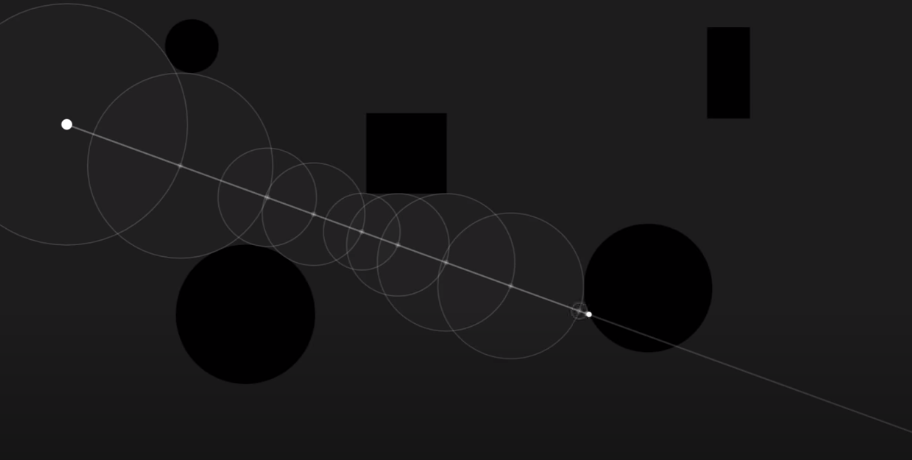
This video covers some of the basics of ray marching while also visualizing their approach and creating some interesting visual effects and renders with the math of signed distance along with ray marching logic. The major ray marching method they show is sphere tracing, which radiates circles/spheres out from a point until anything is collided with. Then, the point moves along the ray direction until it reaches the radius of that sphere projection and emits another sphere. This process is repeated until it radiates a very small threshold radius sphere, which is when a collision is determined.

The resulting project made is available, and I think it would be very useful and interesting to explore. The Youtube video description also holds many links to various sources used to create all the tools and effects in the video, which could also be beneficial for further research into these topics.

Fig. 1: Example of Raytracing Visual from Video (by Sebastian Lague)

via Blogger http://stevelilleyschool.blogspot.com/2021/04/coding-adventure-ray-marching-by.html

Linear Algebra and Vector Math – Basics and Dot Product – by Looking Glass Universe

April 8, 2021

Linear Algebra

Vectors and Dot Product


Title:
Vector addition and basis vectors | Linear algebra makes sense


Youtube – Link #1

Description:
Introduction to this series and the basics of linear algebra and vectors.


Title:
The meaning of the dot product | Linear algebra makes sense


Youtube – Link #2

Description:
Deep dive into the dot product and what it represents and how to determine it.


Overview

I wanted to brush up on my vector math fundamentals, particularly with my understanding of the dot product and its geometric implications as it is something that comes up often in my game development path. While I am able to understand it when reading it and coding it for various projects, I wanted to build a more solid foundational understanding so that I could apply it more appropriately on my own. This video series has been very nice for refreshing my learning on these topics, as well as actually providing me a new way of looking at vector math that I think will really further my understanding in the future.

Video #1 – Vector addition and basis vectors

This was the introductory video to the series, and starts with vector addition. They then move on to linear combinations as an extension of basic vector addition. Next they show for 2D vectors that as long as you have two independent vectors, you can calculate any other vector using those two in some linear combination. This then relates to how vectors are normally written out, but they are simply using linear combinations of the standard orthonormal basis of something like x and y, or x, y, and z in 3D space.

This means a vector is simply 2 or 3 vectors created with the unit vector in the x, y, or z direction multiplied by some scalar and then summed up to create the resulting vector. This was actually a new way for me to look at vectors, as this is more intuitive when you are looking to create a new vector set to base vectors off of different from the standard x, y, z, but I never really thought to also apply it in the standard case. The x, y, z, or even i, j, k, became some standardized to me that I generally ignored them, but I think looking at them in this way will help make much more of linear algebra more consistent in my thinking space.

They then continue on to explain spans, spaces, and the term basis a bit more. A set of vectors can be called a span. If that span is all independent vectors, this indicates it is the smallest amount of vectors which can fully describe a space, and this is known as a basis. The number of basis elements is fixed, and this is the dimension of the space (like 2D or 3D). And for a given basis, any vector can only uniquely be defined in one linear combination of the basis vectors.

Video #2 – The meaning of the dot product

Dot Product

A really simple way of describing the dot product is that it shows “how much one vector is pointing in the same direction of another vector”. If those two vectors are unit vectors, the dot product of two vectors pointing the same direction is 1, two vectors that are perpendicular would have a dot product of 0, and two vectors pointing directly opposite directions would have a dot product of -1. This is directly calculated as the cosine of the angle between the two vectors.

However, the dot product also factors in the magnitude of the two vectors. This is important because it makes the dot product a linear function. This also ends up being more useful when dealing with orthonormal basis vectors, which are unit vectors (vectors of length 1) that define the basis of a space and are all orthogonal to each other.

They cover a question where a vector u is given in the space of the orthonormal vectors v1 (horizontal) and v2 (vertical) and ask to show what the x value of the u vector is (which is the scalar component of the v1 vector part of the linear combination making up the vector u) with the dot product and vectors u and v1. Since v1 is a unit vector, this can be done directly by just the dot product (u . v1). They then show that similarly the y component would just be the dot product (u . v2). They explain this shows the ease of use of using the dot product along with an orthonormal basis, as it directly shows the amount of each basis vector used in the linear combination to create any vector. This can also be explained as “how much of u is pointing in each of the basis directions”.

Since the dot product is linear, performing the dot product function on two vectors is the same whether done directly with those two vectors, or even if you break up one of the vectors before hand into a linear combination of other vectors and distribute it.


Example:

a . b = (x*v1 + y*v2) . b = x*v1 . b + y*v2 . b

Projecting a Vector onto Another Vector

They then cover the example I was very interested in, which is what is the length of the vector resulting in projecting vector A onto vector B in a general sense. The length, or magnitude, of this vector is the dot product divided by the magnitude of vector B. This is similar to the logic in the earlier example showing how vectors project onto an orthonormal basis, but since they had magnitudes of 1 they were effectively canceled out originally.

This then helped me understand to further this information to actually generate the vector which is the projection of vector A onto vector B, you then have to take that one step more by multiplying that result (which is a scalar) with the unit vector of B to get a vector result that factors in the proper direction. This final result ends up being the dot product of A and B, divided by the magnitude of B, then multiplied by the unit vector of B.


Example:

Projection vector C

C = (A . B) * ^B / ||B|| = (A . B) * B / ||B||^2

Dot Product Equations

They have generally stuck with the dot product equation which is:

a . b = ||a|| ||b|| cos (theta)


They finally show the other equation, which is:

a . b = a1b1 + a2b2 + a3b3 + …

But they explain this is a special case which is only true sometimes. It requires that the basis you are using is orthonormal. So this will generally be true in many standard cases, but it is important to note that it does require conditions to be met. This is because the orthonormal basis causes many of the terms to cancel out, giving this clean result.

via Blogger http://stevelilleyschool.blogspot.com/2021/04/linear-algebra-and-vector-math-basics.html

Basics of Bits and Bytes with C++: Operands and Manipulation

March 26, 2021

Manipulating Bits and Bytes

C++


Title:
Wikipedia – Bitwise Operation


Wikipedia – Bitwise Operation

Description:
Wikipedia’s page on bitwise operations.


Title:
Bitwise Operators in C/C++


GeeksforGeeks – Bitwise Operators

Description:
The basics of bitwise operators and using them in C and C++ with some guidance on more involved usage.


Title:
sizeof operator


cppreference – sizeof operator

Description:
Definition of the sizeof operator used in C++ to find the size of an something in bytes.


Title:
Bit Manipulation

By:
Make School


Youtube – Tutorial #1

Description:
Basic introduction to bit operators as well as how to use them together for simple manipulation.


Summary

These are several of the more encompassing sources I came across recently on the basics of working with bits and bytes, especially in C++. More directy memory management and bit manipulation is not something I come across often using C# in Unity, but it still seems good to understand as it does come up every now and then. Unity uses bit maps for instance with their layer masks, which reading these sources greatly helped me understand better. I am also starting to do more work in Unreal, which uses C++ as its primary language, where I feel like this type of work is done more often.

via Blogger http://stevelilleyschool.blogspot.com/2021/03/basics-of-bits-and-bytes-with-c.html

Intro to Unreal: Basics and Intro to Blue Prints

March 17, 2021

Intro and Blue Prints

Unreal


Title:
Unreal Engine 4 Complete Beginners Guide [UE4 Basics Ep. 1]

By:
Smart Poly


Youtube – Tutorial

Description:
A quick introduction to using the Unreal engine and just getting acquainted with the main editor window.


Title:
Unreal Engine 4 – Blueprint Basics [UE4 Basics Ep. 2]

By:
Smart Poly


Youtube – Tutorial

Description:
Quick introduction to using Unreal’s blueprints.


Title:
Unreal Gameplay Framework

By:
Unreal


Unreal – Link

Description:
Unreal Gameplay Framework, the official Unreal documentation.


Learning the Basics

It has been a while since I have used Unreal in any significant capacity, so I am going back to the basics to try and make sure I have all the fundamentals covered.

Tutorial #1

Moving/Positioning Objects

By default, Unreal has all the transformation functions snap. So moving an object, rotating it, and scaling it all occur in steps as opposed to smooth transforms. This can easily be changed in the top right of the viewport at any time.

Extra Camera Controls

F: focuses on object (like Unity)

Shift + move an object: Camera follows the moving object

You can directly change the camera speed in the top right of the viewport.

Adding Content Pack Later

If you find that you want to add the starter content to a project later than the start, this can easily be done through “Content” in the “Content Browser” window, then “Add New”, and choosing “Add Feature or Content Pack”. The starter content options will be one of the first to show up by default under the “Content Packs”.

Lighting Basics

“LIGHTING NEEDS REBUILT” Error Message

The static meshes want the lighting to be rebuilt when added so they are accounted for. Fixed with:

Go to: Build -> Build Lighting Only

Light Mobility Options

Lights by default have 3 mobility options: Static, Station, Movable

  • Static: can’t be changed in game; fully baked lighting
  • Station (Default): only shadowing and bounced lighting from static objects baked from Lightmass; all other lighting dynamic; movable objects have dynamic shadows
  • Movable: fully dynamic lighting, but slowest rendering speed

Tutorial #2

General Structure of Blue Prints

Components:

area where different components can be added

what allows you to place objects into the viewport of the blue print

this is where colliders are shaped to the proper size/shape


Details:

all the different details for this particular blue print


Event Graph:

this is the tab where visual scripting is majorly done


Function:

effectively contained event graphs with more specialized functionality


Variables:

representation of fields as you’d expect

Events

These are events which call the given functions when something in particular occurs. These functions are created within the blue print Event Graph.

Actions (Examples)

On Component Begin Overlap: occurs when something initially enters a collider
– Similar to Unity’s OnTriggerEnter

On Component End Overlap: occurs when something initially leaves a collider
– similar to Unity’s OnTriggerExit

E: occurs when the “E” key is pressed

Action: Timeline

Timeline:

allows you to visually create a graph of how a variable changes over a particular set of time

By default, the x-axis is the time and the y-axis is the variable value.
Points can be added as wanted to act as key frames for the variable.
Also allows for easy modifications to the interpolation between points, such as changing it from a line to a cubic interpolation by selecting multiple points.

Make sure to pay attention to the time Length set in the time line. Even if you didn’t put points somewhere in particular, if that is way longer than where your points are, you can get strange results since it will perform the action over the entire length of time.

Debugging Blue Prints

If you select Play from within the blue print, you can get a separate play window while leaving the blue print window visible. This can be helpful for example with the Event Graph, as you can actually see when different events occur according to the system and when inputs are read. This also shows the variables changing in some nodes, such as Timeline.

Classes (as covered by the Gameplay Framework Quick Reference)

Agents

Pawn

Pawns are Actors which can be possessed by a controller to receive input to perform actions.

Character

Characters are just more humanoid Pawns. They come with a few more common components, such as a CapsuleComponent for collision and a CharacterMovementComponent by default.

Controllers/Input

Controllers are Actors which direct Pawns. These are generally AIController (for NPC Pawns) and PlayerController (for player controlled Pawns). A Controller can “possess” a Pawn to control it.

PlayerController

the interface between a Pawn and the human player

AIController

simulated AI control of a Pawn

Display Information

HUD

Focused on the 2D UI on-screen display

Camera

The “eye” of a player. Each PlayerController typically has one.

Game Rules

GameMode

This defines the game, including things such as game rules and win conditions. It only exists on the server. It typically should not have much data that changes during play, and definitely should not have transient data the client needs to know about.

GameState

Contains the state of the game.
Some examples include: list of connected players, score, where pieces in a chess game are.
This exists on the server and all clients replicate this data to keep machines up to date with the current state.

PlayerState

This is the state of a participant in the game (which can be a player or a bot simulating a player). However, an NPC AI that exists as part of the game would NOT have a PlayerState.
Some examples include: player name, score, in-match level for a MOBA, if player has flag in a CTF game.
PlayerStates for all players exist on all machines (unlike PlayerControllers) and can replicate freely to keep machines in sync.

via Blogger http://stevelilleyschool.blogspot.com/2021/03/intro-to-unreal-basics-and-intro-to.html