Unreal Ultimate 2D Topdown Udemy Course – Section 4 – Monster World Project

March 13, 2026

The Ultimate 2D Top Down Unreal Engine Course

Title:
The Ultimate 2D Top Down Unreal Engine Course
By:
Cobra Code

https://www.udemy.com/course/unreal-2d-top-down/
Udemy Course Link

Description:
Section 4 focuses on creating a small project similar to an old school Pokemon game using Paper 2D.

Overview:
This section really gets you started on using Paper2D within Unreal. Everything from handling Sprite assets to tile maps to basic animations and layer sorting are covered.

My Notes Breakdown by Sub-Sections:

16. Monster World Overview

Overview of what is covered in this section.
Shows it’s similar to an older Pokemon style game.
Sprite importing and asset management, tiles, layering.
Text box setup.

================================

17. Setting Up the Project and Importing Assets

Starting with Blank project:

  • Blueprint
  • Target Platform: Desktop

Created “New Level”

  • Empty level option

Saved this new level as its own Level asset in a folder named “Maps”

  • like Unity’s Scene assets somewhat

Project assets’ license is: CC0

  • free to use in your own games

Asset Type Conversion Rundown

  1. Characters > Flipbook
  2. Environment Tiles > Tilemap
  3. Environment Flowers > Flipbook
  4. Environment Other > Static Sprites

Creating Static Sprites

Example:
On Chest sprite:
– RMB
– Sprite Actions > Create Sprite

  • this creates a Sprite asset from the Texture asset

Importing Sprite Assets

By default, sprite assets usually look off on initial import.
After importing:

  1. Right click and select: Sprite Action > Apply Paper2D Texture Settings

This changes some of the direct art asset settings:

  1. Mip Gen Setting: NoMipmaps
  2. Texture Group: 2D Pixels (unfiltered)
  3. Editor Show Final Encode: TRUE
  4. Compression Settings: UserInterface2D (RGBA)
  5. Filter: Default (from Texture Group)
    • NOT Bilinear or Trilinear

UI:

  • also applied the Paper2D Texture Settings since it is pixel art.

================================

18. Making a Tile Set and Tile Map

Tile Set is like a palette of brushes you can use to create a Tile Map.

After placing the Tile Map into the Viewport, they rotated it 270 along the x-axis to lay it “flat” in the world.

  • They mentioned this is helpful with having the NavMesh setup work properly.

To prevent tearing between tiles, they generated a padded version of the Tile Set asset.

  • this creates another Texture asset with some padding effect to prevent them from bleeding into each other.
  • it looks like this just very literally duplicates the edge pixel all around the border of each tile a couple times and expands the tiles outward to fit them.
    • so assume this is to prevent those weird super tiny “gaps” you can get between exact sized tiles sometimes?

Creating Tile Set

Select Texture Asset
RMB
Sprite Actions > Create Tile Set


Tile Set Settings

Modify Tile Size to fit your individual tile sprite dimensions:
i.e. 16 px x 16 px

Setting Collision

  • Select Tile
  • Click “Add Box”

Removing Collider:

  • Under Single Tile Editor, click Reset next to Index [0] – 2 members.
    • * This is not very intuitive, seems very complex for section handling collider.

Tile Map

Create Tile Map:

  1. Select Tile Set asset
  2. RMB
  3. Create Tile Map

Active Tile Set:

  • Tile Set assets to select tiles from.
  • Can add multiple Tile Set assets at once.

Can “stamp” an area of selected tiles by holding Shift to create a selection for the stamp.

Tile Layer List:

  • allows for layering of tile layers

Setup:

  • where you set the full width and height of the map (in tiles)

================================

19. Preparing the Character Sprites


General

Modifying parameters of several assets at once.

  1. Shift select all the assets.
  2. RMB
  3. Asset Actions > Edit Selection in Property Matrix

Converting a Sprite Sheet to Flipbook

Select sprite Texture Asset and:

  • Sprite Actions > Extract Sprites

Extract Sprites generally defaults to Sprite Extract Mode : Auto.

  • but you generally change it to Sprite Extract Mode : Grid.
    • because you want the sprites to fit a general grid size, and not the smallest space possible.

Creating Flipbook Asset:

  1. Select multiple Sprite Asset
  2. RMB
  3. Create Flipbook

Working with Flipbook

Flipbook asset has a Frames Per Second parameter that can be modified to change the speed the Flipbook is played.

  • controls the general speed the animation is played

Making Character Flipbooks

They made separate Flipbook assets for each direction of the walking animation.
They also made separate Flipbook assets for the Idle of each direction.

  • each of these was just a single Spirte asset converted into a Flipbook

Folder Organization

Example for Character sprite assets:
PaperAssets > Characters > Red

  • this is the parent path to all sprite assets for this single character, Red.
  • this is also used to contain assets used directly by the game as they described.
    • so it contains all the Paper Flipbook assets (the animation assets)

PaperAssets > Characters > Red > Frames

  • placed all the individual extracted Sprite assets here.
  • (after extracting them from the Sprite sheet)

PaperAssets > Characters > Red > Textures

  • Sprite sheet placed in here (Since it is a Texture asset)

Naming Conventions

Flipbook Assets examples:
FB_Red_Walk_D

  • FB for Flipbook
  • Red is the character
  • Walk describes the animation
  • D is for down, which is the specific walking animation of that Flipbook.

FB_Red_Idle_R

  • FB for Flipbook
  • Red is the character.
  • Idle describes the animation.
  • R is for right.

================================

20. Best Project Settings for 2D Games

Common Problems:

  • motion blur and anti-aliasing can cause visual problems.

Link for “Best 2D Settings for Unreal Engine 5”:
https://cobracode.notion.site/Best-2D-Settings-for-Unreal-Engine-5-0895133a56924f1ca7f2149cf111983b

  • They just go through this list and set these settings any time they do a new 2D project.

Selecting All Assets in Project of a certain Type:

  • can use the Filter in the Content Drawer.
  • After selecting the Filter, can just enter the asset type you are interested in, and it’ll display all assets of that type in the project.

** They created Project Templates that just have all these settings set for 2D games immediately.


Project Settings

Turn OFF Auto Exposure.

  • having this can cause dark scenes to get brighter over time.
    • I saw this happening when I was tinkering with settings before and thought something was broken!

Motion Blur = OFF


Post Processing Settings

Access through Quick Add Menu.

PostProcessVolume default only applies if camera is within the volume.
Can make the PostProcessVolume affect everything by setting Infinite Extent (Unbound) to TRUE.


Texture Settings

  • For some reason for 2D Sprite Texture assets, if you set the Filter to Default (from Texture Group), it can look correct in editor but reverts to an option like Bilinear in builds which makes them blurry again.
  • to solve this, they select the Filter: Nearest.

================================

21. Character Blueprint and Pixels Per Unit

Blueprint for character:

  • created as Paper Character Blueprint

With a discrepancy between the Sprite asset and the Paper Character Blueprint size, they recommend making the Sprite larger.

  • the Paper Character makes assumptions about the general size of the character, which is what it is approximately sized at by default, so better to get closer to that instead of the other way around.

*** 1 Unreal Engine Unit = 1 cm
– this is DIFFERENT from Unity, which generally considers 1 unit as 1 m.
– this technically isn’t “real” but is a universally accepted approximation.

** There is a project wide setting to have a default Pixels per Unit set for all imported assets.


Pixels Per Unit

Sets scaling of pixels to 1 Unreal Engine Unit.

  • This is their recommended way of scaling pixel art assets.
    • this is similar to Unity.
    • this is done on the Sprite assets

They changed all their Sprite assets across the board to the same Pixels per Unit value.

  • I think this might be the ideal practice, but not positive.

Also need to change Tile Map assets Pixels per Unit values.

================================

22. Setting up the Camera and Possessing the Character

Added Player Start actor to Viewport.

  • appears to be a sort of spawn point that connects to a Game Mode (like a Game Manager)

Created new Game Mode Blueprint

  • think this is like a manager class in Unity?

*** FIXED EDITOR CAMERA ROTATION PROBLEM:
– Somehow my camera in Editor started rotating abnormally (directions were very backwards).
– You can fully reset the Editor camera by entering this command in the Console Commands:
BUGITGO 0 0 0 0 0 0

Settings Cameras to Orthographic helps ignore “height” differences along the z-axis.

  • including preventing character from “falling” into place at game start if it spawns above the ground.
  • They disabled Do Collision Test on SpringArm.
    • not needed for 2D games.

Character Blueprint

Added a Spring Arm.

  • with a Camera.

Setting the Default Game Mode

Go to:

  • Edit > Project Settings… > Project > Maps & Modes
    • set Default GameMode to the newly created one: GM_TopDown
  • Here you can also set the Map that opens on Editor Startup and the Game Default.
    • This feels like setting Scenes in the Build Settings for Unity.

================================

23. Enhanced Input and Character Movement

Uses new Enhanced Input Actions setup from Unreal Engine 5.1 on.

Input Actions setup requires two main parts:

  1. Input Actions
    • seems to be individual inputs.
  2. Input Mapping Context
    • the full mapping of all the inputs to their output game behaviors.
  • They noted in the character controller Blueprint Event Graph setup that using Get Controller and casting to Player Controller is nicer for multiplayer setup.
  • Directly getting the Player Controller requires setting a player index for multiplayer.

Input Actions

Created a single Input Action, Move.
Set its Value Type to: Axis2D (Vector 2D)


Input Mapping Context

This is where you associate an input (i.e. a keyboard key press of “A”) with a specific Input Action.
Can also apply Modifiers to these values based on different inputs.

  • i.e. Lets you use a single Input Action but different inputs (i.e. W and S) to go different directions based on the Modifiers.

For the IMC_TopDown (primary player controller for this project):

  • set W, A, S, and D as 4 separate input mappings all under the single IA_Move Input Action.
  • used modifiers to apply this in the different directions
    • combinations of Negate and Swizzle
    • Negate reverses direction.
    • Swizzle changes axis.

Folder Organization

Content > Input

  • main folder for all input assets
  • Input Mapping Context assets at this level

Content > Input > Actions

  • put Input Action assets here.

Player Blueprint Event Graph Setup

Need to initialize Input Mapping Context.

  • Get Controller > Cast to PlayerController > Enhanced Input Local Player Subsystem > Add Mapping Context

Created an Enhanced Action Event from our Input Action asset, IA_Move.

  • Triggered: occurs constantly multiple times as this input as held down.
    • like Unity Input.GetKey
  • Started: occurs once right when input is entered.
    • like Unity Input.GetKeyDown
  • Action Value: the return value of this input.

In this case, the Action Value would return a Vector2D based on our Input Mapping Context, including the Negates and Swizzles.

  • used this with a Break Vector2D node to separate out the X and Y values.

Add Movement Input node:

  • inherited from Pawn class
  • could take broken down x and y values as input in Scale Value along with appropriate directional World Direction values to move player in correct directions based on input.

================================

24. Directional Character Animations from Scratch

Promoted Action Value of Enhanced Action Event to Variable.

  • makes it a variable in the Blueprint you have access to.

Renamed the Action Value variable to Directionality.

  • used the values of this Vector2D to determine the direction of the player to update the sprite accordingly (with many bool checks).
  • changed Sprite by using Set Flipbook node, with the Blueprint Sprite dragged in as reference.
    • Set Flipbook seems to work somewhat like Unity when playing an animation, if using sprite assets.

Creating a Function:

  • collapsed a bunch of added nodes into a single function.
    1. Select all nodes.
    2. RMB
    3. Collapse to Function
  • then just renamed the Function to UpdateAnimation.

Enhanced Input Event > Completed

  • happens a single time when input is released.
  • like Unity Input.GetKeyUp

Branch node:

  • if else statement node

================================

25. Adjusting the map and collisions

Removed all the individual tile colliders from our Tile Set asset.
Replaced those with a single Plane in our Map with a single collider.

  • still using a collider to keep player from falling through floor.

Game is still using 3D collision for collision detection.
Changed CharacterMovement component’s Max Step Height from 45 to 10.

  • ** They recommend not using 0 because even as a 2D game where that could make sense, it can cause weird issues even walking over flat terrain and doesn’t even work for collision well anyway.

Modified the Sprite assets to make their colliders thicker.

  • thickened from 10 to 100 on the sign and tree Sprites.

================================

26. Foreground and Background sorting

  • They don’t include the individual Sprite assets in the environment Tile Map because it restricts your options for layer sorting this way with Unreal Paper.

Keys:

  1. Made all Sprites use Material: TranslucentUnlitSpriteMaterial
  2. Edited colliders of all Sprite assets we wanted to be able to walk behind to about 1/3 their full height.
  3. Moved Sprite privots to Bottom Center.
  4. In Unreal Project Settings > Engine – Rendering
    • set Translucent Sort Policy to: Sort Along Axis
    • the default axis to sort along was correct (0, -1, 0)

Shrunk player collider radius so top doesn’t have as much collision area.
Make sure Material changes apply to Sprites in Blueprints.

  • Blueprint Material settings will override base Sprite settings, so have to go into them individually to check and update if needed.

================================

27. Project files with layer sorting

  • Just a checkpoint to download a new project file if you messed up earlier steps.

================================

28. Creating a simple message UI with custom fonts

2 main parts:

  1. Widget for entire screen
  2. Modular part for message box

Widgets = UI elements in Unreal Engine

** Want to minimize use of Canvases in Unreal for optimization purposes.

Created two new Widget Blueprints:

  1. WBP_MessageBox
    • simple text containing message box.
    • Modified: padding, Screen Size – Desired, font, Auto Wrap Text to TRUE.
  2. WBP_MainHUD
    • has our singular Canvas.
    • contains the Message Box.
      • anchored and positioned to bottom center of screen

In BP_Red (Player Blueprint) we generate the WBP_MainHUD on start, and set it as a variable reference useable later.

================================

29. Making a pickup

  • They recommend creating a separate collider for interactions.
    • like separating the trigger / interactive collider from the physicsl obstacle layer collider.

Created a Blueprint for the item itself, BP_Pickup.

  • in this Blueprint, created a GetPicked function.

In the player Blueprint (BP_Red):

  • added new Input Action event for Interact
  • on Started of this action, do check
    • so it only happens a single time on input
  • when interacting, do a Overlapping Actors collision check to find in range colliders.
  • check by cast if any are BP_Pickup
  • if so, invoke GetPicked function

Blueprints

Events cannot have a return type.

================================

30. Showing the item message

Shortcuts:
Ctrl + P = brings up search window for assets

Created function within the WBP_MainHUD to change visibility.
BP_Red (player controller) invokes control of message display using collision detection with interact Input Action.
Setup simple Retriggerable Delay to have message go away after some time.
Made BP_Pickup ItemName string and ItemID int Instance Editable so we could have different BP_Pickup actors in Viewport with different ItemName and ItemID.

================================

31. NPC Dialogue and Interfaces


Technical

Casts are a hard reference.

  • So if you load a Blueprint with a cast, it must also load any casted Blueprint types.
  • increases load times.

** Can use Reference Viewer to see dependency chains.

They setup a Blueprint Interface.

  • reduces hard references.
  • more scalable Blueprint setup in BP_Red (player controller).

Unreal Ultimate 2D Topdown Udemy Course – Section 2 – Unreal Engine 5 Crash Course

March 6, 2026

The Ultimate 2D Top Down Unreal Engine Course

Title:
The Ultimate 2D Top Down Unreal Engine Course
By:
Cobra Code

https://www.udemy.com/course/unreal-2d-top-down/
Udemy Course Link

Description:
Section 2 is focused on covering the basic fundamentals of using the Unreal Engine (specifically Unreal Engine 5).

Overview:
I make a lot of personal comparisons to Unity since I’m much more familiar with it. That helps me envision how the different parts of the project connect since I already have a mental image of how it flows in Unity.

My Notes Breakdown by Sub-Sections:

7. How to Install Unreal Engine 5

Download Epic Games Launcher.
Get Unreal Engine 5.4

================================

8. How to create a new Project

Created a new Third Person Template project named “CrashCourse”

================================

9. How to navigate the Editor

Main Window = Viewport
Has similar translate, rotate, and scale gizmos to Unity when selecting(left-click) objects.

Undo:
Ctrl + Z

Redo:
Ctrl + Y

Selection Shortcuts:
W = translate
E = rotate
R = scale

Can change translate, rotate, and scale snap increments in top right of Viewport.


Camera Movements

Hold Right-Click and drag = rotate view
Hold Middle MB = pan view
Hold Right-Click + WASD = translate camera like 3rd person floating camera
Hold Right-Click + scroll scroll wheel = increase/decrease movement sensitivity (move camera faster or slower)
Scroll scroll wheel = zoom in/out


View Modes

Basic is Lit.
Has options like: Unlit, Wireframe.

Show button:

  1. Navigation used sometimes to check Unreal NavMesh.
  2. Collision used to check actual collision of meshes in testing/debugging.

World Outliner

  • Unreal equivalent of Unity’s Inspector.

Can press “F” with something highlighted in the Outliner to focus on it.

  • * Also like Unity

Play Mode

Start by:

  1. Pressing Play button at top of Viewport.
  2. Alt + P

ESC = exit play mode
Shift + F1 = get mouse controls back to interact with editor
Shift + F1 + click Eject = get mouse controls back, and be able to click in Viewport to edit

Can make changes during play mode, but they will not be saved upon leaving play mode.

  • * Also like Unity

Viewport seems to act as both the Scene and Game view from Unity.

================================

10. Content Drawer and Blueprints

Content Drawer appears to be like the Assets section from Unity.


Content Drawer

Ctrl + Space = shortcut to pop open this drawer


Blueprints

Common naming convention:
prefix with “BP_”

Event Graph
The Event Graph portion of a Blueprint is the visual scripting aspect that houses a lot of the logic building.

Viewport
Shows the full structure of the Blueprint in more of a game space view.

They are much more than just the “code” or logic of something.
They are the full makeup of an entire object.

  • * Closer to a fully built out Unity prefab.

================================

11. How to make a simple Blueprint

When creating a new Blueprint, there are many options to base them off of.

  1. There are a few main options, with Actor being the simplest.
    • Actor seems comparable to GameObject from Unity.
  2. Then there are hundreds of other more specific case options.

Naming Conventions for Unreal Assets

Recommended Unreal Asset Naming Convention Link:
https://dev.epicgames.com/documentation/en-us/unreal-engine/recommended-asset-naming-conventions-in-unreal-engine-projects

[AssetTypePrefix][AssetName][Descriptor]_[OptionalVariantLetterOrNumber]

  • AssetTypePrefix identifies the type of Asset, refer to the table below for details.
  • AssetName is the Asset’s name.
  • Descriptor provides additional context for the Asset, to help identify how it is used. For example, whether a texture is a normal map or an opacity map.
  • OptionalVariantLetterOrNumber is optionally used to differentiate between multiple versions or variations of an asset.

================================

12. Adding functionality to our Blueprint

Event BeginPlay:

  • similar to Unity Start

Event Tick:

  • like Unity Update

Event ActionBeginOverlap:

  • they just don’t like it there at the highest level of the Blueprint because it’s ambiguous
  • they prefer adding it more directly on component it relates to

They basically setup a speed increasing pickup in this section.

  • very similar practices to Unity, just done with Blueprints and slightly different jargon.
  • Remember to connect Exec pins properly.
  • Ensures they even run.
  • Determines the logic order.
    • basically how lines of code would be structured

Events:

  • found when selecting a component in a Blueprint, shows up in the Details panel.
  • this example focused on OnComponentBeginOverlap
  • USE Print String like Debug.Log!

Pickup Edits

OnComponentBeginOverlap

  • like Unity OnColliderEnter

Destroy Actor

  • like Unity GameObject.Destroy

Used “Cast To BP_ThirdPersonCharacter” with OnComponentBeginOverlap to ensure collision logic only occurred when colliding with the player.

  • like checking GetComponent against something only player has to check what collided.

Collision Parameters

Changed Collision Presets of the pickup spheres from BlockAllDynamic to OverlapAllDynamic.

  • goes from being a solid obstacle to something that can just be passed through.
  • like Unity trigger vs. non-trigger colliders.

Event Graph

In My Blueprint panel, you can add variables.

  • these can then be drag ‘n dropped into Event Graph to utilize them.
  • first step to having a variable at higher level instead of coding it in line.

Can set variables to “Instance Editable” in Details panel.

  • makes them viewable and editable on an instance by instance basis.
  • viewable in Outliner
  • like Unity accessible variables in Inspector at this point.

In My Blueprint panel, you can add new Functions.

  • literally exactly like adding a method to a class.

Can add input parameters to the function.

  • Select the original function node.
  • In Details panel, add new Inputs.
  • adds a new corresponding output pin to the function node.
    • since that value will be coming IN to the function when it’s actually used.

Event Graph Shortcuts

Alt + LMB (on graph line) = deletes graph line
Double Click LMB (on graph line) = generates extra reroute node


Viewport Shortcuts

Alt + LMB Drag on gizmos = duplicates an object

================================

13. Useful Keyboard Shortcuts and Tips

Undo = Ctrl + Z
Redo = Ctrl + Y
Multi-select = Ctrl + LMB OR Shift + LMB
– works in both the Viewport and the Content Drawer
Save ALL = Ctrl + Shift + S
Alt + LMB drag gizmo = Duplicate object


Event Graph

Ctrl + LMB Drag Variable = Getter Node
Alt + LMB Drag Variable = Setter Node
LMB Drag Variable = displays option for Getter or Setter Node

================================

14. How to debug your Games

Print String

  • like Debug.Log in Unity

Unreal Ultimate 2D Topdown Udemy Course – Overview

March 3, 2026

The Ultimate 2D Top Down Unreal Engine Course

Title:

The Ultimate 2D Top Down Unreal Engine Course


By:
Cobra Code

Udemy Course Link

Description:
Comprehensive course of learning the basics of Unreal and creating 2D projects with it, with a focus on Paper2D.

Overview:
I wanted to get some general Unreal experience, and was recommended this interesting tutorial, so figured this would be a good place to start. While Unreal is primarily an engine for 3D projects, this course specifically targets how to create a 2D project using it. I thought this would actually be a good starting point because it still covers all the general Unreal basics, while exploring something a bit off the conventional path seemed like it’d also help teach me some of the more niche aspects of the engine thereby making it wider than a lot of other intro courses.

This course also has you create several entirely separate 2D projects, covering a lot of types of games I am interested in. The first is a fully topdown adventure demo in the lines of a Pokemon type game. The second is another fully topdown game that resembles older 2D Zelda titles, with combat. The third is what they call a 2D/3D hybrid, resembling an Octopath Traveler, which combines 2D and 3D assets, and is something I could see Unreal being particularly good to use to build.

Unity Using Events and Building Effective UI Systems

September 7, 2021

Unity Events

UI Systems


Title:
C# Events in Unity! – Intermediate Scripting Tutorial

By:
Unity


Youtube Link – Tutorial #1

Description:
Brief introduction to using Events in Unity.


Title:
How To Build An Event System in Unity

By:
Game Dev Guide


Youtube Link – Tutorial #2

Description:
Quick showing of implementing a basic Event system in Unity for gameplay reasons.


Title:
Delegates, Events, Actions and Funcs – The Observer Pattern (Unity & C#)

By:
One Wheel Studio


Youtube Link – Tutorial #3

Description:
Covers Events, as well as Delegates, Actions, and Funcs specifically through the Observer Pattern in Unity.


Title:
Game Architecture Tips – Event Driven UI – Unity

By:
Dapper Dino


Youtube Link – Tutorial #4

Description:
An Event system built in Unity specifically with a focus on UI.


Title:
Building Unity UI that scales for a real game – Prefabs/Scenes?

By:
Jason Weimann


Youtube Link – Tutorial #5

Description:
General coverage of building effective UI systems in Unity.


Overview

I wanted to delve further into using Event systems in Unity specifically when building UI systems, so I collected a few resources I thought would help with researching that. These tutorials cover everything from the basic foundations of Events themselves to fully fledged UI system tutorials near the end implementing those tools and concepts covered in the earlier tutorials.

I think Event heavy systems are very effective ways to build out UI in games, so I want to get a better grasp of setting that up. I especially think the final tutorial by Jason Weimann will help bring those topics together as well as cover other important factors for building larger scale UI systems.

via Blogger http://stevelilleyschool.blogspot.com/2021/09/unity-using-events-and-building.html

Adobe Photoshop – Introductory Tutorials – Game Art Focus – Part 1

August 12, 2021

Adobe Photoshop

Game Art Tutorial List


Title:
Total BEGINNERS guide to drawing in photoshop 2021

By:
Trent Kaniuga


Youtube – Tutorial #1

Description:
Quicker coverage of just a lot of general tools and what they do in Photoshop.


Title:
Learning the basics of drawing in Photoshop

By:
Michael Clarida Arts


Youtube – Tutorial #2

Description:
Shows a drawing example within Photoshop to show some of the tools at work to create a piece.


Title:
HOW TO PAINT 2D GAME ART IN PS – STEP BY STEP TUTORIAL

By:
Blackthornprod


Youtube – Tutorial #3

Description:
Very quick example on some tips for drawing 2D game assets.


Title:
How To BLEND COLORS Like A Pro (For Beginners) | Photoshop Digital Painting Tutorial

By:

The Geek Artist


Youtube – Tutorial #4

Description:
Quick example of how to blend colors in Photoshop.


Title:
Lava Potion Game Asset Tutorial in Photoshop – full game design tutorial

By:
Jaysen Batchelor


Youtube – Tutorial #5

Description:
Tutorial for creating a 2D potion game asset in Photoshop.


Title:
Game Design Character in Photoshop – full character design art in Photoshop

By:
Jaysen Batchelor


Youtube – Tutorial #6

Description:
Tutorial for creating a 2D shadow creature game asset exploring character design in Photoshop.


Title:
Creature Game Design in Photoshop – Cute turtle creature tutorial

By:
Jaysen Batchelor


Youtube – Tutorial #7

Description:
Tutorial for creating a 2D turtle creature game asset exploring creature design in Photoshop.


Overview

Photoshop being one of the most used artistic softwares seemed like a good point to start exploring tutorial to use with my new Wacom tablet, so I compiled a lot of tutorials that seem good for getting me started. I’ve used it before, but not to the extent of actually drawing full assets, and I want to be able to draw out decent characters and creatures. I figure I will cover the basics again just to get comfortable with all the tools available, and I hope these tutorials are a good starting step for that as well as transitioning into learning how to actually apply these tools to get started making some solid sketches.

Tutorial #1 covers a lot of the tool basics, and Tutorial #4 with color blending was a good example of something I believe will be something I will like to explore extensively while getting started making creatures and characters, so those seem like strong basics coverage. The rest generally cover examples of making some kind of 2D art asset, and I will be using those as guides to show me how to use some of those tools to actually create the assets. Getting those examples from a few different sources can help show different approaches, but the final 3 are all from the same creator since they do just appear to be nice quick examples that I can grasp fairly quickly.

via Blogger http://stevelilleyschool.blogspot.com/2021/08/adobe-photoshop-introductory-tutorials.html

Unity Shader Graph – Energy Shader – by Casey Farina

August 9, 2021

Shader Graph

Unity


Title:
ART 200: Creating an energy Shader in Shader Graph in Unity

By:
Casey Farina


Youtube – Tutorial

Description:
Tutorial on creating an energy effect on a surface with Unity’s Shader Graph.


Introduction

This tutorial covers the creation of a shader in Unity’s Shader Graph which covers the surface of an object with a glowy, plasma-like effect. Further in the tutorial they cover how to make the less pronounced parts of the effect actually completely transparent, which gives a cool effect on its own, or allows for this to be placed over other effects or surfaces to apply the effect with gaps showing the surface below.

Fig. 1: My Results of the Energy Shader Along with Shader Graph View

Quick Notes

HDR Color and Emission

It starts with HDR color with significant intensity into Emission to create glowing, radiant effective.

Voronoi Noise in Layers

Use Voronoi noise to create moving globules effect within the energy. Contrast node used with this to create more distinct dots.

They then created two Voronoi noises with differet cell densities and blended them with a Blend node, giving a combination of tiny particles moving with some larger effects moving throughout the material.

Transparency and Alpha Clip Threshold

By making the Surface of the Graph Inspector Transparent, feeding the Blend result into the now present Alpha on the Fragment node, and setting a proper Alpha Clip Threshold (0.1 is usually a good start), then you can get an effect where parts of the energy shader are totally transparent and see through.

Summary

This tutorial helped me make a simple, yet effective energy effect shader that works decently well on multiple surfaces. The extra segment on including transparency into the effect really took it up a level for me as an interesting effect that could have a lot of uses. This would help expand the effect a bit by also giving it the option of being used on a larger mesh outside of an object’s actual mesh to provide a sort of aura off of and around an object that could be cool, as well as allowing for layering with other effects easier.

They also covered a small segment on using the Gradient node for some strange effects. This was a small segment that also didn’t appeal to me particularly so I didn’t try that portion out myself. That could give some more variety to the tool, but it just wasn’t something I wanted currently.

My result can be seen in action below with a few variations in speed of the effect and color!

via Blogger http://stevelilleyschool.blogspot.com/2021/08/unity-shader-graph-energy-shader-by.html

Unity Shader Graph – Black Hole VFX – by Gabriel Prod.

July 7, 2021

Shader Graph

Unity


Title:
Unity VFX & Shader Graph – Black Hole Effect Tutorial

By:
Gabriel Aguiar Prod.


Youtube – Tutorial #1

Description:
Tutorial for a black hole VFX using Unity’s Shader Graph, particle systems, and Visual Effect graph.


Title:
{ How to CHANGE the SKYBOX in Unity } – HDR Textures in the description

By:

GameDevTraum


Youtube – Tutorial #2

Description:
Quick tutorial to use texture as Skybox in Unity.


General Notes

Fixing Errors

I immediately ran into an issue with the Scene Color node. The fix for this was going to the Main Camera and setting the “Opaque Texture” to ON (found under the Rendering section of the Camera). This made the shader and material match the scene color appropriately, giving that transparent look.

I found a generic space texture to use for my background to emulate the one used in the tutorial. I turned it into a Cube texture to create a Cubemap material to use as my Skybox material. That was what I used Tutorial #2 linked to above for.

I was still having an issue seeing the effects in the scene view (it was just remaining as a matte gray plane). I found that modifying the Opaque Texture flag in the UniversalRenderPipelineAsset (High-Quality for me and my current Unity version) resolved this issue, as described here:


Unity Questions – scene color node not working in shader graph

Multiply to Control Effect Distribution

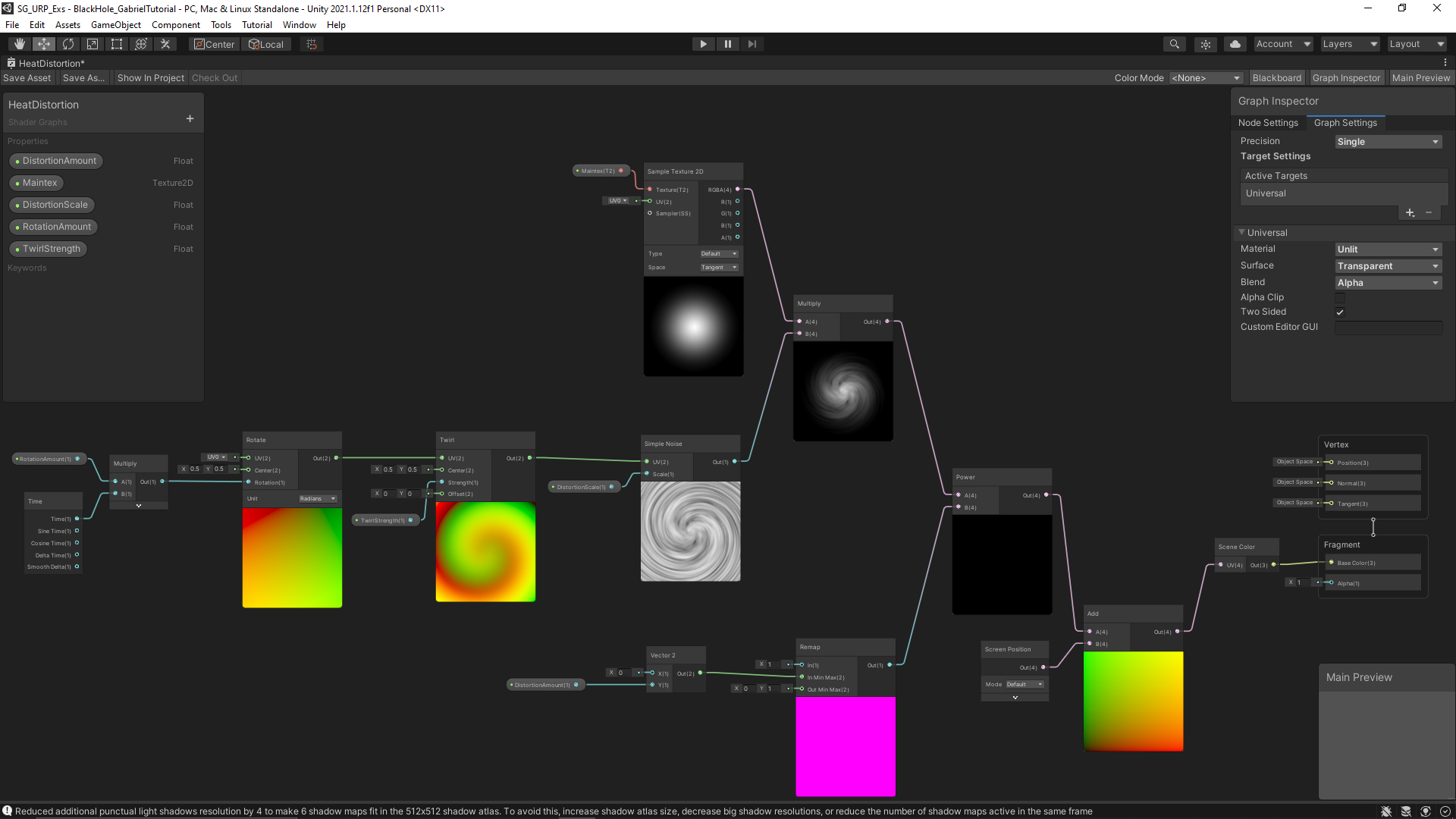
They multiplied the noise with a round particle texture to create a round visual effect on the rectangular plane that contained all the interesting visual effects. The white parts of the texture contained the focus on the noise, while the black parts did not receive impact from the noise. The transition between the two then also creates a bit of a smoother transition from where the distortion occurs to the lack of distortion.


My Resulting Black Hole VFX from Following Tutorial #1


My Resulting Shader Graph for the Heat Distortion Following Tutorial #1


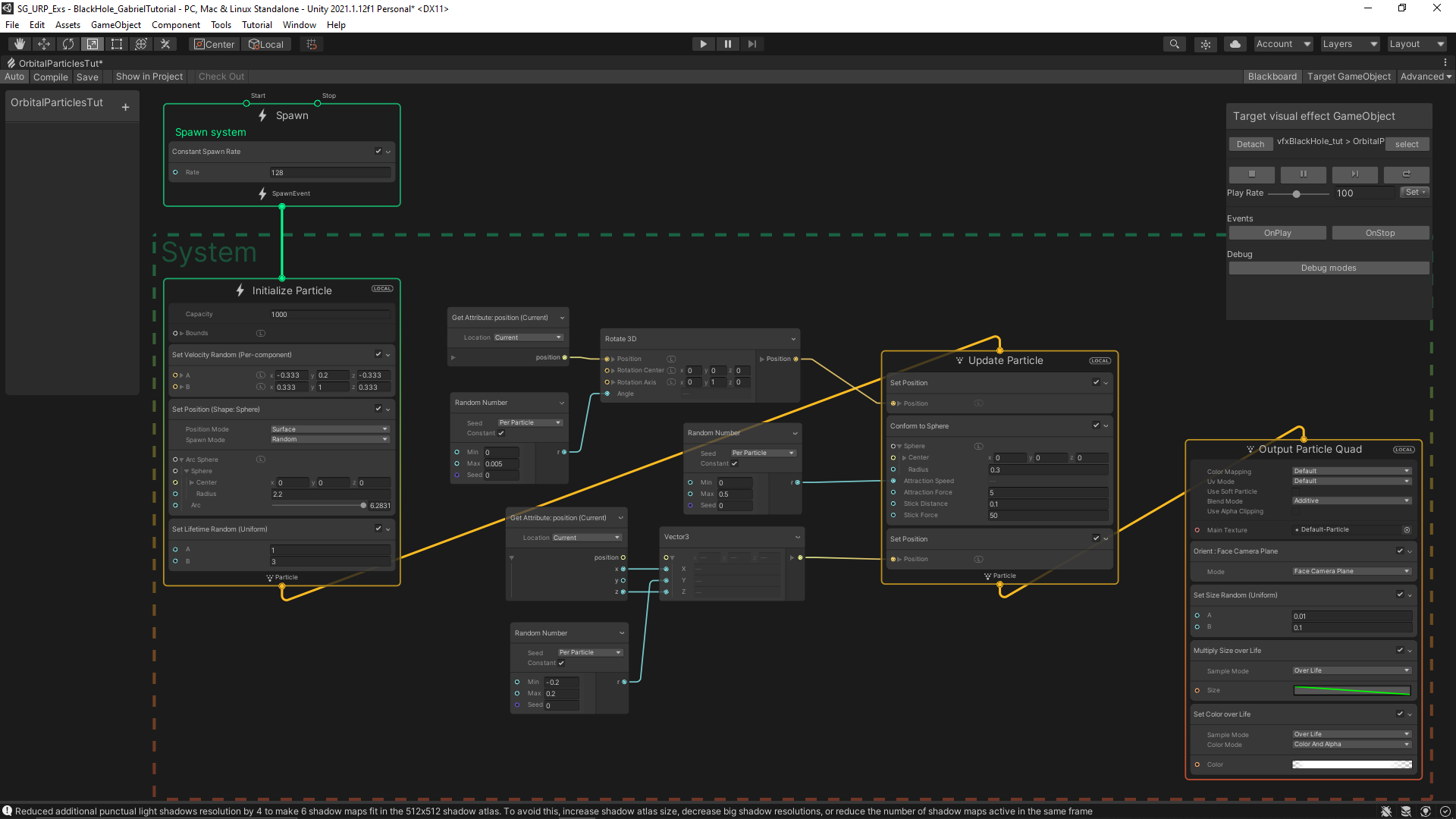
My Resulting Visual Effect Graph for the Floating Particles Following Tutorial #1

via Blogger http://stevelilleyschool.blogspot.com/2021/07/unity-shader-graph-black-hole-vfx-by.html

Unity Shader Graph – Signed Distance Fields – Update with Subgraph Fix

June 24, 2021

Shader Graph

Unity


Title:
Drawing Boxes and Rectangles in URP Shader Graph with 2D SDFs! 2021.1 | Unity Game Dev Tutorial

By:
Ned Makes Games


Youtube – Tutorial

Description:
Exploration into calculating signed distance fields and using them with Unity’s Shader Graph.


Title:
Rectangle SDFs and Procedural Bricks! Video Production Stream | Unity Game Dev Livestream

By:
Ned Makes Games 2


Youtube – Tutorial

Description:
The full stream which most of the previous tutorial is pulled from. Useful for any more in depth questions of previous tutorial.


Overview

When I visited this tutorial yesterday I ran into an issue with Unity 2021.1.3 that working with subgraphs was extremely bugged and error prone. I had seen online that later versions potentially fixed the issue, so I download the latest version, 2021.1.12, and this did indeed fix the issue for me, making this tutorial much easier to follow along with.

This tutorial was mostly just looking at the subgraphs and shader graphs they built and following along to build them out myself. This was at least a decent learning experience at getting familiar with the work flow of setting up subgraphs for your shader graphs, as well as just using a lot of the math nodes.

Helper Scripts to Show Off Shader

Along with building the shader, they made two simple scripts to make the shader a bit interactive and more flexible.

SetPoints

This class was responsible for letting the user move the two points dictating the general length of the rectangle shape by just clicking and dragging. This however did not work immediately, as they were using a helper class named MousePointer I did not use.

I was able to get a similar result by replacing their process of getting the point:


var p = MousePointer.GetWorldPosition(Camera.main);


with my replacement:


var p = Camera.main.ScreenToWorldPoint(new Vector3(Input.mousePosition.x, Input.mousePosition.y, distanceToPlane));

distanceToPlane was a value the user could put in that is the distance from the camera to the flat plane the camera is facing to test the shader. As long as the exact same distance is put there for the z-value of ScreenToWorldPoint, the points moving correlate exactly with where the user is dragging them.

RectangleThicknessByScrollWheel

This class lets the user control the thickness, or width, of the rectangle with the scroll wheel. This class directly worked as shown.

General Notes with Scripts Interacting with ShaderGraph Properties

Integrating the scripts with the Shader Graph properties was actually pretty easy. It worked similarly to working with the Animator in Unity. You just use methods like SetFloat() and give it two parameters where one is the exact string name of the property you want to set, and the second is the value you are passing in to said property. It is worth noting this was just accessed through the Material, there was no strange Shader Graph object that needed to exist or anything like that.

An example of my implementation of the tutorial can be seen below.


Unity Shader Graph: SDF Rainbow Pulse from Tutorial by NedMakesGames from Steve Lilley on Vimeo.

Video Example of my Following of the Pulse Shader in the Ned Makes Games Tutorial

via Blogger http://stevelilleyschool.blogspot.com/2021/06/unity-shader-graph-signed-distance_24.html

Unity Shader Graph – Signed Distance Fields and Subgraph Errors

June 23, 2021

Shader Graph

Unity


Title:
Drawing Boxes and Rectangles in URP Shader Graph with 2D SDFs! 2021.1 | Unity Game Dev Tutorial

By:
Ned Makes Games


Youtube – Tutorial

Description:
Exploration into calculating signed distance fields and using them with Unity’s Shader Graph.


Overview

This shader tutorial quickly explores calculating signed distance fields and using that for interesting effects. These effects were built in HLSL in the tutorial video originally, but they also show how these can be implemented with Unity’s Shader Graph system. I wanted to use the Shader Graph approach, but unfortunately I found that Unity’s Shader Graph Subgraphs have some major issues.

Signed Distance Fields (SDFs)

Signed Distance Fields (SDFs): calculate the distance from any arbitrary point to a specific shape

Principles of Calculating

To start, they look at an example using a rectangle whose center is at the origin (0, 0).

First, they find the distance from the point, p, to the center of the rectangle, which is just the length of the Vector2 p because the center is at the origin.

Then, using the symmetry of the rectangle, the absolute value of point, p, and the half dimensions of the rectangle are used to determine the distance of the point to any corner of the rectangle.

To get the positive results, they find the vector between the absolute value of point, p, and the corner of the rectangle and find the length of this vector after converting any negative components to 0.

Since the core of an SDF is that it is signed, meaning that a point inside the shape returns a negative value and a point outside the shape returns a positive value, they expand it to deal with negative distances. The vector, d, which is that from the absolute value of point, p, to the corner of the rectangle is only inside of the shape when both components of d are negative.

Assuming both components of d are negative, the result from the previous step already results in 0, so they can add a secondary component to this that returns a negative result in this case. By using min(max(d.x, d.y), 0) they can find this distance because a point within the rectangle must be closer to one wall or the other, or they are identical values. This is why there also is no rounded effect within the rectangle.

Moving the rectangle’s center from the origin just requires an additional offset argument.

Then, rotation requires another argument, and requires rotational matrix math (something I covered in my investigation to changing vector spaces).

Unity Problem with Subgraphs

While following along to mimic their Shader Graphs, I came across a Unity issue working in Sub Graphs especially. When creating properties and moving those property nodes around, Unity consistently runs in ArgumentNullException errors which completely shut the graph down and prevent any further progress until it is closed and reopened. Apparently Unity versions 2021.2 and up may work better with this, so I will have to look into more Unity versions in the future.

via Blogger http://stevelilleyschool.blogspot.com/2021/06/unity-shader-graph-signed-distance.html

Unity Shader Graph – Liquid Effect by Gabriel Aguiar Prod.

June 18, 2021

Shader Graph

Unity


Title:
Unity Shader Graph – Liquid Effect Tutorial

By:
Gabriel Aguiar Prod.


Youtube – Tutorial

Description:
Quick shader graph tutorial exploring interesting effects of moving shader based on psuedo-physics.


Overview

This shader tutorial looked like a great way to extend my knowledge on Unity’s shader graph since it appears to have some neat and unique mechanics. The fact that the shader is responding to the changes in position and rotation of the object explore ways to have shaders follow physics-like rules to create effects visually that can mimic for physical phenomena. Many of this user’s tutorials also include setting up the initial models, but I think this effect can work decently with other simple shapes I can easily make with ProBuilder.

via Blogger http://stevelilleyschool.blogspot.com/2021/06/unity-shader-graph-liquid-effect-by.html