Unity Shader Graph – Liquid Effect by Gabriel Aguiar Prod.

June 18, 2021

Shader Graph

Unity


Title:
Unity Shader Graph – Liquid Effect Tutorial

By:
Gabriel Aguiar Prod.


Youtube – Tutorial

Description:
Quick shader graph tutorial exploring interesting effects of moving shader based on psuedo-physics.


Overview

This shader tutorial looked like a great way to extend my knowledge on Unity’s shader graph since it appears to have some neat and unique mechanics. The fact that the shader is responding to the changes in position and rotation of the object explore ways to have shaders follow physics-like rules to create effects visually that can mimic for physical phenomena. Many of this user’s tutorials also include setting up the initial models, but I think this effect can work decently with other simple shapes I can easily make with ProBuilder.

via Blogger http://stevelilleyschool.blogspot.com/2021/06/unity-shader-graph-liquid-effect-by.html

Unity Shader Graph – Grid Shader by UGuruz

June 16, 2021

Shader Graph

Unity


Title:
Grid Shader in Unity LWRP – Shader Graph Tutorial

By:
UGuruz


Youtube – Tutorial #3

Description:
Experimenting with tiling and the rectangle node in Unity Shader Graph to create a Tron-like glowing grid pattern.


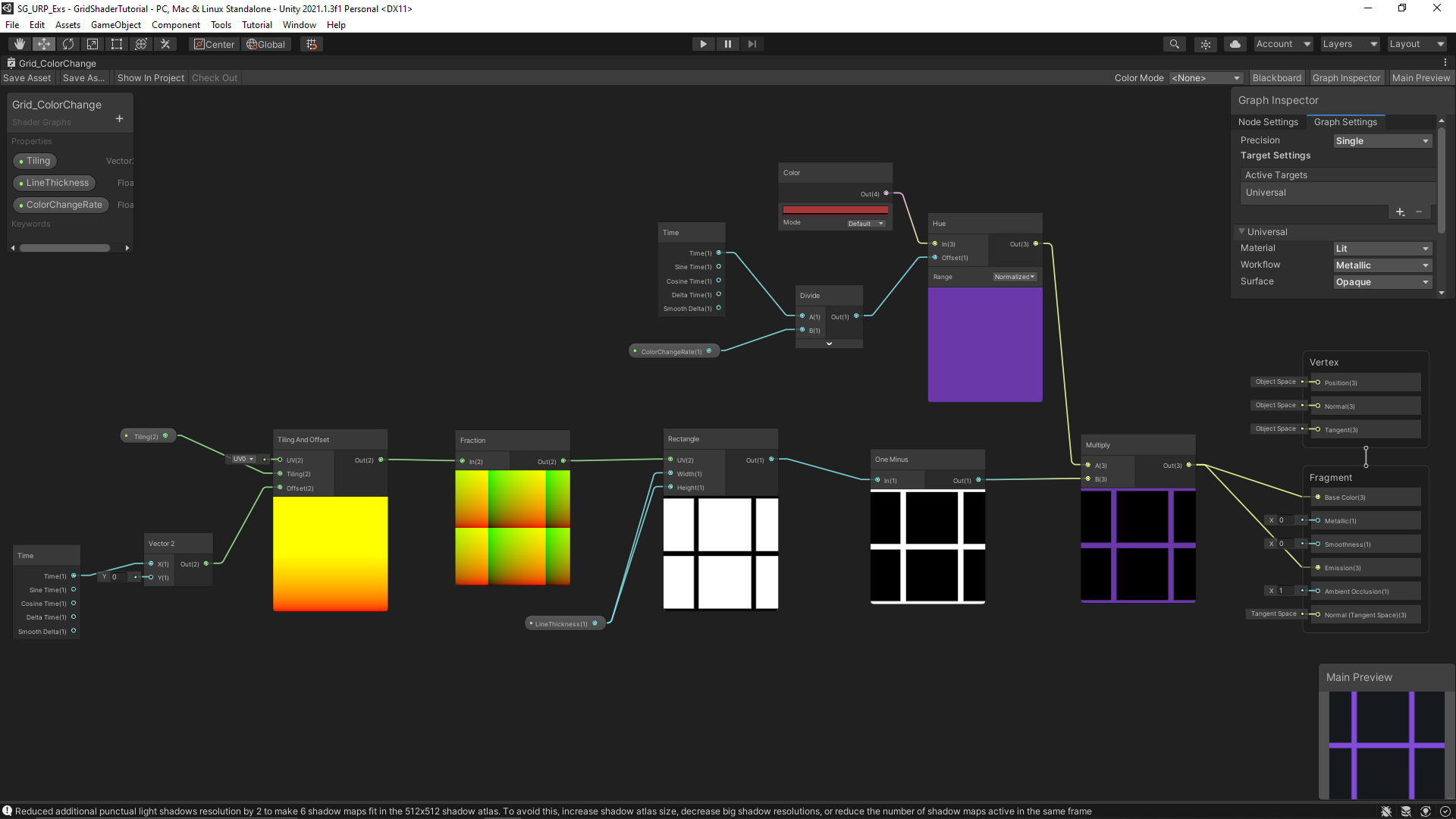
My Final Grid Shader Graph (w/ Color Change Addition)


Overview

Following my exploration of Unity’s shader graph, I did this tutorial by UGuruz on creating a grid shader similar to what you see in Tron. I really liked the effect so I continued it slightly further by adding a color changing effect over time, as can be seen in my examples provided.

Learnings from Tutorial

Using a Fraction node with a Tiling & Offset node is an effective way to give you standard expected tiling and offset results. I however had some strange effects because of interactions with the UVs of the models. The base UVs of just a standard Unity cube did not tile effectively for me, so I tried using Unity’s ProBuilder to make a basic cube since that also gave me easy access to modifying UVs if necessary. This gave me much more consistent results similar to those in the tutorial, since I wanted to avoid the step of modifying UVs in Blender.

They mentioned the shader would only work well on flat surfaces, but I at least wanted to test on another surface to see what the result would be and see if I could improve it. That’s why I included a sphere in the environment. It immediately gave very strange results as expected, but I found that grouping faces together through the ProBuilder tool helped give a better result, as this allows it to treat the many faces of a sphere similar to a single large face. This concept works well with a basic tiling pattern like I used here.

I did end up using World type UVs to get a decent visual result on everything, especially the sphere. While this gave something very close to what is desired, it is still a somewhat strange appearance when viewed from some angles as this inherently treats the positioning in world space as the coordinates for applying the shader. I still need to investigate the UV types and UVs in general though to get a better understanding of how to control them.


Unity Shader Graph: Tutorial by UGuruz with Color Change Addition from Steve Lilley on Vimeo.

Video Example of the Grid Shader Result with Color Change Addition

via Blogger http://stevelilleyschool.blogspot.com/2021/06/unity-shader-graph-grid-shader-by-uguruz.html

Unity Shader Graph Examples and Tutorials

June 10, 2021

Shader Graph

Unity


Title:
FORCE FIELD in Unity – SHADER GRAPH

By:
Brackeys


Youtube – Tutorial #1

Description:
A quick introduction to shader graph in Unity making a transparent force field with glowing edges.


Title:
ART 200: Creating an energy Shader in Shader Graph in Unity

By:
Casey Farina


Youtube – Tutorial #2

Description:
An introduction to using noise effects in Unity Shader Graph to create a glowing generic energy effect.


Title:
Grid Shader in Unity LWRP – Shader Graph Tutorial

By:
UGuruz


Youtube – Tutorial #3

Description:
Experimenting with tiling and the rectangle node in Unity Shader Graph to create a Tron-like glowing grid pattern.


Title:
Unity Shader Graph Tutorials – Youtube Playlist

By:
Gabriel Aguiar Prod.


Youtube – Playlist #1

Description:
This user creates tons of VFX tutorials for games, and has delved into Unity’s Shader Graph, giving great examples of quick but well done effects.


Title:
Unity Shader Graph – Ice Tutorial

By:
Gabriel Aguiar Prod.


Youtube – Tutorial #4

Description:
Creates a stylized glowing, transparent ice shader to use for crystaline ice formations.


Title:
Unity Shader Graph – Shield Effect Tutorial

By:
Gabriel Aguiar Prod.


Youtube – Tutorial #5

Description:
Similar to Brackeys force field tutorial, but covers extra steps to push the effect over the edge.


Title:
Shader Graph fundamentals in Unity

By:
PabloMakes


Youtube – Tutorial #6

Description:
General coverage of a lot of commonly used nodes and tools within Unity’s Shader Graph.


Source: Unity.com

Overview

I wanted a quick way to apply some interesting effects and looks to different models I work with in my sample projects, and making cool materials and shaders seemed like a perfect tool for that. You can get some neat effects without too much effort, and as you make these tools they are easily applicable over multiple projects and give me a tool to use over and over again.

Coding shaders in HLSL for Unity can be a bit tricky, so meeting them in the middle and working with Unity’s Shader Graph was a good compromise for me. This could give me results even quicker without sacrificing too much for what I will be doing. As such, I gathered this large source of resources for learning and exploring Unity’s Shader Graph system.

Quick Notes

URP vs HDRP

HDRP is for more high end games and devices (PC, XBOX, PS) but is more demanding. URP is better for 2D projects in general, and is made to be more accessible and less demanding.

URP vs Deprecated LWRP

Many resources, including some of these tutorials, used Unity’s Light Weight Render Pipeline (LWRP). This has already been phased out and replaced by the Universal Render Pipeline (URP). So it is generally safe to use the URP system if a tutorial or example uses the LWRP.

PBR Graphs Replaced with Lit Shader Graphs

Some of these old tutorials also use PBR graphs, which have also been phased out already. They can be replaced with Lit Shader Graphs. The PBR master node within the graph has also been broken up and replaced in newer Unity projects by two nodes, a Fragment node and a Vertex node (makes it more similar to shader coding).

via Blogger http://stevelilleyschool.blogspot.com/2021/06/unity-shader-graph-examples-and.html

Game Project: Flying Game – Part 5 – Projectile and Environment Interaction (Part 2)

June 8, 2021

Flying Game

Projectile


Overview

I wanted to have the player projectile add force to objects that it came in contact with. This originally was just to prevent strange occurrences where originally if the player hit obstacles sitting on top of others, nothing would happen since the only force moving them at all was gravity. This additional force adds some extra displacement to make sure that whenever any objects are hit, there is some dramatic impact.

Voxelized Environment Obstacles Update

IDestructible Interface Update for Voxel Obstacle Element Class

This interface is implemented by the individual voxel obstacles. It originally just had a Destroyed() method, but with this update I wanted to add a secondary method to deal with simply being hit at all, so I added a Damaged() method. I then also renamed the Destroyed() method to EndLife() since it may not necessarily be destroyed when its job is done.

Internal Hit Cooldown Timer

Because the objects were receiving forces from various angles and running into other elements, sometimes objects could quickly be pushed slightly out of the projectile and then be hit again by the same projectile and receive another boost in force applied. To prevent this, I added an internal hit cooldown timer to the individual elements so that they would not react again until a certain time had passed. This will most likely be set to a relatively low time (i.e. <1s), but as can be seen in the test video a timer of about 10s is used just to check its validity.


Video: Sonic Boom Projectile and Obstacle Internal Timer

via Blogger http://stevelilleyschool.blogspot.com/2021/06/game-project-flying-game-part-5.html

Game Project: Flying Game: Sonic Boost – Part 4 – Projectile and Environment Interaction

June 2, 2021

Flying Game

Projectile


Overview

I was trying to think of ideas on how to add an extra mechanic to the flying controller that ties in with a fast and agile moving controller, and thought of tying in some type of sonic boom effect. With this, I thought creating an expanding projectile from the player after boosting could be an interesting way to generate these projectiles. I then explored a few ways to have the projectile interact with the environment and came across a relatively simple one that provides some fun feedback.

Sonic Boom Projectile

Everything about the projectile is rather simple. The projectile is generated when the player performs a fully charged boost. It then expands at some growth rate (dictated by the projectile controller on the player) up until some maximum size (dictated in the same location). As it encounters objects with an IDestructible interface, it will cause them to perform their Destroyed() method.

This gives a pretty cool effect that at least has a minimal basis in real world physics. It also makes tight turns and effective direction changes tied to a boost more satisfying when performed properly. It does have a major flaw currently however in that a majority of the action is normally happening behind the player, so they do not get to witness it most of the time. This is a pretty severe drawback that I will need to investigate some solutions to.

Voxelized Environment Obstacles

I initially liked the idea of creating targets or obstacles that could be destroyed by this growing sonic boom that would deteriorate as the sonic boom moved into it, as opposed to a more general game approach where contact would just do damage and destroys the entire object as a whole. This led me to making a bit more voxelized targets, which were made up of several chunks instead of just being a single large mesh.

To begin, I created a Voxel Obstacle script which is the overall container of a full obstacle made of several voxelized elements. This script just holds 3 dimensional values and builds out a solid cube/rectangular solid based on those dimensions.

The elements that make up the full obstacles are just simple prefab cubes for now, with a VoxelObstacleElement script. That script implements the IDestructible interface just so they have a Destroyed() method for the projectile to interact with.

Initially I had these elements have their gameobjects destroyed on impact with the projectile just to test the interactions. This was an ok approach, and gave the deteriorating effect I wanted that was at least more fun than the whole area exploding immdeiately on impact. However, I explored a more physics-based approach that looked a lot more satisfying. I simply turned the elements’ rigid body component from kinematic to non-kinematic to effectively enabled their physics. This gave a fun tumbling and physics-y effect for the individual blocks as they interacted with the projectile.

This is a decent spot for most of the elements of this small game project, and I think the next step is just building out a better level to test the individual mechanics in. I would also like to add a bit more to the projectile/environment interaction just to make it a bit more impactful. I would also like to remove the strange interaction of hitting the blocks from above, as without any additional force, they don’t really move since they really start by moving downward with gravity being the only force acting on them.

Sonic Boost – Projectile Tests and Environment Voxel Interactions from Steve Lilley on Vimeo.


Video: Sonic Boom Projectile and Obstacle Destruction Showcase (1st and 2nd Iteration)

via Blogger http://stevelilleyschool.blogspot.com/2021/06/game-project-flying-game-sonic-boost.html

Accessing Variables in Other Scripts in Unity

May 26, 2021

Accessing Variables

Unity


Title:
How To Access Variables From Another Script In Unity

By:
Infallible Code


Youtube – Tutorial #1

Description:
Goes over many programming techniques within Unity to access variables in one script from another.


Key Concepts

Scripts

C# classes that inherit from MonoBehaviour.

Collaborators

Scripts that require a reference to at least one other script in order to function.

Dependencies

Objects that collaborators need in order to function.

Categories of Resolution

Where the burden of dependency resolution lies.

External Resolution

The responsibility of dependency resolution falls somewhere else.

Public Properties

Expose dependency of a public field or property


Simple and requires no overhead, but can easily make bugs that are also hard to debug. This is because it can be unclear where the dependencies lie.

Editor Properties

Expose serializable dependencies in the Unity editor.
Use SerializeField on attribute private properties.


Similar to public properties, but are much safer.

Unity Event Methods

Functions that are called when specific events occur at runtime.


This specific example covers methods like OnCollisionEnter(). These are functions that are called when specific events occur, and they help resolve dependencies when those events are triggered.

Internal Resolution

The script itself is responsible for resolving its own dependencies.

FindObjectByType() Method

Search for dependencies in the scene based on their type.
FindObjectsByType() returns a list of matching objects.

This can be tricky to use sometimes since you may not be sure of the state of your scene when this is called. It is also relatively expensive. Most consistent to use to find manager scripts, since they should confidently be active in the scene when called.

Static Instances

Expose dependency on a public static property.
Commonly used in the Singleton pattern.

Dependency Injections

A pattern for automating dependency resolution based on a configuration.

It allows you to configure all your dependencies in one place and have them resolve automatically based on that configuration.

Summary

I have used all these techniques before, but it is always good to find condensed lists of them all together to really help organize them. Determining the cleanest and safest way to pass around variables through scripts is something I work on a lot, so laying out these options to go through in an effort to determine the best approach is always helpful. This also led me to some other resources on the topic that I am looking forward to investigating.

via Blogger http://stevelilleyschool.blogspot.com/2021/05/accessing-variables-in-other-scripts-in.html

Singletons in Unity and Many of Their Downfalls by Infallible Code

May 26, 2021

Singletons

Unity


Title:
Everything You Need to Know About Singletons in Unity

By:
Infallible Code


Youtube – Tutorial #1

Description:
Goes over the true properties of singletons in code and why they should be used sparingly in Unity game development.


Intro to Singletons

Singleton Pattern: class that is both globally accessible and can only be instantiated once

Common Example:

Audio Manager – because it is something many scripts will want access to, and you specifically want only one in your game at a time

Singleton Requirement #1: Global Access Specification

Singletons sound promising because they are an easy solution to “how do you access other scripts” or “how do you fill your class dependencies”. Using Singletons for access can hide the fact that a class depends on another, which can lead to difficult to track bugs and difficulties. This may lead to using the singleton even more than necessary because of ease of access, which creates more and more hidden dependencies.

Example #1

Non-Singleton Version

public class GameManager : MonoBehaviour
{
	[SerializeField] private Player player;
	
	privat void OnPlayerDied()
	{
		print($"Final Score: {player.Score}");
	}
}

Singleton Version

public class GameManager : MonoBehaviour
{
	privat void OnPlayerDied()
	{
		print($"Final Score: {Player.Instance.Score}");
	}
}

Because the Singleton pattern accesses a specific class directly, additions of derived classes will require more updates that may also be hard to find because of the hidden dependencies. Again, doing something similar to the Non-Singleton version of Example #1 makes it so that an additionally created derived class could fill the Player dependency with little to no edits.

Singleton Requirement #2: Restricted to a Single Instance

This is generally accomplised by creating a private constructor for the class, and then instantiating a single instance from the getter. This is already difficult in Unity as many classes you create in Unity will be MonoBehaviours, which cannot be instantiated in code with the new keyword. This is because Unity hides their constructor and allows anything to instantiate them through object.Instantiate().

So to help satisfy this, you need an extra check if another instance of the class already exists in the scene in case it was added directly in the Editor or through other object.Instantiate() calls. Once these are located, they may also require being destroyed to make sure there only exists one instance at any given time. This can also lead to strange results, as sometimes destruction prevention is used in Unity, such as with the DontDestroyOnLoad() method. Sometimes you may also get rid of and keep the “wrong” singleton if multiple somehow run into each other.

Singleton Criteria:

1) Absolutely required to exist only once
2) Must be accessible from every part of your code
3) Controls concurrent access to a resource

Summary

While I already knew that singletons should be used sparingly, having a better understanding of them fundamentally really helps put that into perspective just how sparingly they should be used. It also helps confirm that it can generally be a bad way of passing around data in Unity, and with a need that comes up so often and has so many options to be accomplished, it is good to generally remove an option from that list. It is also important to acknnowledge that in Unity specifically they are extra difficult to implement when it involves MonoBehaviours, as this again helps narrow down the process of passing around data.

via Blogger http://stevelilleyschool.blogspot.com/2021/05/singletons-in-unity-and-many-of-their.html

Game Project: Flying Game – Part 3 – Camera Controller and Zoom Control

May 25, 2021

Flying Game

Camera Controller


Overview

After getting the basics of the camera controller down, I wanted to explore ways to make it feel more immersive. One of the ways I’ve seen racing or other fast moving games handle this was to have a zoom that mimicked the acceleration to make that feel all the more impactful. Following this, I wanted to look into connecting the player’s speed with the amount the camera zooms in on the player.

Setting the Camera Zoom Suggested by Player Speed

Since the game has a speed boost option, I wanted the impact of the speed boost to be larger than any normal speed the player can reach. With this in mind, I was looking at an approach where normally their max speed gets the camera up to around 80% of the maximum zoom, and activating a boost is the only way to hit the 100% zoom mark (creating a significant difference in zoom specifically when boosting).

One immediate issue with this approach is that any zoom that is directly tied to player speed has a jarring jump in zoom position when the player boosts, since in a single frame it jumps from rather low zoom (because charing boost goes with slowing down) to maximum zoom. So while this was a decent initial approach, I knew I would want a smoother transition system to especially deal with this common extreme case.

The approach I thought of was that the camera zoom system would read the player’s speed and suggest a position for the camera to move to. If that new position is substantially far away from the current position, it would only move a portion of the way there instead of directly there. This would help me spread out extremely large zoom changes over several frames, similar to how a Lerp function may handle this.

This ended up working rather well, and can be seen in action in the video I have linked. Another hopeful benefit of this system was that I was hoping I could remove the small zoom jitter when the player’s speed is not changing any appreciable amount. This is an effect that happens often when the player is consistently maintaing the normal top speed. I was hoping to use the opposite distance check of not changing the zoom at all at very small distance changes, but as can be seen in the video as well this does not particularly fix it currently.

Camera Controller – Zoom Focus from Steve Lilley on Vimeo.

Video: Zoom Based on Speed System for Camera Controller

via Blogger http://stevelilleyschool.blogspot.com/2021/05/game-project-flying-game-part-3-camera.html

Coroutine Fundamentals in Unity

May 20, 2021

Coroutines

Unity


Title:
Introduction to Game Development (E21: coroutines)

By:
Sebastian Lague


Youtube – Tutorial #1

Description:
Covers the basics of coroutines in Unity.


Title:
Coroutines In Unity – What Are Coroutines And How To Use Them – Coroutines Unity Tutorial

By:
Awesome Tuts


Youtube – Tutorial #2

Description:
Covers some intermediate complexity uses of coroutines as well as tying them in with Invoke calls.


Title:
Coroutines – Unity Official Tutorials

By:
Unity


Youtube – Tutorial #3

Description:
Old official Unity tutorial on the fundamentals of coroutines in their system.


Overview

Coroutines appear to be a strong tool within Unity that I still am looking for ways to implement better in my systems. While understanding the basic uses for them with timing related events, I feel like they offer a lot more that I am not utilizing, so I wanted to further my understanding of them by following up on one of my older tutorial blogs and going through the tutorials it offers.

Tutorial #1 Notes

Coroutines are part of the Unity engine, and are not native to C#. They also belong to the Monobehaviour base class, so they class they are used in must inherit from Monobehaviour.

The coroutine return type is IEnumerator. Because of this, coroutines can also be stored in IEnumerator variables. This also allows them to be passed in as a paramter for the yield return statement within a Coroutine.

Use a reference to properly control the starting and stopping of a specific coroutine instance.

Tutorial #2 Notes

You can call a Coroutine from within itself (the same Coroutine). This is one way to cycle a Coroutine continously.

WaitForSecondsRealtime is similar to WaitForSeconds, except that WaitForSecondsRealtime is independent of Unity’s timescale. WaitForSeconds however is affected by the timescale. WaitUntil suspends the coroutine until the given delegate returns true.

Invoke Notes

  • Invoke – call a method after a given amount of time
  • InvokeRepeating – call a method every given amount of time, after a starting given time
  • CancleInvoke – stops an InvokeRepeating call

Tutorial #3 Notes

Coroutines are functions which execute in intervals. They work with special yield statements which return the code execution out of the function. Then, when the function continues, execution begins from where it left off.

Combining coroutines with properties can allow for efficient code which produces execution only when a value is changed, without the need to check for variable changes every frame with the Update() method or something similar.

Coroutine Return Statements

A substantial part of using and controlling coroutines is the various return statements you can use within them to determine when they should run and when they should pause execution. As such I listed several of these options and how they work within the coroutines.

yield return null

waits a frame before progressing to the next step

seems similar to the rate of the Update() method

yield return new WaitForSeconds(float time)

waits the given amount of seconds between each run of the process

yield return WaitForSecondsRealtime(float time)

waits the given amount of seconds, regardless of Unity’s timescale

yield return StartCoroutine(DoSomething())

waits until the given Coroutine “DoSomething” is finished running

yield return new WaitUntil(bool test)

suspends coroutine until the given parameter is true (opposite of WaitWhile)

yield return new WaitWhile(bool test)

suspends coroutine until the given paramter is false (opposite of WaitUntil)

Summary

Coroutines are starting to become a bit more clear to me, and this helped me learn a few more ways to incorporate them into my projects. Just seeing that they are specifically a Unity native concept was helpful to me as I did not think about that before, and that makes their somewhat strange nature make more sense in my head. This made it more clear that Unity is doing a lot of work behind the scenes to accomplish their main goals of determining when to start, pause, resume execution based on their yield values. Also the Unity note on tying them in with properties is very interesting and something I want to experiment with more myself for more efficient code.

via Blogger http://stevelilleyschool.blogspot.com/2021/05/coroutine-fundamentals-in-unity.html

Lerp Fundamentals in Unity

May 10, 2021

Lerp

Unity


Title:
How to Use Lerp (Unity Tutorial)

By:
Ketra Games


Youtube – Tutorial

Description:
A brief coverage of exactly how Lerp works in Unity with a couple ways to use it.


Overview

I was recently researching ways to effectively use Lerp in Unity and came across some strange implementations that made me unsure if I understood how it worked. This video however specifically covered that case and explained that it does work, but it’s not a particularly ideal solution.

The case covered is specifically called the “Incorrect Usage” in this video. It is when Time.deltaTime alone is entered as the time parameter for Lerp. As I thought, this is just entering some tiny number as a time parameter each time it is called, which is then used to just some value between the intial and final values entered into the Lerp. It is not very controlled, and it leads to a strange situation where it keeps getting called and updated but it does not theoretically reach the final position ever (although this may be different with how computers handle the values eventually).

Finally they cover a couple time parameters to use with Lerp to get a few varied results. SmoothStep is one they suggest to get a result similar to the “Incorrect Usage” but done properly. It adds a bit of a slowing effect as the value gets closer to the final result. They also show using an Animation Curve to control the value in many various mathematical ways over time.

via Blogger http://stevelilleyschool.blogspot.com/2021/05/lerp-fundamentals-in-unity.html