Architecture AI Pathing Project: Automating the Sizing of the Node Grid

November 17, 2020

Automated Node Grid Size

Architecture AI Project


Title:
Unity Bounds Documentation

By:
Unity


Unity – Informational

Description:
Unity’s documentation on their Bounds class and its methods.


Automating Process of Sizing the Node Grid

The A* pathing uses an underlying grid of nodes to inform the agents how to move through an area. A value must be input to tell the grid how large of an area to cover with these nodes. Originally these values, which are two dimensions of a rectangular area, had to be input manually. Since this grid will always be covering a full architectural model, it made sense to be able to access the model and automate the sizing process through the size of the model.

Encapsulate Bounds of All Children Objects

Since we are dealing with models in Unity, I looked to the Bounds class to help with automating this grid creation process. Immediately, Bounds can be used to find the bounding volume of a single mesh/renderer/collider. The architectural models however are complex models made up of many children models, including both small elements like windows and entire structural elements like the walls. Needing to create bounds that made sure they contained every bit of the architecture, I created a method which looks through all the children of the overall parent architectural model object and uses the Bounds.Encapsulate method to continually increase the size of a single bounds reference until it contains the entirety of the model.

Using Bounds for Sizing

After creating a set of bounds which encompassed the proper area of interest, they needed to be used to set the node grid. The Bounds.Size property returns a Vector3 which gives the dimensions of said bounding box. Because of our current frame of reference, we could use Bounds.size.x and Bounds.size.z to find our two dimensions for our 2D node grid area.

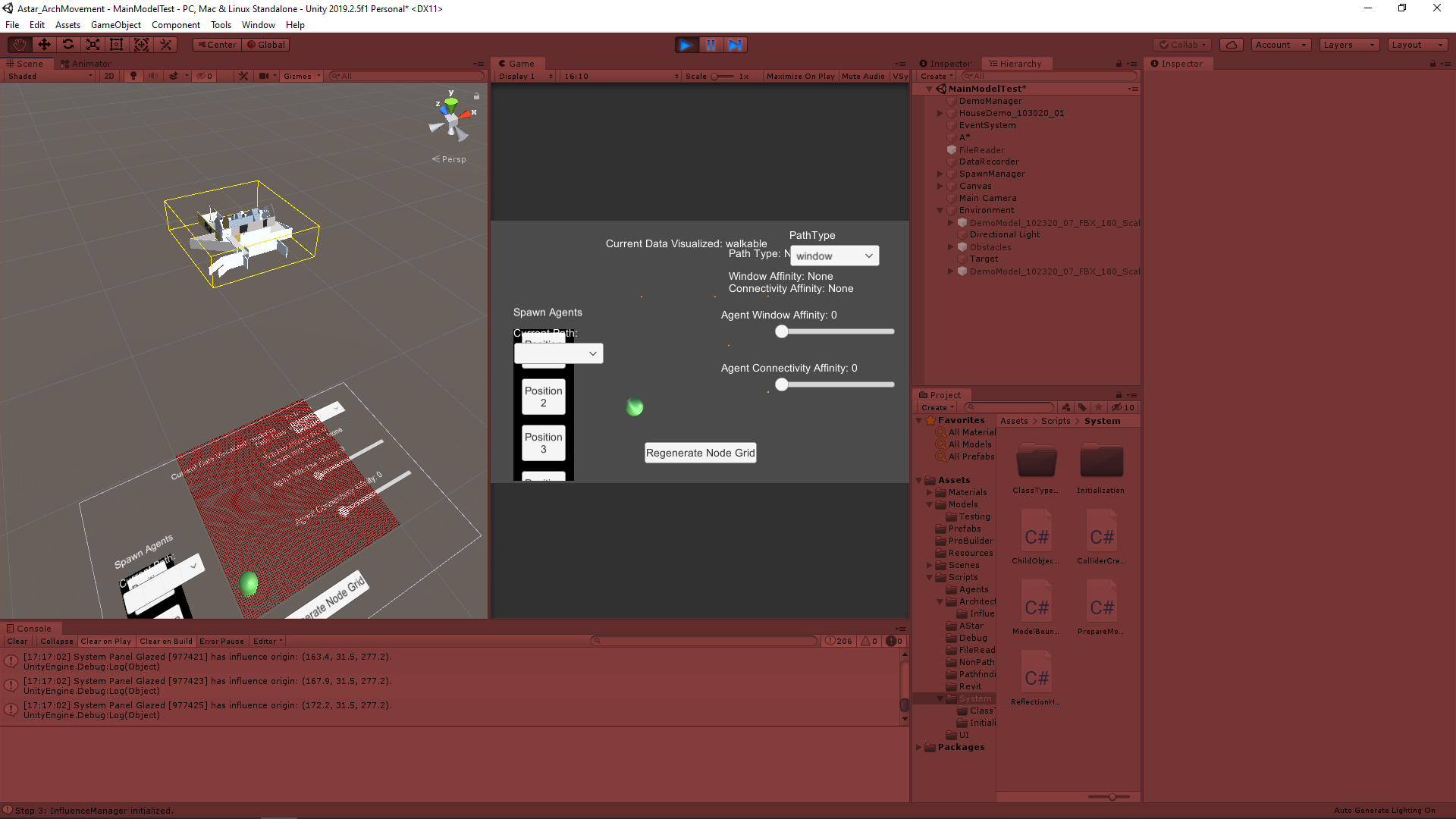
The following image shows an example model with the created bounding box around it (shown as a yellow wire box). The node grid can be seen as all the small red cubes. It can somewhat be seen that the node grid is about the size of the bounding box using the above approach, but it is still tied to the origin since the repositioning logic has not been added yet.

Example of Model Bounding Box with Resized Node Grid

Next Step

The size gives us the dimensions of the node grid, but to fully automate it it still needs to find the proper position of the node grid. Just for now the node grid is still starting at Unity’s origin and building out from there, regardless of the position of the model. Positioning the grid will either use Bounds.center to find the center of the model and build out from there, or Bounds.min or Bounds.max to find one corner of the model and build out from there. Either of these options should give similar results.

via Blogger http://stevelilleyschool.blogspot.com/2020/11/architecture-ai-pathing-project.html

Unity Component-Based Design: Breaking Up Code with Lost Relic Games

November 10, 2020

Component-Based Design

Unity


Title:
Breaking up Code in Unity (Important game dev tips for beginners)

By:
Lost Relic Games


Youtube – Informational

Description:
Introductory explanation of using component-based design in Unity and breaking your scripts down into smaller more manageable pieces.


Overview

As I work on larger and more complex projects, I want to explore ways to better organize and structure my code so this seemed like a good option to look into. Unity’s components are the foundation for a majority of it’s inner working, and as such component-based design is a popular way to handle meatier projects within Unity. It has a focus of breaking scripts down into very small and manageable pieces that focus more on a specific functionality, and then having those pieces interact with each other in a controlled and organized way. I have been working on breaking up my code into more unique pieces, but I am looking for more ways to have them work together and interact in a more controlled and organized way.

via Blogger http://stevelilleyschool.blogspot.com/2020/11/unity-component-based-design-breaking.html

Self-documenting Code with InfallibleCode

November 4, 2020

Self-documenting Code

Programming Principles


Title:
How to Write CODE That Documents Itself

By:
Infallible Code


Youtube – Informational

Description:
Quick rundown of how to make your code more self-documenting and reduce the need for comments.


Overview

Removing Old Commented Out “Zombie Code”

They suggest continually removing old code that has been commented out to save for later possible use. They call this type of code zombie code, and say it is generally not worth saving and if anything can cause issues. It can be confusing extra amounts of information, or someone may be more likely to reactivate it when unnecessary in a group project setting.

Some Cons of Extensive Comment Usage

They suggest keeping comment usage to a minimum and having the actual code itself better describe what it does. This starts with the basics of effectively naming variables, but also leads into all around more readable code.

One quick example they run through is a drawn out if statement check where they pull out the bools checked and make them into their own new bool variables where their name now indicates their purpose, but perform the same check. They supplement this by using expression bodies to deal with the simple bool check variables they have now created to keep them condensed and highly readable.

Summary

This is not a perfect solution since it can lead to creating a lot of small methods throughout the code that could possibly lead to less runtime efficiency when done in great numbers on huge projects. It is a very nice option to at least keep in mind even in those cases however, and can be a great asset for readability on smaller projects for sure.

via Blogger http://stevelilleyschool.blogspot.com/2020/11/self-documenting-code-with.html

Architecture AI Pathing Project – System Manager and Automating Component Application to Imported Models

October 29, 2020

Automating Component Application and System Manager

Architecture AI Pathing Project


System Manager and Initialization

The integration of several classes and adding more has started to create a lot of necessary references becoming difficult to time properly. To make sure a certain class has already initialized or some other class has performed its Awake() method I end up making extra references and method calls within other classes so the proper references are set before peroforming those methods.

In an effort to organize this better and make the timing more understandable, I am looking at making a SystemManager gameobject to replace the DemoManager, and either add an Initialization class to this or make it its own class if it does not require being a monobehaviour. This Initialization class will be responsible for calling all the major system classes initialization methods in the proper order to ensure references are met. This will also require moving some Awake and Start methods from other classes to some Initialization method.

This could also be a good case for an interface dealing with initialization. I could then make all the major system classes implement this interface and then plug them into an Initialization Manager class that calls each of the interface implementing objects’ Initialization methods.

Automating Component Application to the Imported Architecture Models

To make the system more user friendly, the more it can automate the better. The system uses Influence objects as the basis of many of the architectural elements applying their effects to the surrounding area, but these are components that must be added to the objects themselves. Since the objects are coming in as part of a large scale model from software like Revit or 3DS Max, they have nothing on them ahead of time. Right now specific objects need to manually be found and have the proper components applied, so we would like to automate that process.

Approach 1 – Gather All Children of Imported Models and Apply Components and Layers by Name

The first approach I will try involves manually adding a reference to an imported model object in Unity’s inspector, and this will give the new class (named ApplicatorManager) a reference to create a gameobject list of all the children objects. From here, ApplicatorManager can go through each object and check if its name contains a certain string to determine which objects to apply the designated layers and components to.

To create this connection of strings and components or layers, I am creating a new small data class called Applicator. This will hold: a string (search term to look for in names of objects), an enum (either “component” or “layer” to determine which thing it will be adding), and either an Influence object (for component) or a layer integer value (for layer). The ApplicatorManager will have an array of these Applicator objects which the designer can add/remove from in the Inspector and fill in the search term, whether that should add a component or layer, and which one for each element in the array.

Summary

I think organizing all of the initialization processes for the several main system core classes will be beneficial for controlling the reference timings as well as thinning out some of the larger classes. The Applicator approach I am looking at adding may not be terribly efficient, but it only needs to be run once at the start of setting up a model each time so it will be good for getting the connections setup for now. Since I am looking at a component application method, it could be worth looking into an option that can do this in the Unity editor so it only needs done once a model is imported and not each time the project is actually run. This could be a good way for reducing load times of the system.

via Blogger http://stevelilleyschool.blogspot.com/2020/10/architecture-ai-pathing-project-system.html

Unity Input Action Assets Intro with InfallibleCode

October 26, 2020

Input Action Assets

Unity


Title:
Unity Input System | How to Use Input Action Assets

By:
Infallible Code


Youtube – Tutorial

Description:
One of the better tutorials covering all the basics of utilizing Unity’s new Input Action Asset for their new input system.


Tutorial – Part 1 – Reference by String

Initially there are already some issues since they are using an older version of the new Unity input system. GetActionMap and GetAction are no longer methods associated with the InputActionAsset object and the InputActionMap object. To get around this I just used the FindActionMap and FindAction methods and they appeared to work fine here.

There are to callbacks tied to the movement action we created: movement.performed and movement.canceled. According to the Unity documentation, performed means “An Interaction with the Action has been completed” and canceled means “An Interaction with the Action has been canceled”. Then there is a method named OnMovementChanged which reads the current context input from the Vector2 input and just assigns it to a Vector3 used for movement. Since this method subscribes to both movement.performed and movement.canceled, my understanding is that the OnMovementChanged method is then called with performed when an input is given (to start moving the player) and then OnMovementChanged method is called again through canceled when the player lets go of the input (so the system knows to stop the player or at least to assign a zero vector value).

The action map and actions are referenced here through strings. These strings are the names given to them in the input master you create initially. Also the inputs created for the Movement action they created use a 2D Vector Composite.

Tutorial – Part 2 – Reference Hard Typed Generated Script

After noting that the action map and actions must be referenced through strings in the initial project, they mention that there is a way to replace the string accessors with strongly typed solutions. They also mention to do this they would encapsulate the logic in a few methods and break them off into their own class, but this is where they introduce the Input Action Importer which can do that for you using the Input Action Asset you have created.

When selecting the Input Action Asset, there is a “Generate C# Class” option. This creates an “encapsulation of your Input Action Asset complete with strongly typed accessors for all of your custom made action maps and input actions.” When creating this, you are also given some options to define where the file would be saved, what it is named, and what namespace it should live in. Leaving these blank provides a default option. The older version also had check boxes for generating events and interfaces, but those do not appear in the newer version I am using.

Looking through the generated class, we can identify in the lines here where the strongly typed accessors have been created:


m_UnityBasicMovement = asset.FindActionMap(“UnityBasicMovement”, throwIfNotFound: true);

m_UnityBasicMovement_Movement = m_UnityBasicMovement.FindAction(“Movement”, throwIfNotFound: true);


Here…

UnityBasicMovement = name of the action map

Movement = name of the action (found within the UnityBasicMovement action map)

This then allows you to tie your actions into the Input Action Asset through an approach as follows:


movement = playerControls.UnityBasicMovement.Movement;


Here…

movement = an InputAction object

playerControls = reference to the generated C# script object from the Input Action Asset

UnityBasicMovement = name of the action map where the action is located

Movement = name of the action


This entire line of references are all now hard typed and help reduce errors.

I then ran into an issue I faced in another tutorial using an older version of this input system. They had a serialized field to drop a reference to the generated class into in Unity’s inspector, but that is not an option with the new system. To rectify this you just need to create a new instance of that generated class to connect all your actions to.

Tutorial – Part 3 – Use Generated Interface

Here they use the interface created by the generated class because they selected the “Create Interface” option. I see this interface structure is also present in the class I am working with so it appears that is just added by default now. This is important because the generated class also creates a struct with in it that holds a method that requires this interface as a parameter.

This method is named SetCallbacks. It takes in the generated interface (named I[Name of Action Map]Actions) and that parameter is named instance. It then checks if the wrapper.callbackinterface object has been set yet and if so, it unsubscribes all of its OnMovement methods from the action’s event (in this case, the Movement action). It then sets that wrapper.callbackinterface to the current instance for future reference, and adds all the current instance’s OnMovement methods to the Movement action (again, this is the started, performed, and canceled events). All in all this method handles unsubscribing everything from a previous instance (if there is one) and then subscribes all of the new instances methods (or just adds them if it is the first instance). They word it as “this method registers the instance of IGameplayActions to the Movement InputAction’s events: started, performed, and canceled.”

After making the player input script with all our movement logic implement this created interface, this means all of the manual method registering to events could be replaced with simply using the SetCallbacks method passing in this as the parameter. Make sure to use the method required by this interface (which was OnMovement in this case) and place your input logic into that method. Then finally the object that should be enabled and disabled at this point should be your InputActionAsset generated class, and not an InputAction object.

To summarize…

I replaced:


movement.performed += OnMovementChanged;

movement.canceled += OnMovementChanged;


with:


playerControls.UnityBasicMovement.SetCallbacks(this);


and replaced:


private void OnEnable()

{

movement.Enable();

}


private void OnDisable()

{

movement.Disable();

}


with:


private void OnEnable()

{

playerControls.Enable();

}


private void OnDisable()

{

playerControls.Disable();

}

Summary

This tutorial was extremely helpful for showing all the ways you can access Unity’s newer input system through C#. They start with the basic string references, then move to the hard typed option created by their generated class, and finally show how the interface within the generated script can be used to implement hard typed references as well. While it is a bit more complex to get started with this setup than Unity’s original input system, this tool seems like it could be very promising for quickly setting up more involved player controllers. It also looks like it will provide good options for editing the inputs at run time.

via Blogger http://stevelilleyschool.blogspot.com/2020/10/unity-input-action-assets-intro-with.html

Gridzzly Printable Graph Paper

October 21, 2020

Graph Paper

Design Resources


Title:
Gridzzly Graph Paper Layout


Gridzzly – Main Page

Description:
Site that gives several graph paper-like options that can be accurately printed.


Overview

This site provides a quick and accurate way to make several different graph paper-like designs that can be printed onto paper to sketch ideas and concepts. Along with the general graph paper square pattern, it has a few dot patterns, several other shape patterns such as triangles and hexes, and even a music bar option. These various options can be good for quickly working on some ideas or building out paper prototypes for testing phases.

via Blogger http://stevelilleyschool.blogspot.com/2020/10/gridzzly-printable-graph-paper.html

Open Closed Principle

October 20, 2020

Open Closed Principle

Programming


Title: SOLID Principles in C# – Open Closed Principle
By: Marinko Spasojevic
CodeMaze – Information
Description: Quick coverage of the open closed principle for programming with C# examples.


Overview

“The Open Closed Principle (OCP) is the SOLID principle which states that the software entities (classes or methods) should be open for extension but closed for modification.” This basically means it is preferable to write code in such a way that when a change or extension is suggested for that original class that it can be done through addition instead of modifying the existing class itself. Many of the examples shown do this by adding new classes to handle the additional functionality required instead of modifying the original classes created.

Example #1 – Salary Calculator

The first example they cover somewhat resemebles the factory pattern tutorial I was checking out recently that introduced me to the open closed principle. In this example, they initially create a single class to handle everything. It has a constructor to take in all the members having their salaries taken into accoutn, and then it has a single method handling all the logic of summing all their salaries. As soon as a request for a modification comes in, that single large method within the only class must be edited to accomodate for the new special cases, which clearly violates the Open Closed Principle.

Their suggested revision of the project is what resembles the factory pattern example I was checking out. Instead of just creating the singular SalaryCalculator class, they create an abstract BaseSalaryCalculator class. Next each salary case is broken down into its own class which inherits from this BaseSalaryCalculator class, and these classes internalize all the logic for calculating their salaries so they can individually deal with the differences. Using this approach, if any new options or exceptions need to be accounted for, a new small class inheriting from that BaseSalaryCalculator class can be made without editing any of the existing classes.

Example #2 – Filtering Lists of Computer Monitors

This example provided a list of computer monitors that each had a name, a monitor type, and a screen type. They then needed to be able to filter the list of computer monitors based on the type of monitor. To do so they made a single MonitorFilter class which used a method to filter out the monitors of that specific type and return a list of them. Later they need to add functionality to filter by screen type as well. They accomplish this by adding another method to the existing MonitorFilter class, which again violated the OCP.

Their OCP solution follows a similar idea to the first example, except instead of breaking it down to an abstract class that is then used for several smaller classes with their own logic they use interfaces instead. They create two interfaces, ISpecification and IFilter. The original MonitorFilter class is modified so that it can implement the IFilter interface and is made to be more generic. ISpecification is the interface implemented for the various classes to fit the various filter requests.

MonitorTypeSpecification implements the ISpecification interface and has a constructor that just sets an internal monitor type so that its internal isSatisfied bool method returns true if it matches the monitor type passed in. This is then used in conjunction with the new flexible filter class that creates a list of objects of only those that satisfy the isSatisfied bool within the ISpecification implementing class. Later for the screen type filtering case they create a separate ScreenSpecification class which again implements the ISpecification interface. The only difference in this class is that the Scree enumerator is used and set with the constructor as opposed to the MonitorType enumerator.

Noted Benefits

When working with an already proven and tested system, extending it reduces the likelihood of impacting the full system as opposed to modifying it. Avoiding modifying the original class significantly reduces the chance of changing something that other parts of the system rely on. Extending this way also makes testing easier as it is more likely the new feature can be isolated in testing with this approach, where as modifying the original class likely means that testing of originally tested features may need to be done again since it was more directly modified.

Summary

OCP is a nice philosophy to follow when possible and is extremely applicable to game development projects. Features are modified and added constantly in the game development process, so using an approach like this could prove very beneficial for cleanly and efficiently dealing with the everchaning project. As someone interested in procedural content generation as well, this concept seems very applicable dealing with all the varied but similar features one would encounter with that type of content.

Factory Pattern Basics for Creating Objects

October 20, 2020

Factory Pattern

Unity


Title: Creating Objects in Unity3D using the Factory Pattern
By: Jason Weimann
Youtube – Tutorial
Description: Introductory tutorial to the concept of fatories and the factory pattern in OOP using Unity.


Overview

This tutorial quickly covers the basic idea behind using factories and the factory pattern in OOP through an example in Unity. The overall concept is pretty simple in that it focuses on using an object to create other objects, but they explore putting this idea to use as well as some of the pros and cons of its use.

Notes

Factory: in OOP, an object for creating other objects; a function or method that returns objects of a varying prototype or class (from Wikipedia)
Some of the benefits noted are that this allows you to put all of your object creation into a single place and that you can extend it quite a bit without modifying the underlying logic (following the Open Closed Principle). You do not even need to know the exact type you are expecting to return with the factory since you can return interfaces or abstract classes as well to cover large groups of object types.

Basic Example

In the examples covered, their common practice is to create an abstract class for the type of objects they will want their factory to return. Then any of the objects you want that factory to be responsible for simply inherit from that abstract class. Then the factory class itself is created that uses some method to identify which specific objects to create and uses that information to return the desired objects.

Advanced Example

While not exactly advanced, this example is more in the direction of something that you would actually use. Again the abstract class is created to encompass the objects the factory will return, but this time a Name string with only a getter method is added to this class to help with identification and selection later in the process.

The factory class is much more involved for this example. They create a dictionary that uses the Name values as the keys and the various specific types of the different objects as the values. They then use an Assembly reference to get a reference to each of the different classes inheriting from the initial abstract class throughout the section of the project they are interested in. Using these together they fill the dictionary with all these type references by going through the list gotten from the Assembly reference and adding them to the dictionary.

They then have a method within the factory class to Get an object from it. This requires a string parameter (as this is what is used for the example as the keys for the dictionary created) and uses that to check if that option exists in the dictionary, and if so it creates and returns an instance of that specific type of object.

Final Example

This final example is closest to something they would actually use in a real world situation. The major difference being that they make the factory class into a static class. They use this approach because they do not want to create a new factory everytime they use it, and they did not want to use a singleton pattern because it does not need instantiated in Unity in anyway. This helps make it accessible for anything else to call into it.

While it is not a singleton in and of itself, it does use some similar redundancy approaches to make sure multiple are not created. It has an isInitialized check so that it is only created if it is used at all, and then afterwards it will not create another of itself. It is a bit over redundant, but it works for a quick coverage of the concept in this situation.

Extending the Pattern

One major benefit of this pattern over very basic ways of creating objects covered is how it follows the open closed principle. This is shown after the advanced example by adding another type of object for the factory to return after everything has been built. They create a new class of object again inheriting from that initial abstract class and show that the factory picks up on this and includes it in its options and creates the new object without ever accessing the factory class again. This was cleanly done by just adding its own new class and not modifying any of the previous classes.

Summary

While a very basic concept overall, breaking it down and covering its pros and cons did help me more clearly understand how to look at designing and developing systems to create objects in OOP. This also seems like a nice simple approach to starting to use systems for projects that are not very tiny in size at least, and could be more useful for larger projects when you have a better understanding of how to utilize it in a more complex manner. On a side note this also exposed me to the open closed principle which makes a lot of sense as something to strive for when looking to create more stable projects.

Basics of Dependencies in Unity

October 19, 2020

Dependencies

Unity


Title: Dependencies in Unity
By: Infallible Code
Youtube – Tutorial
Description: Covers the basics of dependencies in programming, with a focus on them within Unity and how they deal with expensive method calls.


Overview

This tutorial nicely breaks down dependencies in programming in general in a very basic and understandable way. This is good for defining it well at the foundational level. It also covers some of Unity’s more expensive method calls and the different ways to cache these results, as well as the different ways to organize and manage dependencies within Unity specifically.

Notes

Dependency: When one object relies on another to function.
The initial example in this tutorial nicely shows how improper code can also hide dependencies. Since they were using FindObjectOfType in the Update method (an extremely expensive and inefficient process), it could be lost that that class was dependent on the Inventory object. Creating a private variable at the class level to hold that data and caching it in the Awake method makes it more much clear, exposing the dependency on the Inventory object.

Dependency Management Techniques

Dependency management techniques are just the ways your classes are accessed by the objects they depend on. There are two major groups for this: internal resolution and external resolution.

Internal Resolution

When an object is responsible for resolving its own dependencies
Accomplished by:

  • Instantiating new instances
  • Using factories or the factory method
  • Using Unity’s built in getters (i.e. GetComponent, FindByComponent)

External Resolution

When an object receives its dependencies from another object
Accomplished by:

  • Constructor parameters
  • Public fields and setter methods
  • Serialized fields

Examples of Using (Or Not Using) Different Methods

Some examples covered:

  • Do NOT use GetObjectOfType if you will have multiple objects of that type
  • For very simple cases, the external serialized field option is common practice
  • Serialized field does not work well if object is loaded dynamically
  • Dynamically loaded objects can usually use an initialization method that acts like a constructor
  • Dynamically loaded objects can also use constructors if they are normal C# classes, but monobehaviours do NOT support constructors

Extenject

Dependency injection is just another word for external resolution. Extenject is a dependency injection framework that manages all the dependencies across your entire project. Extenject can be very useful, but can quickly overcomplicate smaller and simpler projects.

Adding Details to Enhance the Player Character

October 16, 2020

Detailing and Enhancing

Player Character


Title: 6 DETAILS TO MAKE A GREAT PLAYER CHARACTER – UNITY TUTORIAL
By: Blackthornprod
Youtube – Tutorial
Description: Tutorial on adding a few small details to enhance the feel of the player character.


Overview

I came across this tutorial that covers a few quick ways to add some details to a player character to make them feel much more fun and interactive to use. They used Hollow Knight as a base for the types of details they were looking to add. The key details they created were: landing animation, jumping/landing vfx, moving vfx, background interaction while moving, and jumping/landing sound effects.

While on the simpler side, these are all very nice features to add that can quickly make your character much more enjoyable to use. As an important side note they mention, this can actually be beneficial to the developer because it can make them for motivated to work with the character.