Architecture AI Prototype Historical Path Visualization and UI Updates

July 1, 2020

Architecture AI Project

Added Path Visualization and UI Updates

Introduction

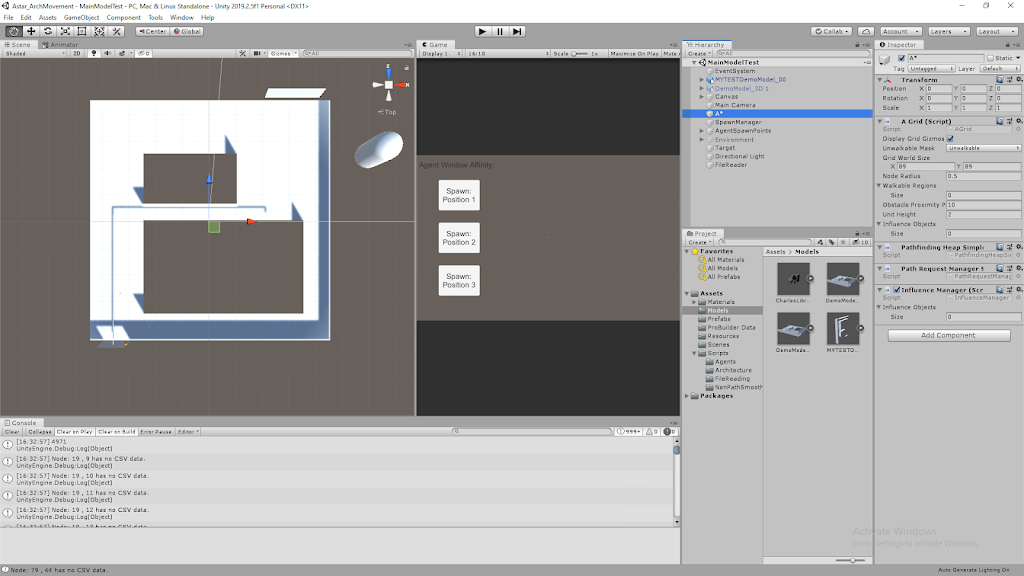
To top off the prototype, we added a quick visualization tool to show any paths that agents have taken within the current game session. This was necessary to make it easier to compare the paths of various combinations of agents and environments even. Along with this, some elements of modifying the system that were only accessible within the Unity Inspector have been moved to the in game UI. This makes it much more manageable to alter the agents and their pathing for Unity users and non-users alike.

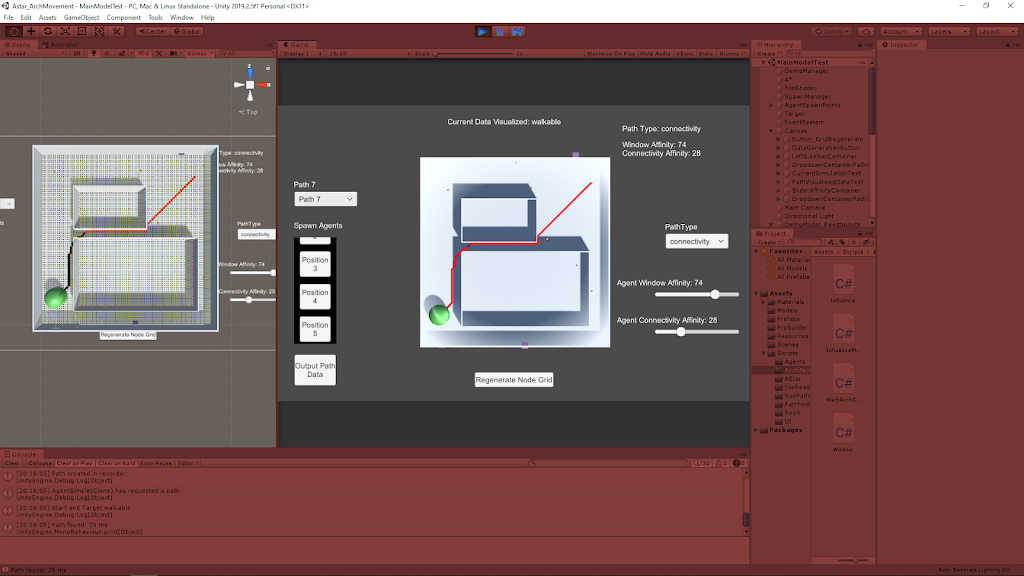
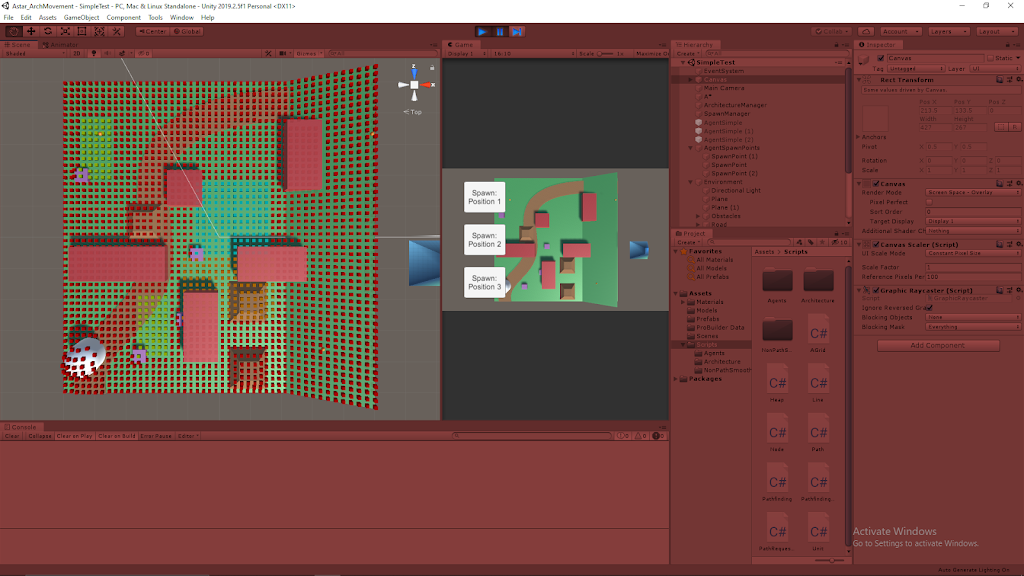
The following quick reference image shows an example of this new path visualization tool (the red line going through the diagonal of the area).

Reference for New Path Visualization Tool (the Red Line is the Path)

Vimeo – My Demo of the Past Path Visualization Tool (with New UI Elements)

Past Path Visualization Feature

Visualization

The path data was already being recorded in an in-depth manner for storing the data in a text format for export, so here we just focused on using that data during the game session to provide another useful data visualization tool. This data is kept as an array of Node objects, which in turn individually hold information on their world position. This provided a solid foundation to visualize the information again.

The array of Nodes could then provide me with an array of world positions which I could use with Unity’s line renderer to create a basic line connecting all of these points. Using the line renderer component also leaves the tool flexible through the Inspector to modify how the line is drawn to fit different needs or environments.

Dropdown UI

To make this easy to access for the user, I added a Unity dropdown UI element to the scene to hold information about all the past paths. It initializes by creating a newly cleared dropdown and adding a simple “None” option which helps keep everything in line, as well as providing the user an obvious spot to go back to when they don’t want to show any previous paths. Then as paths are generated, more options are added to this dropdown to keep it in line with all the paths created (this also keeps their indices in sync for easy reference between the dropdown and the recorded paths).

Added UI Elements for Operating System

As a prototype tool, a quick way to allow for tweaking values and controlling assets is to just use public variables or Unity tool assets (like Unity Ranges and enums within the scripts). This became even cumbersome for myself, so it could be a large issue and slow down for less savvy Unity users. This made me want to explore moving some of these parameters into the game UI for easier use.

Agent Affinity Sliders

I looked into creating Unity UI sliders and since there were pretty easy to implement I moved the range sliders from the Unity Inspector for setting the different agent affinities for the next spawned agent to the game UI. This was straightforward in that the slider values could almost directly be transferred to the spawnmanager (The slider actually goes between values of 0.0 – 1.0 and is multiplied by the max affinity value of the system to properly stay constrained within that range).

Agent Pathing Type Dropdown

After exploring the dropdowns for the path history visualization tool, I also decided to use them for determining the path type of the next spawned agent. This allows the user to quickly choose between different architectural types to use to calculate the agent’s pathing.

Since the architectural types are within a public enum, the dropdown could be populated by the ToString() versions of this entire enum (which can be cycled through in C#). Since they are populated this way in order based on the enum itself, the dropdown can inform the PathFindingHeapSimple (the class that needs to know the type in order to determine which pathing calculations to use) based on the enum index number. They should be kept in sync based on the way the dropdown is created.

Summary

The past path visualization tool is very useful for comparing paths a bit more quickly (since changing values for individual paths can take a small bit of time). It may help in the future of the project to visualize multiple paths at once to directly compare paths very easily. The system also displays information about the path it is showing so the user knows better why the path is the way it is.

Unity’s UI elements are pretty easy to work with, and adding methods to their OnValueChanged delegate is a very nice and consistent way of only calling changes/methods specifically when a UI element is modified. This was perfect for both the dropdowns and the sliders since they only need to invoke change within the system when their values are changed. This keeps them a bit cleaner and more efficient.

The UI elements are strongly tied to the borders of the screen using the standard Unity positioning constraint system, so it can look really messy at smaller resolutions. It operates well enough since there’s not too much going on, so just allocating a decent resolution to the window when using it at least shows everything which is the most important aspect for a prototype.

Move in Unity3D by Jason Weimann – Covering All the Basics

June 30, 2020

Fundamentals of Movement in Unity

All Basic Options

Move in Unity3D – Ultimate Unity Tutorial

Youtube – Link

By: Jason Weimann


Introduction

This video stuck out to me because it always takes me a bit of time to setup even basic movement at the beginning of a small Unity project because there are just so many different approaches that will result in movement, but I always want to try and figure out the optimal solution. Jason Weimann is a great source for covering Unity basics, so this new tutorial looked like a good way to really nail down all the different basic movement options in Unity and really get a strong understanding of when to use different types of movement for different projects and why.

Architecture AI Completed Prototype with Data Visualization and Pathing Options

June 24, 2020

Architecture AI Project

Completed Project Prototype

Introduction

We were exploring different methods for importing architectural models into Unity and decided to try Revit to see what it had to offer. The models are easy to move between softwares, and it also creates .cs scripts that Unity can use to provide some interactive data visualization when using the Revit models.

Data Visualization Options

I moved everything dealing with the major logic of the A* grid node visualization into its own class named AStarGridVisualization. This allowed me to continue to hold on to all the different debug visualization methods I created over the course of the project and convert them into a list of options for the designer to use for visualization purposes.

As can be seen in the demo, there is a list of options in the drop down list in the Unity Inspector so the designer can tell the system which data to visualize from the nodes. The options currently available are: Walkable, Window, and Connectivity. Walkable shows which nodes are considered walkable or not. Window and Connectivity show a colored heat map to show those respective values within the nodes themselves.

Changing Values Used for Pathing

The project wanted to be able to use different types of values to see their effects on the agents’ pathing, so every node has several different types of architectural values (i.e. Window and Connectivity). Using the window information for pathing will give different agent paths than when using the connectivity values, because the agents have different affinities towards these types of values and the nodes have different values for these different types contained within the same node.

The PathFindingHeapSimple class handles the calculations for the costs of the paths for the agents, so I have also located the options to switch between pathing value checks here. This class is responsible for checking nodes and their values to see which lead to the lowest cost paths, so there is another drop down list available to the designer here that determines which architectural value type these checks look at when looking at the nodes. This allows the designer to choose which architectural value actually influences the agents’ paths.

A* Node Grid Construction Options

This point of the project was still working with various types of model imports from various softwares to find which worked the best and most consistent, so I added some extra options for generating the node grid in the first place to give some quick options that may better help line up the node coverage area with the model at hand. These major options located in the AGrid class itself are: GridOriginAtBottomLeft and UseHalfNodeOffset (the third is determining whether the system reads data from a file or not to add values to the node grid, but that’s a more file oriented option).

GridOriginAtBottomLeft

GridOriginAtBottomLeft determines where Unity’s origin is located relative to the node grid. When true, Unity’s origin is used as the bottom left most point of the entire node grid. When false, Unity’s origin is used as the central point of the generated node grid.

UseHalfNodeOffset

UseHalfNodeOffset is responsible for shifting the nodes ever so slightly to give a different centering option for the nodes. When true, half of the dimension of an individual node is added to the positioning vector of the node (in x and z) so that the node is centered within the coordinates made by the system. When false, the offset is not added, so the nodes are directly located exactly at the determined coordinates.

File Reading to Set Values Within Nodes

There are two major ways to apply architectural values to the nodes: using architectural objects (within Unity itself) or reading data from a file. The data files contain x and y coordinate information along with a value for a specific architectural value for many data points throughout a space. These files can be placed Unity’s Assets/Resources folder to be read into the system. The option referenced above in the AGrid to read data from a file or not is the IsReadingDataFromFile bool, and it just tells the system whether or not to check the file told to the system to assign values to the grid.

The FileReader object holds the CSVReader class which deals with the logic of actually reading this file information. The name of the file to be read needs to be inserted here (by copy/paste generally to make sure it is exact), and the dimensions of the data should be manually assigned at this time to make sure the system gets all of the data points and assigns them to the grid appropriately (these data dimensions are the “x dimensions” and “y/z dimensions” ranges of the coordinates within the data).

Demonstration of Prototype

This demonstration helps show the different data visualization options of the grid, the agent spawning system, how changing the architectural value path type changes the agents’ paths, and how a lot of these systems look in the Unity Inspector.

Vimeo – Architecture AI Project Prototype Demonstration

Summary

I really liked a lot of the options I was able to add to help increase the project’s overall usability and make it much easier to switch between various options at run time to test different setups. The end product is meant to help users that may not have a lot of Unity experience, so I tried to reduce the learning curve by making a lot of options easily accessible with visible bools and drop down lists, while also providing some simple buttons in the game space to help with some other basic actions (such as spawning new agents).

Many of the classes were constructed with scalability and efficiency in mind, so expanding the system should be very doable. However much of this scalability is still contained within the programming itself and the classes themselves would need to be modified to add more options to the system at this point (such as new architectural types). This is something I would like to make more accessible to the designer so that it’s intuitive and possible to modify without programming knowledge.

The file reading system works well enough for these basic cases, but it could definitely use some work to be more flexible and work with various node grid options. This is something I could use more work on in general, and having systems to read in files and output files to record data would be useful to understand better in general.

Architecture AI Working with Revit Models and Scripts in Unity

June 15, 2020

Architecture AI Project

Revit Models in Unity

Introduction

We were exploring different methods for importing architectural models into Unity and decided to try Revit to see what it had to offer. The models are easy to move between softwares, and it also creates .cs scripts that Unity can use to provide some interactive data visualization when using the Revit models.

Parameters Import Script

This script creates a large list of strings. It does so by receiving an identification looking string, and uses a method to convert that string into its corresponding parameter information.

Example:

private string ParamByName(string d)
{
switch(d)
{
case “Generic_-_12″_[354721]”:
d = “Area : 8100 ft2 nElevation at Bottom : -1 ft nElevation at Top : 0 ft nType Name : Generic – 12″ n”;
break;


}

return d;
}

Parameter Mouse Over Script

This script uses the name of this.gameObject to add information to the parameter list. The names of all the individual parts of the Revit model correspond to all the input strings found in the ParametersImport partner script. This shows that we most likely need to place this script on every piece of the model individually (since it’s only adding the one name of this.gameObject).

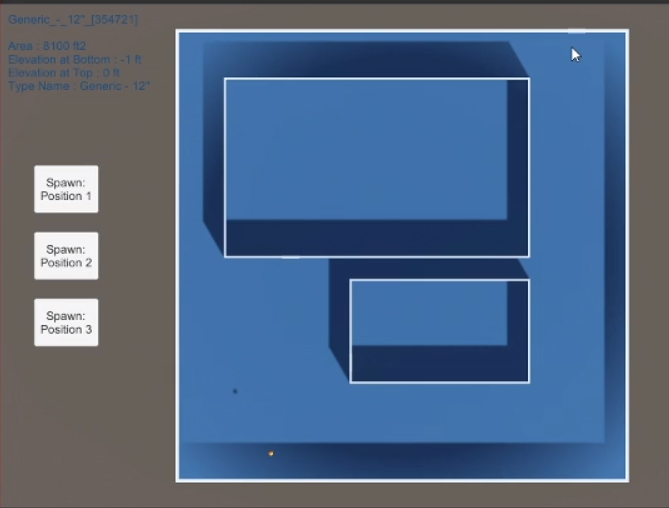
Adding this script to each individual gameObject present in the Revit model got it working. When mousing over the individual parts, it highlights that part with a color and displays some text information about that piece.

Revit In Unity Example

My Example Image of Revit Model with Mouse Over Parameters Shown

The following link shows an example of me using a Revit model in Unity with the corresponding scripts to get the Mouse Over action working.

My Showcase of Revit Model and Scripts

Summary

This is a nice included data visualization tool that can be included essentially for free. The information it provides could possibly be helpful, but the scripts are also very simple so they could easily be tweaked to include other information. All the information is also included in strings within the scripts already, so that data could possibly be extruded for other uses (if that turns out to be an easier way to get said data).

UnityLearn – AI For Beginners – GOAP – Setting Up GOAP System

June 11, 2020

AI For Beginners

Goal Orientated Action Planning (GOAP)

Parts 4, 5, and 6


Beginner Programming: Unity Game Dev Courses

Unity Learn Course – AI For Beginners

Intro

This part of the course gets into actually programming the GOAP system and using it within their example Unity project. These tutorials focused on setting up the foundational classes: GAgent, GAction, GWorld, and WorldStates. These are used as the core of the system as they either hold all the information to pass around through the system, or serve as the base classes to work with for creating agents within the system.

The World States

The World States

    The main scripts created here are:

  • GAgent
  • GAction
  • GWorld
  • WorldStates
WorldStates:

They added another class within this script named WorldState. This WorldState class just holds a string named key, and an int named value. These will be used for a dictionary setup, hence the key and value naming setup. The rest of the WorldStates class itself deals with creating and modifying said dictionary of WorldState objects. It has several dictionary management methods such as: HasState, AddState, ModifyState, RemoveState, SetState, and finally GetStates (to return all states when needed).

GWorld:

This was set as a public sealed class, because this will apparently help with setting up queues in the future. It also makes use of a singleton pattern to create a single location to hold all the world data that can be accessed by many objects.

Actions

Actions

GAction class:

This class is an abstract class, so it will be used as the overall parent class from which all actions for the GOAP system will be derived. Therefore it will serve as a framework for those classes.

Important Fields within this Class:
  • float cost – assigns value to an action (or chain of actions) to help determine between various plans
  • GameObject target – location where action will take place
  • float duration – how long the action will take to perform
  • WorldState[] preconditions – group of preconditions which the action requires to be met in order to perform said action
  • WorldState[] afterEffects – state results from performing this action
  • WorldStates agentBeliefs – states within the agent necessary to monitor with this action

The constructor for the GAction class just initializes a new dictionary for preconditions and effects (preconditionsDict and effectsDict). There is then a method named IsAchievable to determine if a particular goal can be achieved (which just returns true currently and that is it). Then there is an IsAchievableGiven method, which requires an input parameter of a Dictionary of conditions to see if they are present in the preconditionsDict within this action (so it basically returns whether the preconditions of an action are met or not).

Finally, there were two abstract methods added to use in derived actions. These were Preperform() and Postperform(). Preperform provides extra logic to check for before performing an action (i.e. checking what resources or agents are available), and Postperform will hold extra logic for how the world or agent states are impacted after the action is performed.

Agents

Agents

GAgent Class:

This class will use the System.Linq namespace to help sort and organize objects. They also added a SubGoal class within the GAgent script. This helps hold goals within the overall goal that can be added and removed as they are completed. This tutorial sets up the GAgent class so that it can be populated with GAction objects that are available for that specific GAgent.

General Unity Note – GetComponents Method

They use this.GetComponents (plural) to fill an array with all the components located on this game object. That is a good way to quickly populate an array with a bunch of similar components on a single game object I hadn’t used before.

Summary

It was nice to finally get into actually programming the GOAP setup after following all the conceptual work. I really enjoy setting up base classes for bigger systems and getting to see the foundation of the GAction class specifically is interesting and I am excited to see how it ends up working out. I can already start to see how the flexibility of this system works through the GAction class specifically.

It feels like a lot of information needs to be passed around, and there are going to be some large classes holding a lot of information at one time, such as those holding information about the entire world state. I am interested to see how they approach these two issues while keeping everything manageable on the programming side while also keeping it running efficiently enough to run several agents (and different types of agents).

UnityLearn – AI For Beginners – GOAP – Introduction to GOAP

June 10, 2020

AI For Beginners

Goal Orientated Action Planning (GOAP)

Parts 1, 2, and 3


Beginner Programming: Unity Game Dev Courses

Unity Learn Course – AI For Beginners

Intro

This course covers goal orientated action planning (GOAP) as another way to set up flexible systems of AI behavior. This blog covers the first 3 tutorials of the course which introduce the general GOAP concept by defining its parts and explaining the planning process going in to creating a GOAP system.

An Introduction to GOAP

GOAP Introduction

    Goal Orientated Action Planning (GOAP):

  • has all the elements of a finite state machine, but uses them differently
  • uses graphs for processing
  • GOAPs actions and goals are decoupled
  • actions are free elements in the system that are mixed/matched to meet goals
  • instead of having a list of actions needed to meet a goal, GOAP allows for multiple solutions to be chosen from
Actions

Components: Precondition, Effect
Precondition: state that must be met before the action can take place
Effect: how the action leaves the state of the agent (or world) after the action has occurred
Actions are connected similarly to dominoes where the effects of actions are matched with the preconditions of other actions to create action chains.

Goal: the end state of the agent

Creating a plan comes from understanding the current state of the agent itself and the world around it. The planning stage of GOAP works backwards to see if it is achievable from the currents states (again, of the agent and the world it understands). Since this approach can lead to multiple action chains that lead to the same goal, costs are implemented to help the agent decided which action chain to choose (and in the case of a tie, one can be selected at random).

A general GOAP system follows this structure where actions, goals, and the world state data are fed into a planner. The planner chains actions together according to the goals and starting states to see which plans are achievable. The planner uses the A* algorithm (exactly the same as some pathfinding algorithms) to determine the “best plan”. Once a plan is generated, the agent goes to achieve it with a simple state machine. This state machine looks to simply move the agent where it needs to be to perform the actions necessary, and perform said actions until a goal is achieved. Before each action is performed, it is checked to see if it is valid. If it is not valid anymore, the entire plan is abandoned, and a new plan is generated.

One of the biggest benefits of the GOAP approach is that new actions can continually be added to the pool of available actions for the agent. These actions will then always be picked up by the planner as another possible action to create an action chain or plan to solve a goal. The planner effectively creates the total graphs of actions for the designer, so it is also just easier to program additional factors as complete graphs do not need to be directly programmed as is more common with complete finite state machines.

Setting Up A GOAP Environment

Setting Up A GOAP Environment

This first major tutorials starts the setup for a basic GOAP project. It is set in a small hospital with patient agents and nurse agents.

Patient Agents

They come into the hospital and get registered at the recption desk. They then move to the waiting room until it is their time to be received by the hospital where they are then brought to a cubicle to be checked on before leaving the hospital.

Nurse Agents

They operate the reception desk receiving incoming patient agents, they come and grab patients from the waiting room to take them to a cubicle to check on them, and they can also rest in the staffing area if they need a break.

Since a lot of the actions and goals of these two agents are heavily location based, they implemented an underlying waypoint system to the entire setup. Empty gameobjects are set at all the critical locations to be used as waypoints for guiding the agents moving forward. All the waypoints have been tagged with individual unique tags to help the agents locate them immediately upon instantiation.

Pre-Planning the Agent Actions

Pre-Planning the Agent Actions

The foundation of GOAP is that there are: goals, actions, and states. These must all be taken into consideration when planning those which to include and which should be able to lead into others when graphing out plans. An agent has a list of goals it can achieve. It also has a pool of actions it can use to achieve these goals. The actions may also require other actions before being able to be performed. Some actions may also require other agents or some other outside resource.

Patient Actions:
  • Come into hospital
  • Register at the front desk
  • Go to waiting room
  • Get treated when nurse and cubical are available
  • Go home
Nurse Actions:
  • Get Patient
  • Go to Cubicle
  • Rest

The agent must draw information from the world states to help determine what goals are achievable. It will also combine this information with its own state (data it has within itself) to help it determine what is possible. This world state information and the agent state information is passed into the planner, along with all the goal and action options of the agent, so the planner can generate a plan for the agent.

Summary

Overall this felt like a good introduction to the GOAP AI system approach. While I don’t think I could build my own systems quite yet using it, I have a much better understanding of the overall concept and how it can be used to create a flexible set of options for actions for AI’s to use to guide their behavior. The ability to add actions to this pool with relatively little cost is very nice for creating a scalable system with a lot of variability. I could also see this leading to a lot of interesting emergent behavior with large pools of agents, goals, and actions. I look forward to the next parts of the course where they get more into how to program such a system.

Architecture AI Reading CSV File Data to Use in Node Grid

June 8, 2020

Architecture AI Project

Read CSV File

General Goal

For this architecture project we wanted to be able to read data exported from other softwares into Unity. Initially we will be using data from Rhino, but it will be converted to a very generic format (like .csv), so it should be more widely applicable. This data will be used as another way to inform the node system and assign architectural values to these nodes which will again be used to inform the decisions of the agents traveling with the node system.

Using Text Data in Unity

Our text files will be very simplistic, so we can use a very straight forward approach to organizing and using the data from the text files. Each line of data is important for a single node, so splitting on a line will help organize individual node information. Then we just have to split up the information within that line to spread the information out to the proper variables within the node.
Both of these actions can be handled with a string array created from using the Split method at a specific character. Split() is a method within the String class which allows you to easily create separate strings from a single string that is split at a certain location. To create the separate lines of data, the strings are split on the new line character (‘n’), where as when we are splitting up the data within a single line, we split the string on the comma character (‘,’). This specifically works here since we are dealing with .csv files.
This approach pretty easily parsed out the .csv data for me in string format to start using with the node system.

Visualizing Proper .csv Data Distribution on Nodes

I wanted a way to effectively assess and debug whether the system was working properly or not, so I decided to use my node visualization approach I have used for other values already. Using my heat map coloring system for the node visualizer, I just want to visualize the nodes in accordance with their connectivity values (which will be fully applied by the .csv file and the file reader alone).

Actually Applying .csv Data to the Nodes in Grid

This process is much more difficult to find a solution which is quick and somewhat efficient. The original thought of just searching and matching locations blindly would take a very long time every time a grid was initialized, so using the organization of the data to assign these more efficiently will be key.

Approach #1:

Since the .csv data is organized by coordinates in a way similar to how the grid is built in the first place, it made sense to just fill the Node data in from the .csv file data as the grid was built. As long as the .csv data is incremented in a way to continually match the new node positions, this should work rather well.

Issues:

The .csv data is not perfectly rectangular. It does not have values at all for areas where there are gaps or holes, which the node grid does, so it is not just a 1:1 ratio of .csv data points and nodes

Solutions:

  • To keep the data aligned, I am using a check to make sure the current Node having its values assigned matches the coordinates within the current chunk of .csv data looking to be assigned
    • If they match, assign the architectural value (connectivity in testing) and increment the .csv data counter
    • If they do NOT match, do NOT assign the value and do NOT increment the .csv data counter
    • This helps hold on to the .csv data until the proper node is found
    • This must be done very carefully however as if they ever get out of sync, it will basically just stop assigning data forever (because it will just continually wait until the proper node is found)
  • Keeping array indices correct for both sets of arrays is paramount for this system to work
    • The Grid nodes start at 0 and go to (maxDimension – 1)
    • The File nodes start at 1 and go to (maxDimension)
    • The Grid is fully rectangular, where as the File skips coordinates where there is no data
  • Keeping all this in mind, this was the check to keep the arrays straight and assign the proper values to the proper location:
if ((node.gridX + 1) == fullData[dataCounter, 1] && (node.gridY + 1) == fullData[dataCounter, 2])
{
            node.Connectivity = fullData[dataCounter, 3];
            dataCounter++;
        }

    • Just adding 1 to both the x and y dimensions of the grid units makes sure they are in line with the proper data found in the .csv value
    • The dataCounter value keeps track of which row of data to use (which actually ends up reaching the total number of .csv file data nodes (Roughly close to the number of Grid nodes unless there are a lot of gaps))
    • Then the second dimension of the fullData array is simply just the columns of data within the .csv file (so for this basic case, there are only 4 columns)
    • The data from the fullData columns for x and y coordinates are used for the check, then the last column is where the actual value is found that is assigned to the node if the correct one was found
    • The dataCounter is only incremented IF data was actually set
      • This keeps it on the same chunk of data until the proper grid node is found to assign it

Images of Data Visualized

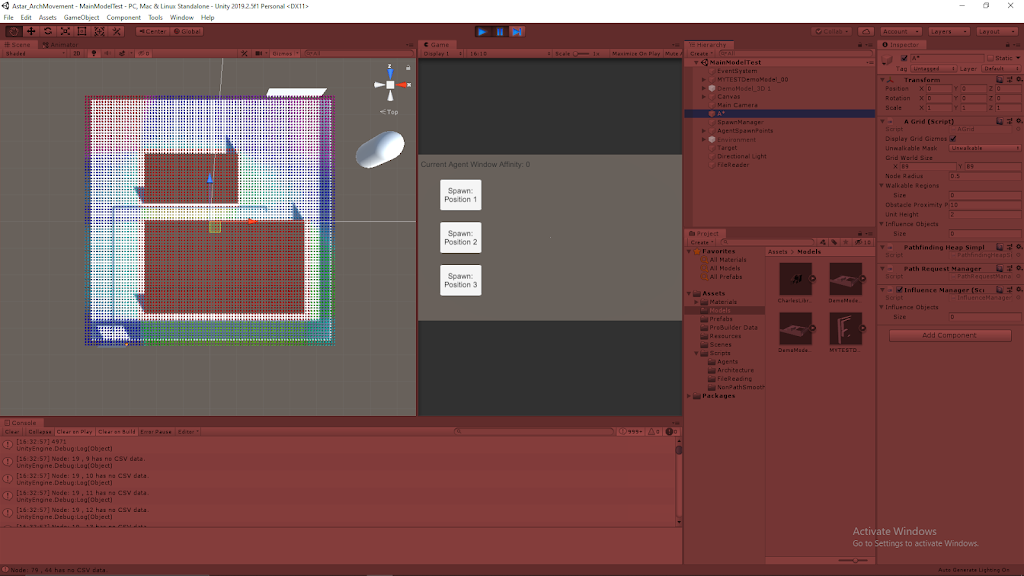
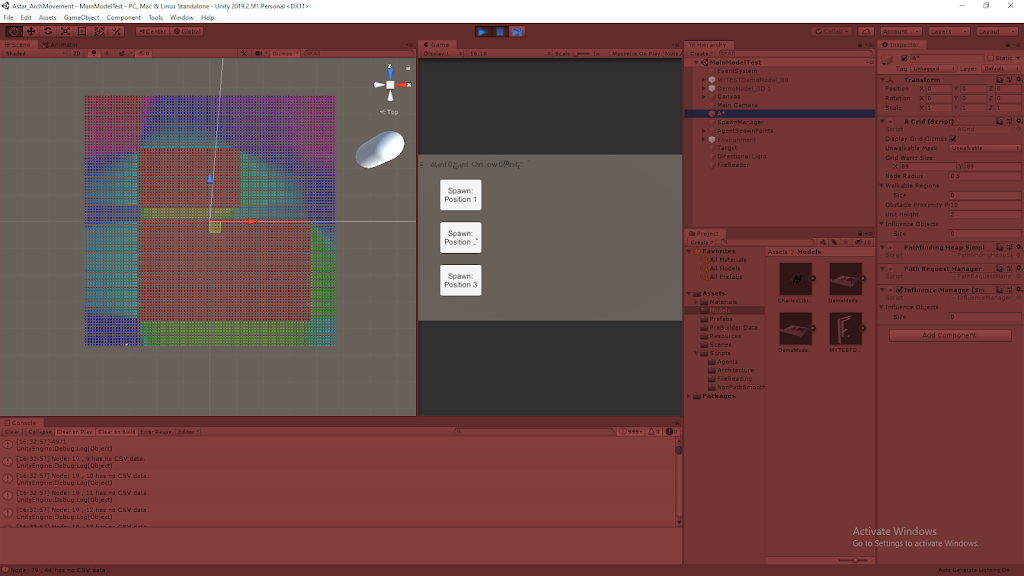
I was able to pass the connectivity data from Rhino into Unity through a .csv file and properly apply that data to the same relative locations within Unity. I overlayed this data with the model that was originally used to generate the data in Rhino, in Unity. I passed the connectivity values into the properly associated nodes as determined by the Rhino .csv value, and then visualized these values on the nodes by coloring them with a heat map-like approach.
I am still using a very basic heat map coloring system that isn’t super clear as the color system I use is cyclical (which means values that are very low and very high both appear reddish), but the images at least show the general idea pretty well. It also shows the gaps are being picked up properly as connectivity values are clearly not assigned there (giving them their base value of 0 which is very low, making those nodes red).

View #1: Node Visualization Over Model

View #2: Node Visualization (without Model)

View #3: Model (without Node Visualization)

Summary / Moving Forward

While this is a good start, it will stay take a lot of work to make the overall system more automated. For example, even this process of keeping the nodes in line with the .csv data is a bit forced because this only works by making the grid have the same dimensions as the .csv data. Further development could help account for cases where you want to scale the system and have more nodes than data points or vice-a-versa.
The models are currently using U.S. units (feet) where as Unity inherently works on the metric system (meters). This immediately presented a bit of a scaling difference just to make sure the data matched up with the actual virtual model. This can make matching everything up exactly a bit tricky because the node system works on an integer system and you can only have whole numbers of nodes, but perfectly matching these systems can result in some fractional values when converting between units, which can end up adding some extra node data around the edges that just isn’t accounted for.

Architecture AI Varied Agent Affinities with Varied Pathing

May 28, 2020

Architecture AI Project

Varied Agent Affinities with Varied Pathing

Demonstration of Varied Agent Affinities with Varied Pathing

Vimeo Link – My Demo of Agents Pathing with Varied Affinities

Explaining Simple but Unclear Heatmap Coloring System

Just to help explain since I don’t have great UI in to explain everything currently, the first thing was that I was testing a really rough “heat map” visual for the architectural values for now. When you turn on the option to show the node gizmos now, instead of uniform black cubes showing all the nodes, the cubes are colored according to the architectural value of the node (for this test case, the window value) Unfortunately this color system isn’t great, especially without a legend, but you can at least see it’s working (I just need to pick a better color gradient). Red is unfortunately both values at/near 0 (min) as well as at/near 100 (max) (but the value range here is only from 0 – 80, so all red in this demo is 0).

Agent Affinity/Architectural Value Interaction for Pathing

The more exciting part is that the basis of the agent affinity and architectural value interactions seem to be working and affecting their pathing in a way that at least makes sense. Again just for demo purposes so far, as can be seen in the video (albeit a bit blurry), I added a quick slider on the inspector for the Spawn Manager to determine the “Window Affinity” for the next agent it spawns (for clarity I also added it as a text UI element that can be seen at the top of the Game View window). Just to rehash, this has a set range between 0 and 100, where 0 means they “hate” windows and avoid them and 100 means they “adore” windows and gravitate towards them.

Test #1: Spawn Position 1

As can be seen in the first quick part of the demo, I spawn 2 agents from the same position 1 but with different affinities. The first has an affinity of 0, and the second has an affinity of 100. Here you can already see the 0 affinity agent steers towards the left side of the large wide obstacle to avoid the blue (relatively high) window area, where as the 100 affinity agent goes around the right side of the same obstacle, preferring the high window valued areas in the blue marked zone.

Test #2: Spawn Position 2

Both the 0 affinity and 100 affinity agents take very similar path, differing by only a couple node deviations here and there. This makes sense as routing around the large high window value area would take a lot of effort, so even the window avoidant agent decides to take the relatively straight forward path over rerouting.

Test #3: Spawn Position 3

This test demonstrated similar results to that of Test #1. The 100 affinity agent moved up and over the large obstacle in the southern part of the area (preferring the high window value area in the middle again), where as the 0 affinity agent moved below the same obstacle and even routed a bit more south just to avoid some of the smaller window afflicted areas as well.

Summary

I did some testing of values in between 0 and 100 and with the low complexity of the area so far, most agents ended up taking one of the same paths as the 0 or 100 affinity agents from what I saw. This will require more testing to see if there already exists some variance, but if not, this suggests that some of the hardcoded behind the scenes values or calculations for additional cost may need tweaked (as is expected). Overall though, the results came out pretty well and seem to make sense. The agents don’t circle around objects in a very odd way, but they also do not go extremely out of there way to avoid areas even when they don’t like them.

Architecture AI Heatmap of Architectural Costs

May 27, 2020

Architecture AI Project

Visualizing Heatmap of Architectural Costs

Architectural Cost Heatmap

I was just using basic black cubes to visualize the grid of nodes in the AGrid A* system originally. Now I finally decided to update that system with a bit more information by adding a colored heatmap to map out the architectural values of the nodes. This will help me understand the pathing of my agents better as they start to use these values in more complex and interesting ways.

Basic Heatmap Color System

It turns out making a heatmap color scale that decently ranges between values of 0.0 and 1.0 is pretty easy. Using HSV color values, you can just vary the H (hue) value while keeping the other two values constant at 1.0 to cover a heatmap spectrum (where H of 0.0 is the lowest value in the range, 1.0 is the highest value in the range, and all other colors are bound within that range). By simply using the min and max architectural values possible in the system as the range bounds I could easily set this type of system up.

Applying Colors to Visualization

For now I decided to just apply this heatmap color methodology to the cubes mapping out the A* grid for now. While these gizmo cubes used to just be colored black for simplicity, now they are colored according to the heatmap color system using the architectural value found within the node.

Bug: Influence Objects Found to Radiate Improperly

The influence objects which apply architectural values to the nodes around them were initially designed to apply in an area around them, with the objects in the center. After applying the heatmap, it was clear that the influence objects were not applying to the nodes intended. It appears the influence actually uses the position of the influence object as the bottom left corner, and radiates upward and to the right (so just in the positive x and z direction away from the object). This is something I will have to look into to make sure it’s an issue with the influence objects, and not the coloring system.

Current Heatmap System (with Bugged Influence Ranges)

UnityLearn – AI For Beginners – Crowd Simulations – Fleeing

May 22, 2020

AI For Beginners

Crowd Simulations

Part 2


Beginner Programming: Unity Game Dev Courses

Unity Learn Course – AI For Beginners

Intro

I was going to combine both of the end parts of the Crowd Simulation tutorial into one blog, but the Flocking tutorial was rather large and interesting so I decided to break it off into its own post. Because of that, this is a smaller one just focused on the basic fleeing crowd logic.

Fleeing

This is similar to the concept covered with single AI agents, it is just being applied to many agents here. An object is introduced to the environment and the fleeing agents determine the vector towards that object, and set a new course for the exact opposite of that vector.

Key Parameters covered for their flee inducing object:
Radius of Influence – how close agents must be to be affected by the object
Cooldown – how long an agent flees before returning to standard behavior

They decided to induce fleeing by adding a cylinder object to the Nav Mesh environment by clicking. This required adding a mouse button script along with adding a dynamic obstacle to the Nav Mesh again (similar to the FPS controller from the last tutorial).

This tutorial gets into several useful NavMesh methods that have not been used yet. These are helpful references to use when expanding and developing my own pathfinding methods, since they show some useful options to give developers when working with intelligent pathfinding.

There are NavMeshPath objects which hold information about a path for the agent to some given destination. You can set these path objects using the CalculatePath method, using a vector3 position (the destination) and the NavMeshPath object as parameters to set that path with that given destination. This alone does NOT set the agent along this path, it simply gets the information for that path (this is useful for the next step).

They perform a check on the path using fields within the NavMeshPath class and an enum named NavMeshPathStatus before actually setting the new destination of the agent. The check is as follows:

NavMeshPath path = new NavMeshPath();
agent.CalculatePath(newGoal, path);

if(path.status != NavMeshPathStatus.PathInvalid){… }

You are able to access the status of a NavMeshPath with a field within the class. They use this to check that the status of the newly created path is valid by checking it against the PathInvalid option within the NavMeshPathStatus enum. Only after passing this check do they set the newly determined path of the agent. Here, they also show that NavMeshPath has a vector3 array field named corners, which are effectively the waypoints of the path the agent uses for its pathfinding.

Summary

This fleeing logic was pretty basic, but it was helpful to learn a bit more about Nav Mesh in general for Unity. The extra information about NavMeshPath was good to learn about, as well as giving me more options on useful aspects to give my own pathfinding systems.